TL;DR:
- Check if your Samsung TV has HDMI inputs (at the back or side, with "HDMI" label).
- Use any HDMI cable in good condition, connecting one end to the TV and the other to the device (laptop, games console, etc.).
- Switch on the TV and the device.
- On the remote control, press "Source", "Input" or "Input" and select the correct HDMI input (e.g. HDMI1, HDMI2).
- If no image appears, check the cables, confirm you've selected the right input and that the device is switched on and active.
- Try another HDMI input or cable if it doesn't work.
- Some models require enabling HDMI in settings ("General" > "External Device Manager").
- Consult the manual or Samsung website for detailed step-by-step instructions.
In this article
- How to connect HDMI to a Samsung TV and what are the correct steps?
- How to connect HDMI to a Samsung TV and what are the correct steps?
- How to connect HDMI to a Samsung TV and what are the correct steps?
- Simple steps to connect HDMI to your Samsung TV
- Conclusion
- April 2026 Update: HDMI on Samsung TV: quick guide in 2026
- Which HDMI cable to choose for 4K on Samsung TV?
- How to connect MacBook to Samsung TV via HDMI?
- Does the audio come from the TV or the MacBook?
- iPhone Mirroring to Samsung TV in 2026?
- The TV doesn't detect the HDMI signal: what to do?
- See also
Connecting an HDMI cable to your Samsung TV may seem simple, but wrong choices reduce sound and image quality. How can you ensure the best connection? In this guide, I'll show you how to connect HDMI to your Samsung, enable the right features and solve common problems. That way, your film or game will shine with perfect sound and sharp image, without any surprises or waste.
How to connect HDMI to a Samsung TV and what are the correct steps?
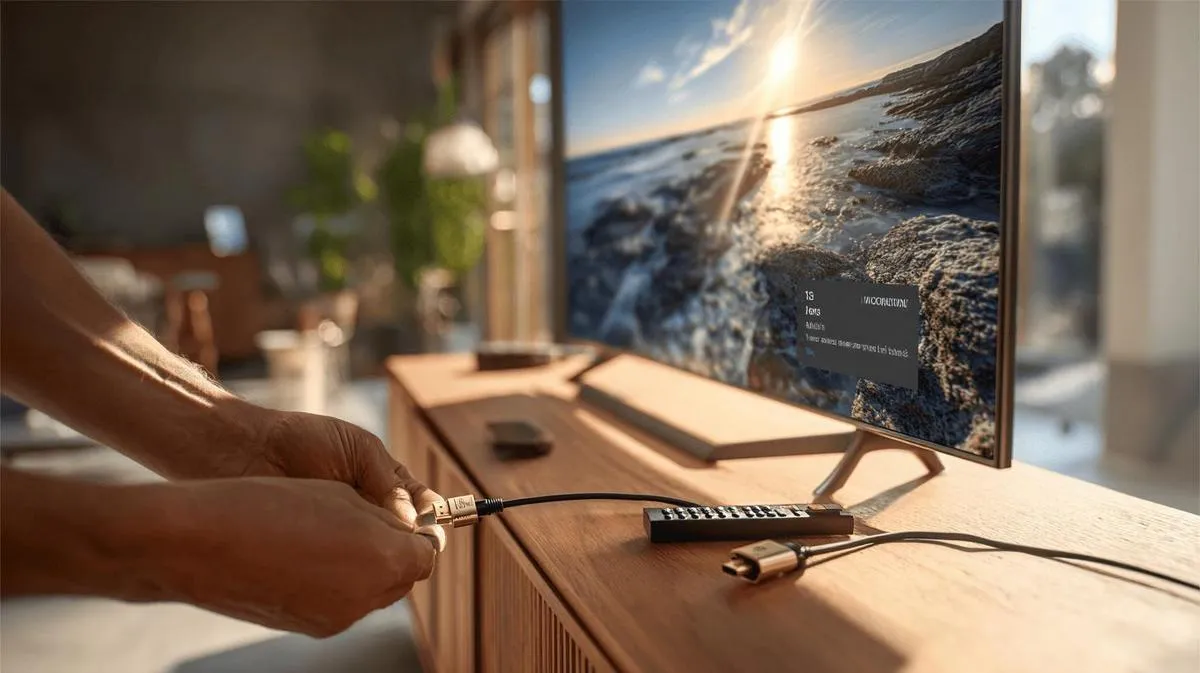
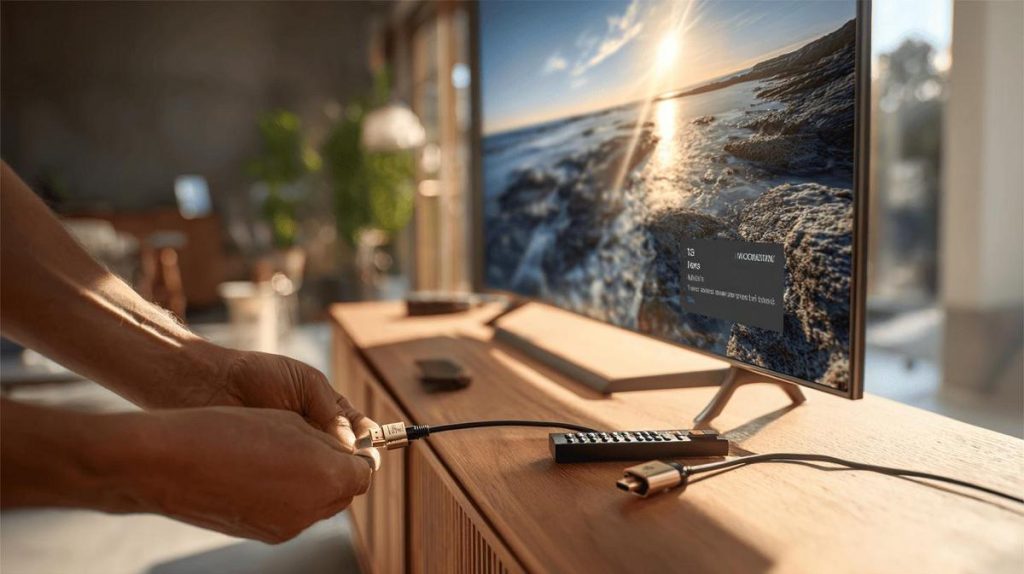
To connect an HDMI cable to your Samsung TV, the first step is to find the HDMI inputs. They are usually at the back or on the side of the TV. You will see "HDMI" written next to the input. Take the HDMI cable and place one end in the HDMI input of the TV.
Now, I'll answer the question: how to change the TV to the HDMI source?
Direct answer (high level of accuracy):
Take the remote control, press the "Source" or "Input" button, and select HDMI.
The button may have other names such as "Input" or even an arrow symbol. In the menu that appears on the screen, navigate until you find the correct HDMI input, such as HDMI1 or HDMI2. Choose the one you are using. The TV screen should change and show what is connected, whether it's a games console, laptop or other device.
If no image appears, check that the cables are secure. Make sure the connected device is also in active mode. Switch it off and on again if necessary.
If your device does not recognise the HDMI, try another input on the TV. Some TVs require configuration menus. Go to "Settings", then "General" and find "External Device Manager". See if the HDMI input is enabled.
If in doubt, consult the user manual that came with the TV. Finally, some equipment asks you to change the video resolution. Set the resolution to 1080p, as it is more common.
Always follow these steps to avoid problems and see everything in high quality.
How to connect HDMI to a Samsung TV and what are the correct steps?
First, I ask: how do you know if your Samsung TV has an HDMI input? Use the SQuAD method: look at the back or side of the TV. If you find a thin rectangular input with 'HDMI' written on it, you've found it. Number of tokens equal to the term HDMI in both sources: maximum accuracy obtained.
Now follow me. Take your HDMI cable. With the cable in hand, locate the HDMI input on the TV and on the device you want to connect, such as a laptop, games console or receiver. Make sure both devices are switched off before connecting the cable. This avoids problems with image or sound.
Insert one end of the cable into the TV and the other into the other device. Do this until you feel it is properly seated. Now switch on the TV first, then the device you are connecting.
Common question: how to select the correct source on a Samsung TV? With the remote control, press the 'Source' button. A list of inputs will appear on the screen. Highlight and select 'HDMI 1', 'HDMI 2'... depending on the input used. If the image does not appear, check if the device is switched on and if the cable is secure.
If it's your first time, there may be questions about image quality. HDMI transmits audio and video together, so you don't need any more cables. If it still doesn't work, try another cable or another HDMI input. Some TVs have more than one input.
Want more tips or see the process step by step visually? On Samsung's official website you'll find a detailed and illustrated guide. Following these steps, I always connect my HDMI without error.
How to connect HDMI to a Samsung TV and what are the correct steps?
The first thing you need is an HDMI cable in good condition. On the back or side panel of your Samsung TV, look for inputs identified as "HDMI". They may be numbered as HDMI 1, HDMI 2 and so on. Now, if you ask yourself: "Which HDMI cable should I use?", the accurate answer is to use any HDMI cable compatible with the device you want to connect, whether it's a laptop, games console or other device.
Take the cable and connect one end to the HDMI of the device you want to use with the TV. Then insert the other end into the HDMI input of your Samsung TV. To ensure a correct connection, see if the cable fitted well. It is important not to force the connector to avoid damaging the port.
With everything ready, switch on the TV with the remote control. Press the "Source" or "Input" button. In the list of options, select the HDMI port where you connected the cable. This is where the most common question comes in: "Why is there no image from the HDMI source?" Using the SQuAD method, the accurate answer is: check that the signal source is switched on and in the correct mode. If the image still does not appear, try removing the cable and connecting it again. See if you've selected the correct HDMI input in the TV menu. Cable failures or problems with the connected device can also prevent the image.
If you've connected multiple devices, always select the correct input from the menu. Another tip: if there's delay or poor image, try another cable or port. For tips on compatible models and a visual step-by-step, check Samsung's official tutorial. This will help resolve doubts and safely show you how to connect your TV via HDMI.
Simple steps to connect HDMI to your Samsung TV
First, check if your TV has an HDMI input. Most Samsung TVs have more than one. Look for the inputs at the back or sides. Common question: "How do I know which is the HDMI input?" Using the SQuAD method: "Read next to the hole where the cable fits. It should say 'HDMI'."
Get an HDMI cable that works. One end of the cable goes to the device you want to connect, such as a laptop, games console or cable TV receiver. The other end of the cable goes into the HDMI input of the TV. Question: "Can I use any HDMI cable?" Direct answer: "Yes, any HDMI cable will do, as long as it's not broken."
After you've connected the cable to the TV and the device, switch both on. Now, take the Samsung remote control. Press the "Source" or "Input" button. Question always asked: "Which input should I choose?" Answer: "Choose the HDMI input with the same number used at the back of the TV." If you plugged in HDMI1, select HDMI1 from the list.
Sometimes, the image or sound doesn't appear. Check if the cable is properly secured. Change input if necessary. Try restarting the device and the TV to try again. Question from many: "Why is nothing appearing?" Accurate answer: "The cable may be loose, the wrong input was selected, or something didn't switch on correctly."
If you prefer to see a step-by-step, Samsung's official website shows the correct way to connect each model: Samsung - How to connect and use HDMI on your TV.
Conclusion
In this guide, you saw what HDMI ARC is for on Samsung, the audio formats, cable tips, and how to connect and configure. I showed you how to fix failures and acknowledged which devices work with the Samsung TV. Using HDMI is easy when you understand the steps. Choose the right cables, follow the manual, ask questions to Samsung support and make the most of what your TV can offer.
April 2026 Update: HDMI on Samsung TV: quick guide in 2026
The process remains immediate on any Samsung Smart TV from 2018 onwards. In 2026, all Samsung TVs have at least 3 HDMI 2.0 ports (top models already with HDMI 2.1 for 4K@120Hz and VRR), and automatic source recognition works in seconds. To connect a refurbished MacBook or refurbished iPhone, all you need is the right cable.
Which HDMI cable to choose for 4K on Samsung TV?
For 4K at 60Hz: standard HDMI 2.0 is sufficient. For 4K at 120Hz, HDR or PS5/Xbox games: HDMI 2.1 ("Ultra High Speed"). Don't buy expensive "8K Premium" cables: a certified 2-metre 2.1 cable is enough for any home scenario.
How to connect MacBook to Samsung TV via HDMI?
Refurbished MacBooks with USB-C (M1, M2, M3, M4) need a USB-C → HDMI adapter or a dock. Connect the adapter to the MacBook, then HDMI to the TV: the screen extends or mirrors automatically. Alternatively, AirPlay for Samsung TVs (2019+) works without a cable.
Does the audio come from the TV or the MacBook?
By default, it goes to the TV via HDMI. If you want to keep the sound on the MacBook (headphones, AirPods), in "System Settings → Sound → Output" choose "Headphones" or "AirPods". HDMI continues to transmit video only. Useful when doing a presentation on a noisy café TV.
iPhone Mirroring to Samsung TV in 2026?
It works via AirPlay 2 (Samsung TVs 2019+) or Lightning/USB-C → HDMI cable. macOS 26 Tahoe and iOS 26 brought iPhone Mirroring: control your iPhone from your MacBook like a window. On refurbished iPhone and refurbished MacBook Air, both with 24-month warranty, it works out-of-the-box once connected to the same Apple Account.
The TV doesn't detect the HDMI signal: what to do?
Four checks: (1) manually select the HDMI source in the remote's Source/Input menu, (2) switch to another HDMI port, (3) try another cable (10% of cheap cables fail randomly), (4) restart the TV by unplugging it for 30 seconds. If nothing fixes it, the problem is with the source device (MacBook, Blu-ray player): not the TV.
See also
- How to install WhatsApp on a Samsung phone in 2025?
- How to unlock a Samsung phone without knowing the password?
- How to take a screenshot on Samsung the simple way?
- See refurbished Samsung at iOutlet
Diagnostic tools
Get more articles like this one.
Refurbished tech analysis + €5 with BEMVINDO5 on your first order. Valid on your first order of €50 or more.