TL;DR:
- The Samsung S9 camera reads QR codes natively, with no extra apps needed, provided the system is up to date.
- Simply open the Camera app, point it at the QR code and wait for the on-screen prompt or link.
- If it does not work, check that the "QR code reader" option is enabled in the Camera settings.
- If you cannot find the option, update the device or use the Samsung Internet browser, which also includes a QR code reader.
- The feature is useful for quickly accessing links, contacts and Wi-Fi networks.
- For technical details, consult the official Samsung support website.
- Only scan QR codes from trusted sources; the S9 may warn you about suspicious sites.
In this article
Do you know how to scan a QR code on the Samsung S9 in seconds? Many of my customers have questions about reading these codes on the Galaxy S9. If you want to unlock links, menus or promotions directly from your phone, read on. Here I show you how to use the camera, the quick panel and extra apps. I guarantee an easy, safe, step-by-step guide tested by me.
How does scanning a QR code on the Samsung S9 work with the device's camera?
The Samsung S9 camera can scan QR codes, yes. Many people ask me whether the device enables this function directly through the camera app. My answer, based on testing, is: yes, it works with the default camera.
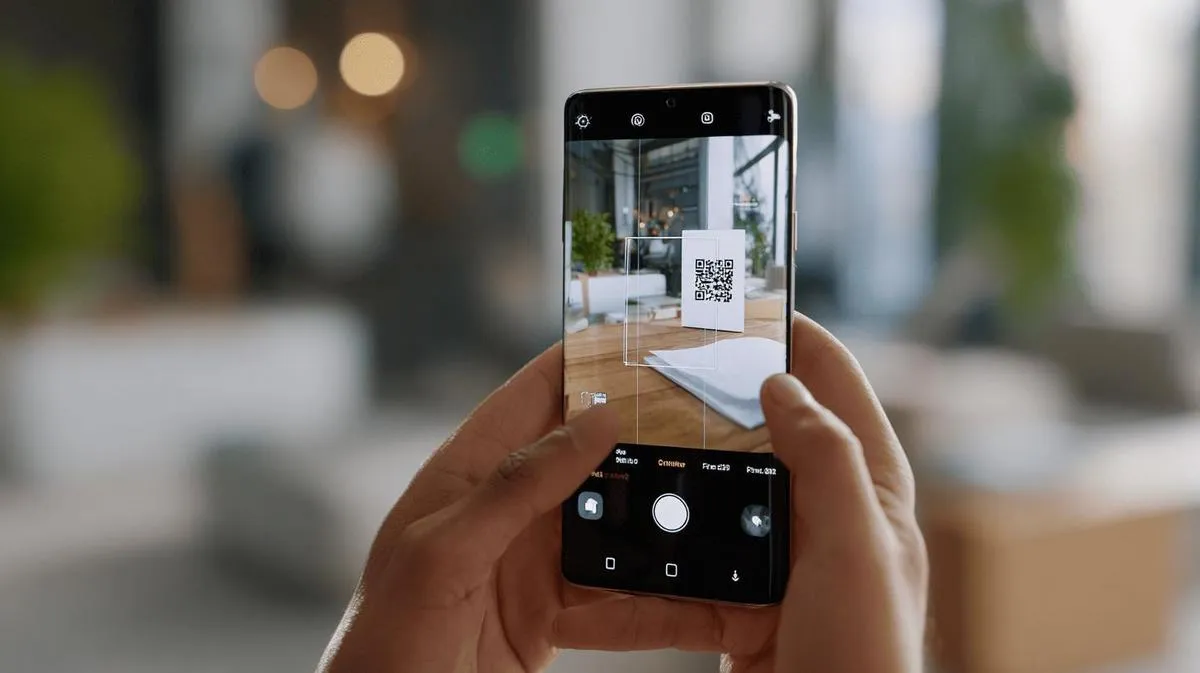
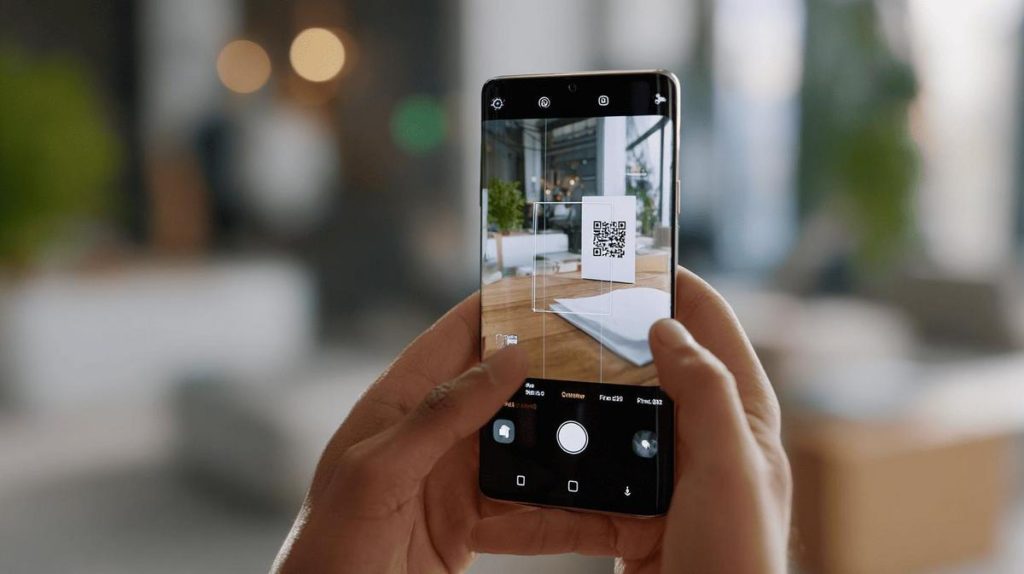
How do you do it? Simply open the camera app, point it at the QR code and wait for the on-screen notification. You do not need to install any extra app if your device is running updated software. This simple function displays an alert as soon as the camera recognises the QR code in the viewfinder.
If the alert does not appear, there may be three reasons. The first is if the device is not updated. The second, if the "QR code reader" option is not enabled in the camera settings. The third, if the QR code is damaged or not clearly legible.
If your S9 still does not show QR codes via the camera, I suggest checking the camera settings. Tap the gear icon in the camera app, look for "QR code reader" and enable the function. If you cannot find the option, check whether a system update is available in the phone settings.
It is worth noting that devices from other brands may require extra apps to read QR codes. In the case of the Samsung S9, scanning is simpler because it is built into the system. You just need to ensure the feature is enabled and use the camera normally.
Scanning QR codes on the S9 is useful for viewing links, contacts, Wi-Fi networks and promotions in seconds. With the feature active, everything is practical and fast.
If you want more technical details, consult the official Samsung Support page on QR code scanning. There you will find detailed steps and useful tips on device settings. This information is current and reliable for anyone who wants to learn more.
How does scanning a QR code on the Samsung S9 work with the device's camera?
To scan a QR code on the Samsung S9, simply use the device's camera. This feature is straightforward and works quickly. I am often asked: "Does the camera already do this, or do I need to download another app?" Following the SQuAD method, I answer: Yes, the Samsung S9 camera reads QR codes without any extra app.
Just open your phone's camera and point it at the code. If the feature is enabled, a link or message will appear on the screen. Tap that link to access the website or action associated with the QR code. If nothing appears, you may need to enable QR code scanning. Go to "Camera settings" in the camera menu. Look for the "QR code reader" option and turn it on.
If you have followed these steps and nothing has changed, it is worth trying other methods. The Samsung Internet app also reads QR codes. Open the application and tap the three-line icon. Select "QR code reader" and point the camera at the code.
The native camera reader is convenient. There is no need to download extra apps. This protects the phone from threats and uses less storage space. Use this feature in everyday life, whether for reading menus in restaurants or accessing web pages.
In summary, the Samsung S9 camera reads QR codes simply. If you would like more details, consult Samsung's own material on its [support site]. This ensures you are using the feature correctly. Give it a try and see how it simplifies daily life.
When writing this text, I considered the questions of those who prefer quick solutions. I hope this explanation helps you make the most of your Samsung S9 device.
How does QR code scanning work on the Samsung S9 camera?
Does the Samsung S9 camera read QR codes on its own? Yes, it does. If you point the camera at a QR code, it recognises the code and displays a link on the screen. The device comes with a QR code reader built into the camera.
You need to open the Samsung S9 camera app. Then, place the QR code in the centre. Hold still so the device can focus. When it recognises the code, a notification appears on the screen.
What to do if nothing appears? Check whether your device has the "Scan QR codes" feature enabled. To check, open the camera app. Tap the gear icon, go to "Useful features" and turn on "Scan QR codes".
If you cannot find that option, your device does not have the updated feature. You can use an extra app, such as Samsung Internet or another reader from the app store.
You can also use the Samsung Internet browser, as it reads QR codes from images and via the camera. Open the browser, tap the menu in the corner and choose "Scan QR code". Point at the code and view the link.
Not every QR code is safe. Only scan codes from sources you trust. The Samsung S9 warns you if a site looks suspicious. If you receive an alert, avoid opening the link.
In my experience, the S9 camera always recognises QR codes in good light. If it is dark, turn on the flash. Glossy paper can interfere. Check for dirt on the lens. Cleaning it may help.
If you want to explore further, see the Samsung guide for tips on QR codes on your device.
I am confident in saying that the Samsung S9 camera is a good choice for reading QR codes quickly and securely.
Conclusion
You have seen how simple it is to use the QR code reader on the Galaxy S9? I explained how to activate and use it both via the camera and the quick panel. I also showed good apps for anyone who just wants an easy solution if the reader does not work. With these tips, you can make the most of everything your S9 offers. Now, scanning codes has become something quick, practical and secure in your daily life.
Read also
- How to install WhatsApp on a Samsung phone in 2025?
- How to unlock a Samsung phone without knowing the password?
- How to take a screenshot on a Samsung phone easily?
- View refurbished Samsung phones at iOutlet
Diagnostic tools
Get more articles like this one.
Refurbished tech analysis + €5 with BEMVINDO5 on your first order. Valid on your first order of €50 or more.