TL;DR:
- Requirements: Android 4.1+ and enough free storage on the device.
- How to install: Open the Google Play Store, search for "WhatsApp", select the official app from "WhatsApp LLC" and tap "Install".
- Alternative method: Use this direct link.
- Permissions: Grant access to contacts, photos and media.
- Verification: Enter your phone number, receive and enter the verification code.
- Common issues: Insufficient storage (free up space), connection error (check your internet), problems with the code (check the international format of your number).
- Incompatibility: Update the operating system or consider a new device.
- Backup / Restore: Back up to Google Drive, reinstall the app and restore from Google Drive.
- Transfer data: Back up on your old phone, install on your new Samsung and restore from Google Drive.
In this article
- How to download WhatsApp on a Samsung phone?
- How to set up WhatsApp on a Samsung phone?
- How to grant the necessary permissions for WhatsApp?
- How do I verify my phone number on WhatsApp?
- How do I set up my profile on WhatsApp?
- What are the common problems when installing WhatsApp on a Samsung phone?
- What are the common errors during installation and how to fix them?
- How to fix problems with the verification code?
- What if WhatsApp is not compatible with my Samsung phone?
- How to transfer and restore WhatsApp data on a Samsung phone?
- How to back up WhatsApp conversations?
- How to restore an old WhatsApp backup?
- How to transfer WhatsApp data from another phone to a Samsung?
- Conclusion
- Read also
Are you trying to install WhatsApp on your Samsung phone? I am going to help you step by step. From downloading it from the Google Play Store to full setup, I will guide you through. Solve common problems and transfer your data without any headaches. Follow this guide and make your digital life easier today!
How to download WhatsApp on a Samsung phone?
Downloading WhatsApp on a Samsung phone is simple. First, check that your device meets the system requirements. WhatsApp requires Android 4.1 or higher. Also, having enough free storage on the device is essential. Now, let us go through the steps.
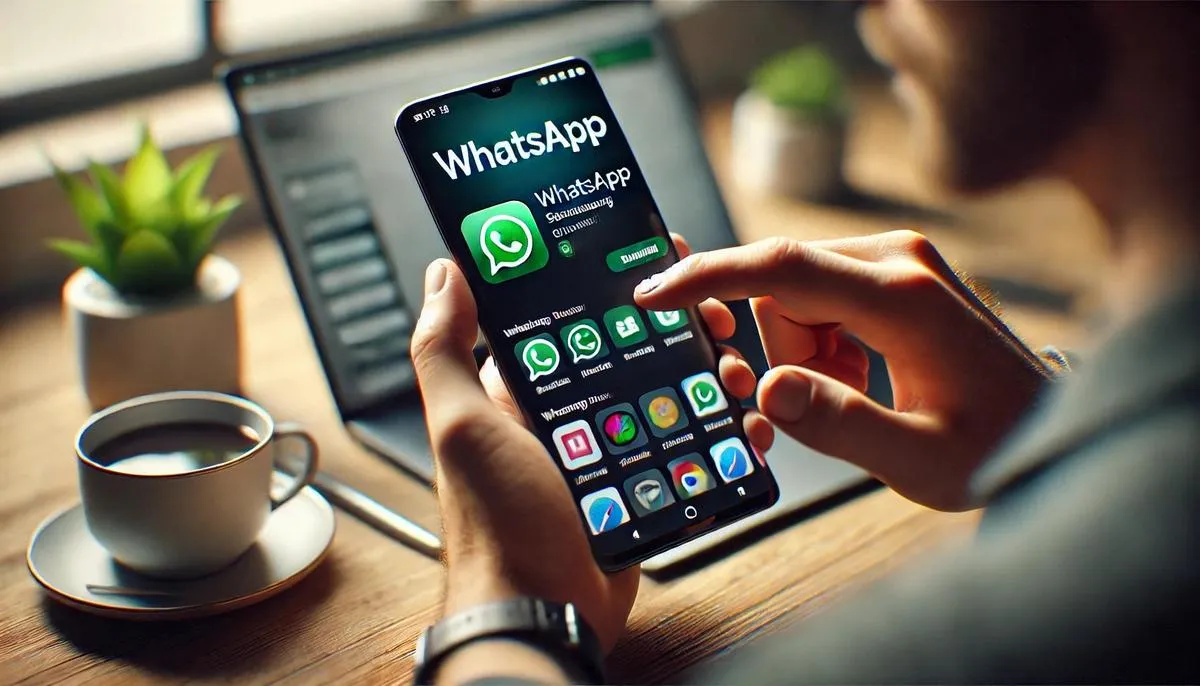
First, open the Google Play Store on your Samsung phone. In the search field, type "WhatsApp". Tap the magnifying glass icon to search. You will see many results, but choose the official WhatsApp developed by "WhatsApp LLC".
Once you find the official app, tap the "Install" button. The installation will begin automatically. This may take a few minutes, depending on your internet speed. When the installation finishes, the button changes to "Open". Tap it to start WhatsApp.
Another safe way to download is via this direct link to the WhatsApp page on the Google Play Store.
What are the system requirements for installing WhatsApp on my Samsung?
To install WhatsApp, your device needs to have at least Android 4.1. Also, make sure your phone has enough memory.
How do I find WhatsApp on the Google Play Store?
Open the Google Play Store and search for "WhatsApp". Click on the official result from "WhatsApp LLC" and tap "Install". Then tap "Open" to use it.
Can I download WhatsApp from outside the Google Play Store?
Yes, it is possible to download the WhatsApp APK from other sites. However, this is not recommended for security reasons. Always prefer downloading from the Google Play Store to avoid viruses and malware.
By following these steps and tips, you should be able to install WhatsApp on your Samsung phone without any issues.
How to set up WhatsApp on a Samsung phone?
How to grant the necessary permissions for WhatsApp?
To start, open WhatsApp on your Samsung. The app will ask for some permissions. You will need to allow access to your contacts, photos and media. Allowing everything ensures WhatsApp works perfectly. To review permissions later, go to "Settings", then "Apps" and choose WhatsApp. There, you can adjust what the app can access, guaranteeing full functionality.
How do I verify my phone number on WhatsApp?
When you open WhatsApp for the first time, you will need to enter your phone number. Right at the start, a field to type your number will appear. Enter the number with the area code. Shortly, you will receive an SMS with a 6-digit code. If you do not receive it, ask to resend it or look for the option to verify by call. Enter the code in the field provided. Your number will then be verified and you will be able to use WhatsApp.
How do I set up my profile on WhatsApp?
After verifying your number, you can set up your profile. Choose a photo your friends will recognise. Tap the profile image to take a new photo or pick one from your photos. Then, add your name. This will be the name your contacts see. You can always go back to your profile to change the photo or name at any time. Explore the account settings to customise more options.
For more details about the app, visit the official WhatsApp website.
What are the common problems when installing WhatsApp on a Samsung phone?
What are the common errors during installation and how to fix them?
One of the most common problems when installing WhatsApp on a Samsung phone is the "Insufficient Storage" error. The most straightforward solution here is to free up space on your phone. You should delete apps and files you no longer use. Another option is to move data to an SD card.
Another frequent error is "Connection Error". This means your internet connection is not stable. Check if you are connected to a Wi-Fi network or check the strength of your mobile data signal. Restarting the phone and router can also help resolve this issue.
How to fix problems with the verification code?
If you are not receiving the verification code, check that the phone number is correct and that you have included the country code. Remember the number must be in international format. If you still do not receive it, you can request a new code after a minute. Another option is to ask for a call with the code.
Also check that there are no problems with your signal. Sometimes the issue can simply be a lack of signal or problems with your network operator. Restart the phone and try again. If nothing works, visit the WhatsApp FAQ for more help.
What if WhatsApp is not compatible with my Samsung phone?
If your Samsung phone is an older model, WhatsApp might not be compatible. First, check if your phone's operating system is up to date. System updates sometimes fix compatibility issues.
If the problem persists, you can try downloading an older version of WhatsApp. This may fix the problem temporarily. However, in the long term, we recommend considering an upgrade to a newer phone model to ensure the best functionality and security.
How to transfer and restore WhatsApp data on a Samsung phone?
How to back up WhatsApp conversations?
To back up your conversations, open WhatsApp. Tap the three dots in the top right corner. Select "Settings" and then "Chats". There, you will see "Chat backup". Tap that option. Finally, tap "Back up" to save your conversations to Google Drive. Make sure you are logged into a Google account.
How to restore an old WhatsApp backup?
Restoring an old backup is easy. First, reinstall WhatsApp. After opening the app, confirm your number. WhatsApp will detect the backup on Google Drive. Tap "Restore" to recover your old conversations. Wait for the process to finish. After that, your messages and media will be restored.
How to transfer WhatsApp data from another phone to a Samsung?
To transfer data from another phone to a Samsung, follow this step-by-step guide to install WhatsApp on the Samsung. First, make a backup on the old phone. Then install WhatsApp on your Samsung. Confirm your number. The app will detect the backup on Google Drive. Tap "Restore". Wait while WhatsApp recovers your messages and media. Your data will be transferred successfully.
Learn more about transferring data on WhatsApp.
Conclusion
Downloading, setting up and troubleshooting WhatsApp on your Samsung is simple! Make sure you have a compatible version, use the Google Play Store and follow the permissions. Backup and data restore make switching devices easy. Keep exploring our guides for a hassle-free experience and enjoy the benefits of WhatsApp on your Samsung.
Read also
- How to unlock a Samsung phone without the password?
- How to take a screenshot on a Samsung the easy way?
- How to format a Samsung quickly and easily?
- See refurbished Samsungs at iOutlet
Diagnostic tools
Get more articles like this one.
Refurbished tech analysis + €5 with BEMVINDO5 on your first order. Valid on your first order of €50 or more.