A laptop with a foreign keyboard can type in the language you use. What changes is the physical arrangement of the keys and the configuration chosen in the system. Before buying, confirm the unit's layout: changing the language in Windows or macOS does not change the symbols printed on the keys.
In this article
QWERTY, AZERTY or QWERTZ: what changes?
| Layout | How to recognise it | What to confirm before buying |
|---|---|---|
| QWERTY | The first row of letters starts with QWERTY. | There are several variants. Portuguese, British and American keyboards have different symbols and may also differ in the shape of the Enter key. |
| AZERTY | The first row starts with AZERTY. | Confirm the variant and the position of numbers, accents and punctuation. The position of some letters differs from QWERTY. |
| QWERTZ | The Z occupies the position of Y on a QWERTY keyboard. | There are country variants. Confirm the printed characters and the physical shape of the keys. |
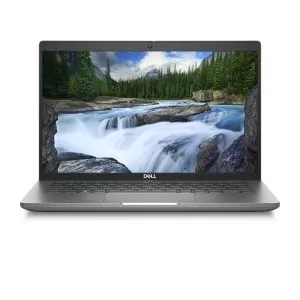
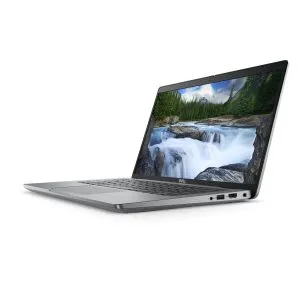
A generic photo of the model does not prove which keyboard the unit for sale has. Check the Keyboard attribute and the offer description. If it only says QWERTY, ask for confirmation of the variant before deciding.
How to type accents in Windows
- Open Settings and look for language and keyboard options.
- Add the writing language and the layout you want to use. Menu names may vary with the Windows version.
- Switch between layouts with Windows + Space.
- Open a document and test the letters, accents, @ symbol and signs you use in passwords.
You can select your language layout on a foreign keyboard, but some keys may type different characters than printed. If you prefer to keep visual correspondence, use the physical layout and learn the combinations to type in your language.
How to set up on Mac
In System Settings, open Keyboard and text input options. Add an input source and use the keyboard viewer to locate characters and combinations. The Apple documentation on input sources explains the route and available options.
When is it worth choosing another layout?
If you type without looking at the keys and mainly work at a desk with an external keyboard, adaptation may be simple. If you are learning to type, share the computer or rely on printed symbols, prefer the layout you feel comfortable with.
For programming, test square brackets, braces, the backslash and editor shortcuts. For spreadsheets, check whether you need a numeric keypad. These details can matter more in daily use than a small difference between processors.
Checklist before ordering
- Exact keyboard variant and intended writing language.
- Photo of the unit, when available, and match with the description.
- Backlighting and numeric keypad, if important.
- Compatibility with an external keyboard you already have.
- Key condition described in the offer and purchase terms.
Do not count on physical keyboard replacement as a simple adaptation: cost and possibility depend on the model. Compare configurations in the available laptops and consult the usage guide before choosing.
Microsoft: setting language and keyboard in Windows
Apple: QWERTY / AZERTY / QWERTZ
Get more articles like this one.
Refurbished tech analysis + €5 with BEMVINDO5 on your first order. Valid on your first order of €50 or more.