In this article
- Restart from the Apple menu: Click the Apple logo and choose “Restart”.
- Force restart: Hold the power button until the Mac shuts down, then turn it on again.
- Safe mode: Shut down, turn it on again while holding the Shift key until you see the login screen.
- Diagnostics: Shut down and turn it on while holding D for Apple Diagnostics.
- Reset PRAM: Shut down, turn it on while pressing Option + Command + P + R for 20 seconds.
- Reset SMC: Shut down, connect to the charger, press Shift + Control + Option + Power, release and turn it on.
- Reinstall macOS: Restart while holding Command + R and choose "Reinstall macOS".
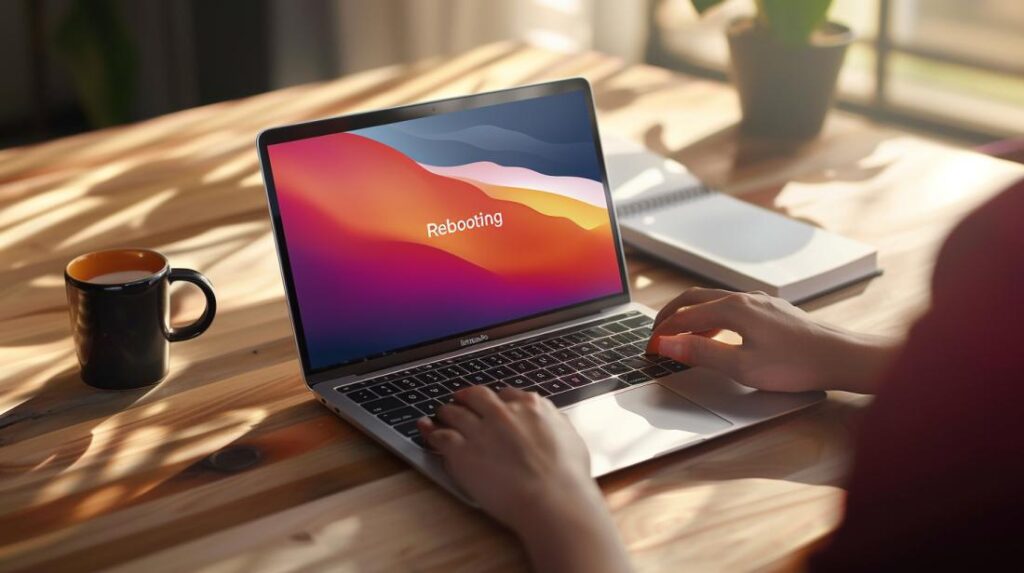
Restarting a MacBook Air may seem complicated, but I’m here to help! In this guide, you’ll learn practical ways to reboot your MacBook Air quickly and easily. Want to know how to use the Apple menu, perform a force restart, or start in safe mode? I’ll explain each step to make sure your MacBook works perfectly. Shall we begin?
What are the different ways to restart a MacBook Air?
How to use the Apple menu to restart
To restart your MacBook Air, click the Apple logo in the top-left corner. Then select “Restart” from the menu. This is simple and quick, and your Mac will restart properly.How to perform a force restart
If your MacBook Air is not responding, try a force restart. Press and hold the power button until the Mac shuts down completely. Wait a few seconds and press the button again to turn it on. Remember, you may lose unsaved data. For more details, see Force Restart a Frozen MacBook.How to start in safe mode
Starting your MacBook Air in safe mode can solve technical issues. First, shut down the Mac. Then turn it on again while holding the Shift key. Keep holding the key until you see the login screen. Safe mode runs some checks and prevents unnecessary software from starting automatically. For more detailed methods, see Restart your Mac. These instructions help avoid common problems and ensure your MacBook Air works correctly.How to troubleshoot issues when restarting a MacBook Air?
Diagnosing performance issues
If your MacBook Air is slow or having issues, run a diagnostic check. To do this, use Apple Diagnostics. First, shut down your Mac. Then turn it on again while pressing the D key. Keep it pressed until you see the diagnostics screen. Follow the instructions and check whether there are any hardware issues. If something is identified, go to an authorised repair centre or follow the instructions provided.Reset PRAM and SMC
PRAM and SMC are important components for your MacBook Air’s performance. PRAM stores system settings and SMC controls power management. To reset PRAM, shut down the Mac and, when turning it on again, press and hold the Option + Command + P + R keys for around 20 seconds. To reset the SMC, shut down the Mac, connect it to the charger, and press Shift + Control + Option + Power at the same time. Release all keys and turn the Mac on again.Reinstalling macOS
If the issues persist, consider reinstalling macOS. First, back up your data. After that, restart the Mac while holding the Command + R keys. This will start Recovery Mode. Choose "Reinstall macOS" and follow the on-screen instructions. Reinstalling can solve software issues and restore your MacBook Air’s performance to optimum levels.Conclusion
Restarting your MacBook Air can be done in several ways: Apple menu, force restart, and safe mode. To fix performance issues, use diagnostics, reset PRAM and SMC, or reinstall macOS. Never worry about restarting your MacBook Air. With our simple steps, keeping your device in excellent condition is easy. Follow our tips and ensure good performance every time!Read also
- MACBOOK AIR, PRO OR IMAC: which Apple computer is right for me?
- Should I buy a desktop? Discover the advantages and disadvantages of the iMac!
- Which MacBook to buy in 2023
- View refurbished MacBooks at iOutlet
Get more articles like this one.
Refurbished tech analysis + €5 with BEMVINDO5 on your first order.
Looking for a refurbished MacBook?
Tested and certified MacBooks with a 24-month warranty. From MacBook Air to MacBook Pro.
24-month warrantyShipping up to 8 business days
See MacBooks →