In this article
- What are the ways to connect a Mac Mini to a MacBook?
- How do you use Target Disk Mode?
- What are the steps to use the MacBook as a second screen?
- How do you set up an extended display?
- Which devices and cables are needed for this connection?
- How do you resolve common connection issues between Mac Mini and MacBook?
- What are the common issues and how do you resolve them?
- How do you set up a Mac Mini screen so it is detected correctly?
- How do you set up and troubleshoot a wireless connection?
- Conclusion
- Read also
- Use Target Disk Mode: Turn off the Mac Mini, turn it on while holding down “T”, and connect via USB-C or Thunderbolt.
- Use the MacBook as a second screen: Same Wi-Fi network, enable "Screen Sharing" in System Preferences.
- Set up an extended display: Connect the Mac Mini to the MacBook with an HDMI cable or adapter, adjust in "Displays".
- Cables needed: HDMI, USB-C, possible adapters (USB-C to HDMI).
- Common issues: Check cables/ports, adjust settings in "Displays", restart devices, use Apple troubleshooting.
- Correct display setup: Use screen controls on the MacBook, restart if necessary.
- Wireless connection: Make sure both are on the same Wi-Fi network, enable "Screen Sharing", restart the router/devices if it fails.
Connecting your Mac Mini to your MacBook can boost your productivity and offer an excellent user experience. Whether you want to extend your screen or use Target Disk Mode, I’ll show you the best ways to make it happen. Ready to make the most of your Apple machines? Let’s go!
What are the ways to connect a Mac Mini to a MacBook?
When we talk about connecting a Mac Mini to a MacBook, there are several practical and useful options. The Mac Mini can connect to the MacBook in different ways, depending on what you need.How do you use Target Disk Mode?
Target Disk Mode is a simple way to use one Mac as an external hard drive. To start, turn off the Mac Mini. Then turn it on while holding down the “T” key. Connect the Mac Mini to the MacBook using a USB-C or Thunderbolt cable. On the MacBook, the Mac Mini will appear as an external disk. This lets you transfer files quickly.What are the steps to use the MacBook as a second screen?
Using the MacBook as a second screen is excellent for multitasking. First, make sure both devices are on the same Wi-Fi network. On the MacBook, go to "System Preferences" and click "Displays". Enable the screen sharing option. On the Mac Mini, go to "System Preferences", then "Sharing", and enable "Screen Sharing". The MacBook will now show the Mac Mini screen, giving you a dual-screen experience.How do you set up an extended display?
Setting up an extended display improves your productivity. Connect the Mac Mini to the MacBook using an HDMI cable or a suitable one, such as the Thunderbolt Adapter. On the MacBook, go to "System Preferences" and choose "Displays". Select the extended display option. You can arrange the screens by dragging the icons to adjust their layout. This setup lets you use the MacBook as an extension of your tasks on the Mac Mini. With these methods, you can get the most from your Apple devices, creating a functional and efficient ecosystem.Which devices and cables are needed for this connection?
To connect your Mac Mini to your MacBook, you need the right devices and cables. Let’s look at what is required.Which cables are needed to connect via HDMI and USB-C?
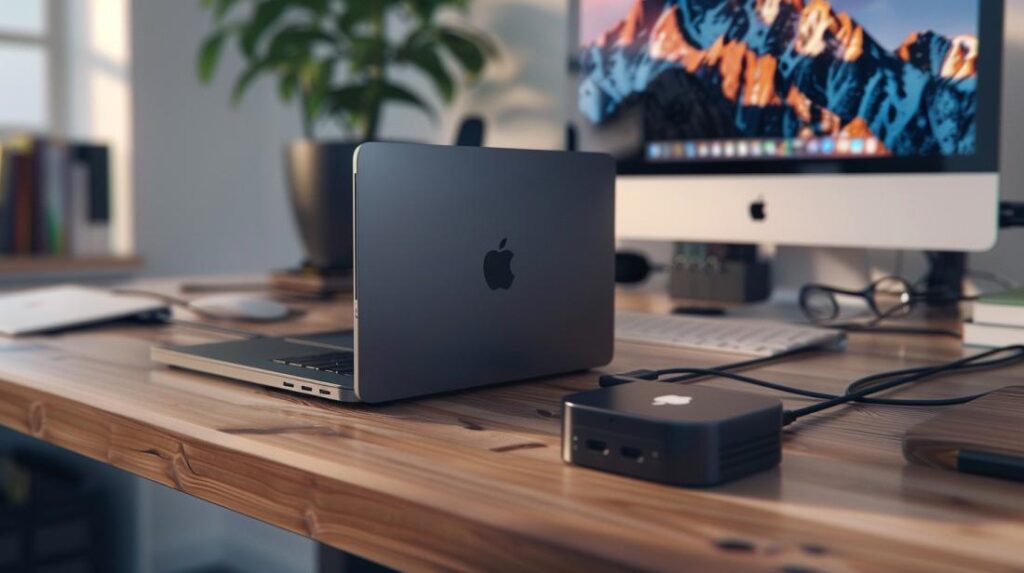
You’ll need an HDMI cable to start. This cable runs from the Mac Mini to any monitor or TV. If you want to use your MacBook as a second monitor, you’ll need a USB-C cable. This cable connects directly to your MacBook.How do you set up the additional display?
First, turn on the Mac Mini and connect it to the monitor or TV with the HDMI cable. Then connect the Mac Mini to the MacBook using the USB-C cable. On the MacBook, go to "System Preferences" and click "Displays". Here, you can adjust how you want to use the extra screen. You can choose to mirror your screen or extend your display.Which adapters are essential for this setup?
You may need adapters. For example, if your MacBook or monitor does not have an HDMI port, buy a USB-C to HDMI adapter. This ensures the devices connect correctly. If you want to stream content to the larger screen with AirPlay, you do not need cables. For more details on setups with monitors and laptops, visit this guide on Mac Mini and connections.steps.).How do you resolve common connection issues between Mac Mini and MacBook?
What are the common issues and how do you resolve them?
First, check the cables and ports. Faulty or poorly connected cables often cause problems. If you are using an HDMI cable, try a USB-C cable instead. Another common issue is monitor detection. When the screen is not detected or looks blurred, go to the display options. In System Preferences, click "Displays" and adjust the settings. For extra help, check this troubleshooting guide.How do you set up a Mac Mini screen so it is detected correctly?
To ensure the Mac Mini detects the right screen, use the MacBook as a second screen via Wi-Fi or cable. Open "Control Centre" on the MacBook, go to "Screen" and select your Mac Mini. If the screen is still missing, restart both devices. This can resolve temporary conflicts.How do you set up and troubleshoot a wireless connection?
Connecting wirelessly can bring other challenges. First, make sure both devices are on the same Wi-Fi network. Then enable the "Screen Sharing" option on both devices. If the connection fails, restart the router and the devices. Check the Wi-Fi signal strength too. For better performance, use a wired connection whenever possible.Conclusion
Connecting a Mac Mini to a MacBook is easy and efficient. Use Target Disk Mode or set up an extended display with HDMI and USB-C. If any problem comes up, follow the troubleshooting tips. I hope you now feel better prepared to use these devices together. Choose the right cables, follow the steps and make the most of your Apple setup. Explore new possibilities with your Mac Mini and MacBook. Enjoy the connection!Read also
- MACBOOK AIR, PRO OR IMAC: which Apple computer is right for me?
- Should I buy a desktop? Discover the advantages and disadvantages of the iMac!
- Which MacBook to buy in 2023
- View refurbished MacBooks at iOutlet
Get more articles like this one.
Refurbished tech analysis + €5 with BEMVINDO5 on your first order.
Looking for a refurbished MacBook?
Tested and certified MacBooks with a 24-month warranty. From MacBook Air to MacBook Pro.
24-month warrantyShipping up to 8 business days
See MacBooks →