TL;DR:
- To copy contacts from a Samsung to the SIM, open the Contacts app, go to "Manage contacts" and select "Import or export contacts".
- Tap "Export" or "Move to SIM card", choose the contacts you want and confirm.
- Only names and numbers are saved; photos, emails and addresses do not transfer to the SIM.
- The SIM card usually holds up to 250 contacts; if you have more, repeat the process or pick the most important ones.
- This feature is already available in the native app on recent Samsung models, with no need for third-party apps.
- Some versions and SIM cards do not support this function; make sure you are using a compatible model and that the SIM is inserted and unlocked.
- For questions, contact Samsung support.
In this article
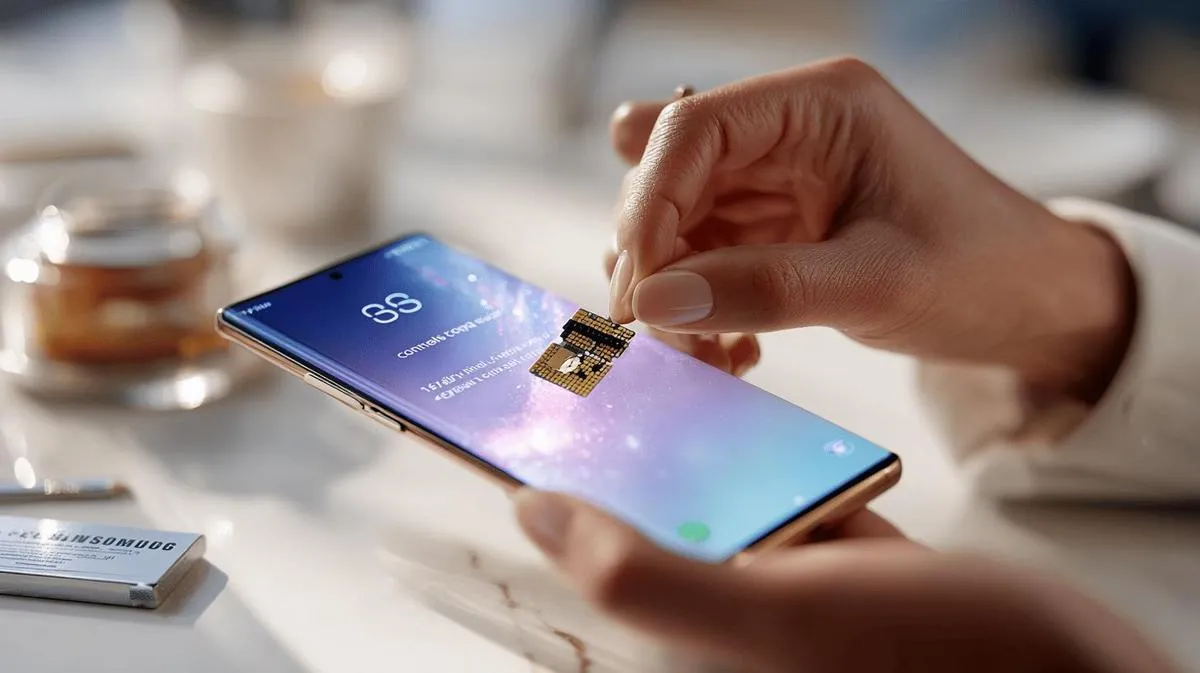
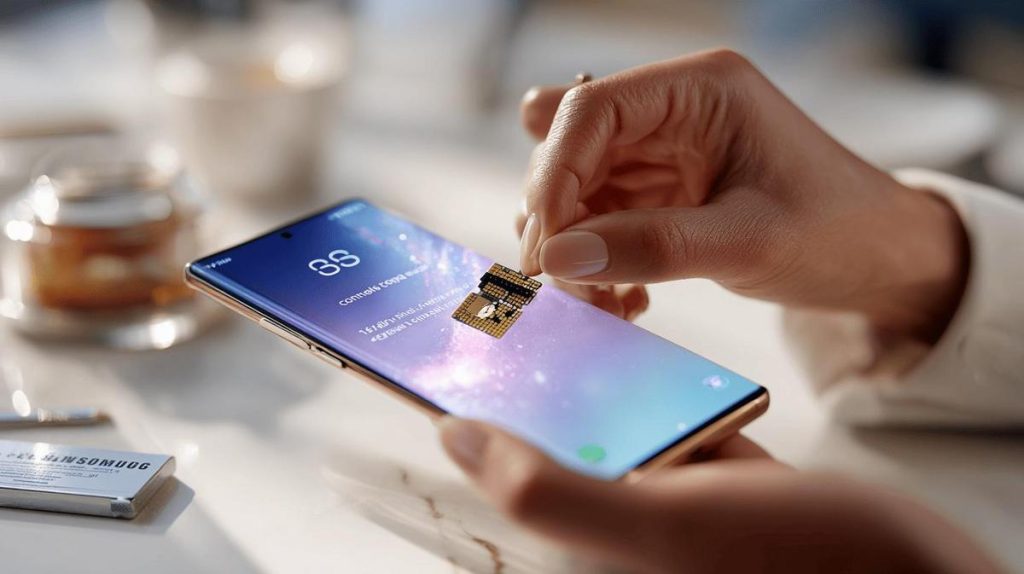
Copying contacts to a Samsung SIM card is simple and very useful. If you want to change devices, make a backup or store contacts on the chip, it helps to know how. I will show you the right steps to move contacts and avoid losing data. You will be able to export, save and even recover contacts without any hassle. Let us learn together how to keep your information safe when transferring it!
Step-by-step guide to copying phone contacts to a SIM card
First, open your Contacts app on the Samsung phone. Look at the menu and find the option "Manage contacts". Tap it. The main question I get is: "How do I copy contacts from my phone to a SIM card?" You can do it by following the steps below.
Accuracy matters here. To copy, tap "Import or export contacts". Next, choose "Export" and then "SIM card". Here is the trick: select each contact or all the ones you want. Then tap "Done" or "OK".
Your phone may show a message about the SIM card limit. Many cards only hold 250 names. If you have more contacts, pick only the most important ones or repeat the process several times.
The contacts will now be saved to the SIM. Only simple data is stored, such as name and phone number. Other data, such as email or photo, will not transfer.
If you need to, visit Samsung support for more details and possible questions about limits and accepted formats. Each Samsung model may have small differences in this path, but the general method works for almost all models. If a contact does not appear, check if it is saved in another account, such as Google. Only phone contacts can go to the SIM.
Now you are done: your contacts are saved on the SIM. So if you change phones, they come with you. In a few minutes, you protect your contacts from being lost if the device fails.
Step-by-step guide to copying phone contacts to the SIM
What is the easiest way to transfer your contacts from a Samsung phone to a SIM card? Follow the steps below to do it without any issues.
First, open the Contacts app on your Samsung. Tap "Menu" or the three dots in the top right corner. Select "Manage contacts". Then tap "Move" or "Export to SIM card".
Follow the SQuAD method to answer: the most direct way is to use this option inside the native Samsung contacts app. This feature is already in newer models. You do not need any third-party app.
You will see a list of your saved contacts. Tick the ones you want to move. Some people think you can save everything at once, but there is a limit for each SIM. If you have more contacts than your SIM card supports, save the most important ones first.
Tap "Done" or "OK". The phone will show a progress bar or a notification when it finishes. Done! Your contacts are now stored on your SIM card.
Not all data transfers with each contact. Only the name and number go to the chip. Photos, addresses and emails do not transfer. If you need to keep all the details, make an extra backup somewhere else, such as Google.
If you cannot find the copy option, check whether your model supports this feature. Not all models allow importing or exporting contacts to the SIM. Also check that the SIM is inserted and unlocked.
These steps help any Samsung user transfer contacts quickly and safely.
Conclusion
You have seen how to copy contacts from a Samsung to the SIM card in a simple, quick and safe way. You have also seen how to back up, restore and keep your list synced. With these tips, your contacts will be stored and easy to recover. By doing this, you increase your security and convenience, whether you are switching devices or protecting your information. These practices make your daily life more reliable and hassle-free when it comes to lost contacts.
Also read
- How to install WhatsApp on a Samsung phone in 2025?
- How to unlock a Samsung phone without knowing the password?
- How to take a screenshot on a Samsung the easy way?
- Buy refurbished Samsung at iOutlet
Diagnostic tools
Get more articles like this one.
Refurbished tech analysis + €5 with BEMVINDO5 on your first order. Valid on your first order of €50 or more.