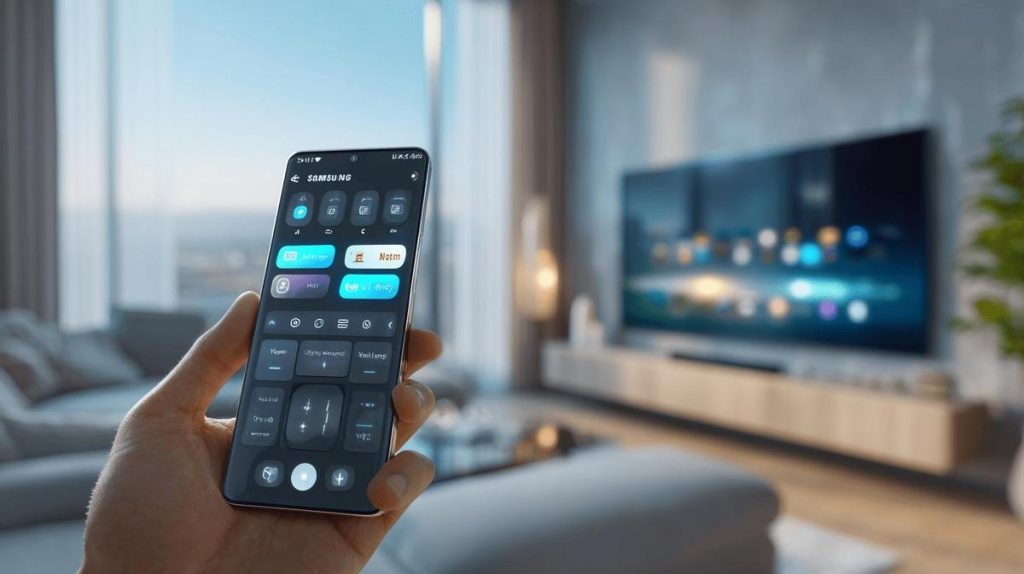
TL;DR:
- Download the SmartThings app from your phone's app store to use your smartphone as a Samsung remote control.
- Log in with your Samsung account and add your TV or device to the list of devices.
- Follow the instructions and enter the code shown on the TV if prompted.
- Your phone must be connected to the same Wi-Fi network as the TV for it to work.
- The app lets you change channels, adjust volume, turn devices on and off, and access apps and videos on the TV.
- Some phones with an infrared sensor can control older TVs.
- Not all older models are compatible with the app; check on the Samsung website.
- The process is easy, practical and works without needing the physical remote.
In this article
Want to use your Samsung phone as a remote control and wondered if it actually works? With the SmartThings app, you can control your TV easily, straight from your phone. I'll show you how to do the whole setup, activate the feature, pair your device and fix the most common problems. If you want a convenient way to control your Samsung TV, this tutorial is for you!
How to set up a Samsung remote control on your phone and does it work?
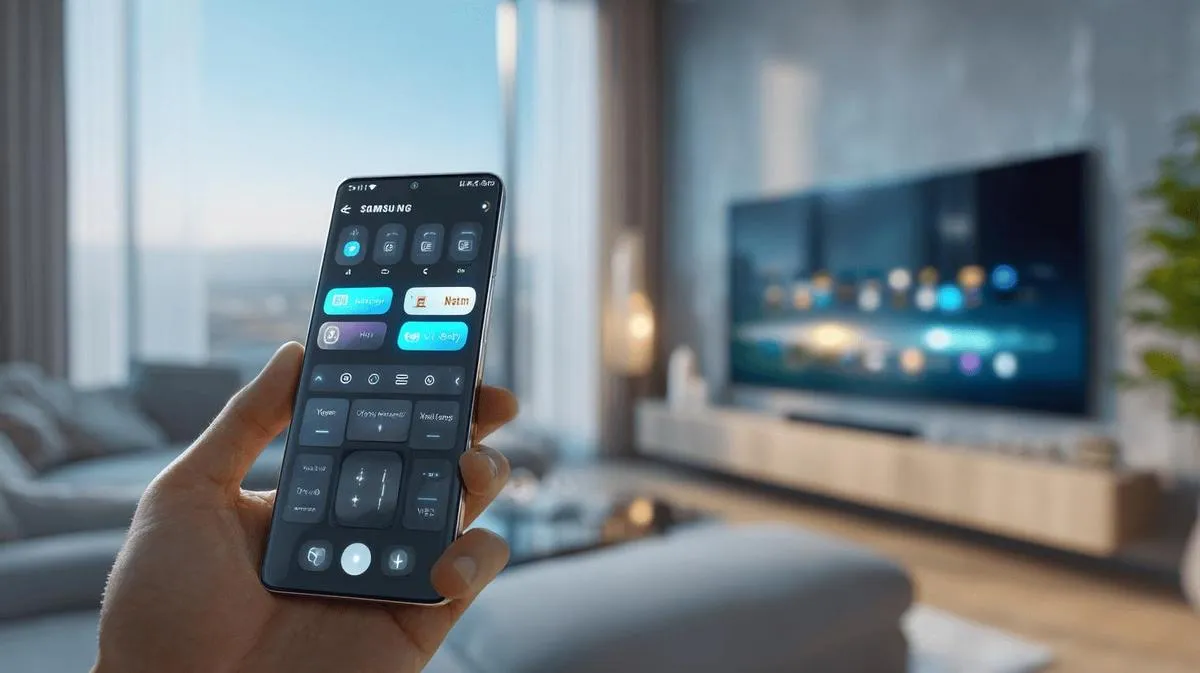
To use the Samsung remote control on your phone, you need to download the SmartThings app. Download it from your phone's app store. Open the app and log in with your Samsung account. Follow the on-screen instructions. Tap "Add device". Choose your Samsung TV from the list. When prompted for a code, check your TV. Enter the code in the app. Your phone now becomes a remote control.
The remote control on your phone works well for changing channels, adjusting volume and using apps on the TV. In the app, use the virtual buttons like a normal remote. Some phones have an infrared sensor. If yours does, it can control older models. But most use Wi-Fi.
If your TV doesn't appear in the app, it must be on the same internet network as your phone. Check that both are connected to the same Wi-Fi. If you have questions, see the official page at Samsung Support. Setting up the remote control on your phone is easy and practical.
How to set up a Samsung remote control on your phone and does it work?
To use your phone as a Samsung remote control, download the SmartThings app. After installing the app, open it and log in to your Samsung account. Turn on the TV or device you want to control. The app will show a list of nearby devices. Choose your device and follow the on-screen instructions. If prompted for a code, enter the one shown on the TV screen. Done: your phone is now a remote control!
Does it actually work? Yes. If both devices are on the same Wi-Fi network, they connect easily. One important point: some older devices don't work with the app. Check on the Samsung SmartThings site to see if your model is compatible.
The app lets you change channels, adjust the volume and turn things on or off. You can even search for videos and access apps on the TV. I tested it on several TVs and was always able to control everything easily, without needing the physical remote.
Conclusion
Using your phone as a Samsung remote control is easy with the SmartThings app. You just need to install it, pair it with your TV and you're done. If any error comes up, check that your device is compatible and the firmware is up to date. With these tips, you can control your TV simply and securely. The app becomes your everyday ally. Choose comfort and technology always within reach.
Read also
- How to install WhatsApp on a Samsung phone in 2025?
- How to unlock a Samsung phone without knowing the password?
- How to take a screenshot on a Samsung phone the easy way?
- Buy refurbished Samsung phones at iOutlet
Diagnostic tools
Get more articles like this one.
Refurbished tech analysis + €5 with BEMVINDO5 on your first order.