Reading Mode Android: the hidden shortcut that turns any text into a clean screen (and even reads it aloud)
In this article
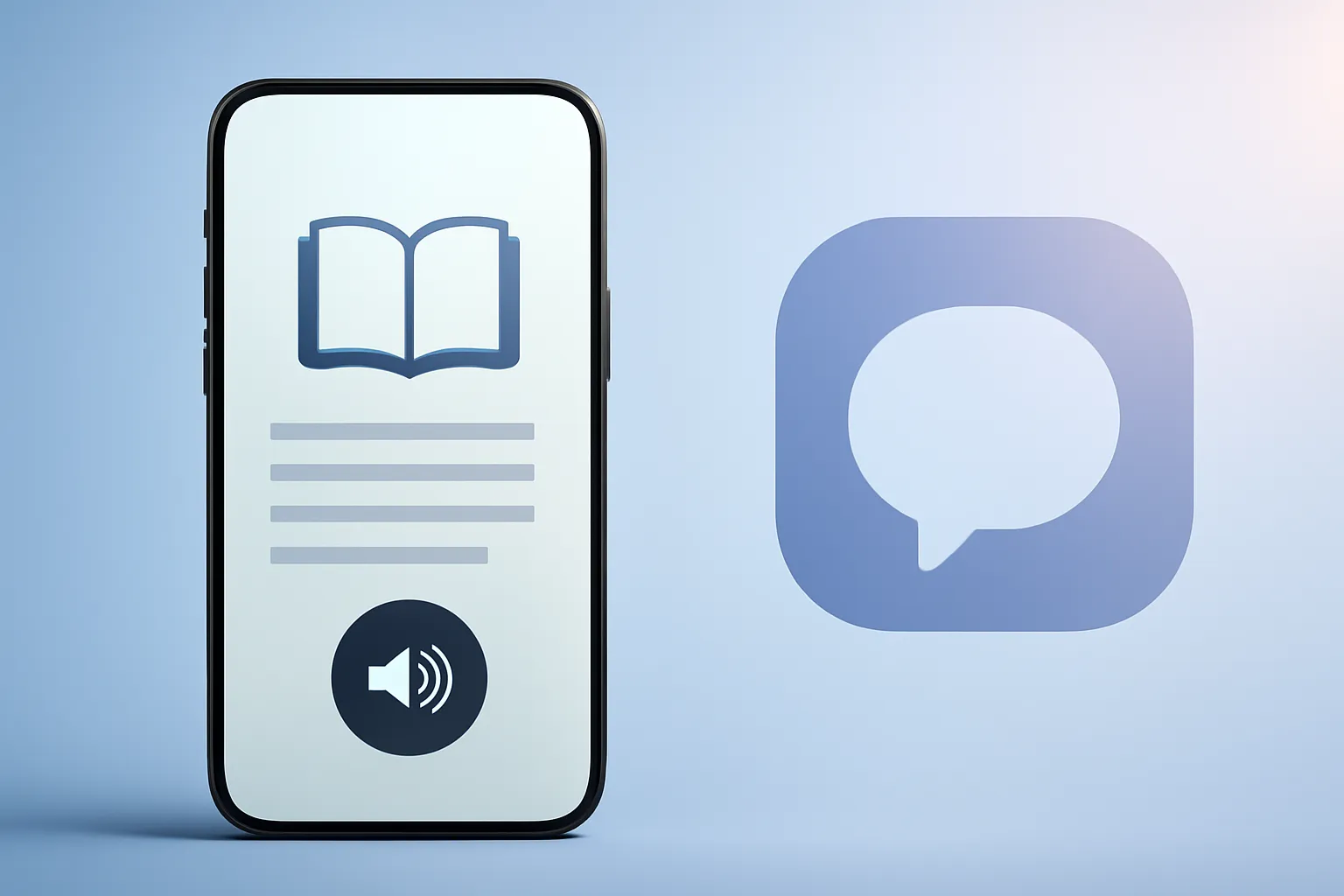
Reading Mode Android is a Google accessibility feature that captures the text on your screen and re-presents it in a simple, readable, customisable panel, regardless of the app you’re in. It matters because it strips visual clutter (ads, columns, odd fonts), improves reading on small screens and can also read aloud. It is especially useful for anyone reading news, long emails, documents or search results on a phone, and for those who switch between reading and audio while on the move.
Overview
Android offers several “reading layers”. There is a browser reading mode (for example, in Chrome) and there is a more system-wide approach. The practical difference is that the browser mode only works within the browser itself and does not always appear when you want it; by contrast, Android’s Reading Mode is designed to be invoked in any text-bearing context, acting as a kind of reading filter over the content.
In practice, its value lies not in being another hidden option but in its consistency. The same typography, the same contrast and the same behaviour, whether you’re on a page crowded with elements, a poorly formatted email or a text with garish colours inside an app.
Technical Details
Reading Mode Android operates as an accessibility service: when you invoke it, the system attempts to extract the relevant text from what is on the screen and presents it in its own panel, with formatting you control. “Accessibility” here refers to a suite of Android tools intended to make the interface more usable (for example, for low vision, dyslexia, visual fatigue or temporary needs).
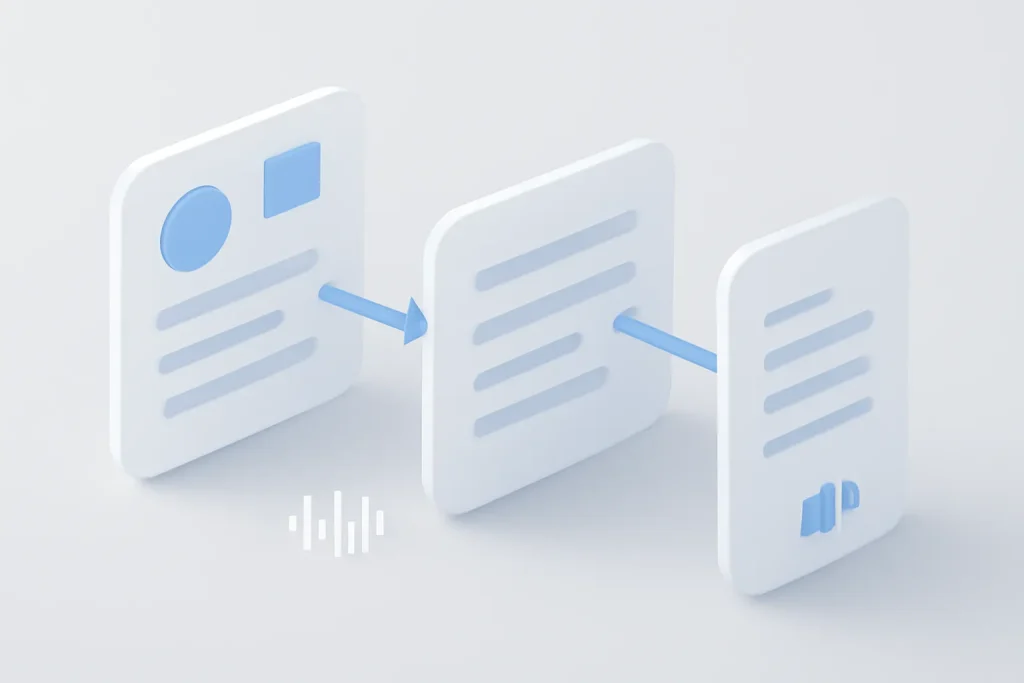
The key point is the separation of content and presentation. Instead of relying on the original layout (columns, banners, widgets, colours), the panel applies a clean presentation: adjustable font size, typeface, alignment and colour combinations. This also helps when the source uses weak contrast or overly thin fonts.
Another important component is audio. Within the panel you can start text-to-speech playback: the phone converts text to spoken word and lets you adjust the speed. It offers a simple way to “turn” an article or email into a mini-audiobook, handy for multitasking - with the advantage of not depending on the site having its own reader.
The quickest shortcut, according to the most practical configuration described in the source, is to map Android Reading Mode to the volume keys (press volume + and volume - simultaneously). Alternatively, you can choose a shortcut in Quick Settings, which is more visible but requires an extra gesture.
Practical Benefits
The immediate gain is focus. Android Reading Mode reduces distractions and makes reading less tiring, especially on small screens and in bright environments. For those who jump between apps, the consistency is even more valuable: you don’t have to "re-learn" where the reading button is in each context.
There is also an indirect benefit that many only notice later: less temptation for infinite scroll and less friction to "finish reading". When the text is clean and well-spaced, reading flows. And when audio is a tap away, it’s easier to continue while walking or driving (without looking at the screen).
In terms of page behaviour, this approach tends to be less intrusive than aggressive blockers, because it does not block scripts nor rewrite the page in the browser; it simply presents the text in a separate panel. The result can be more stable on sites that rely on dynamic elements to function.
Limitations & Challenges
Nothing is perfect. Because Android Reading Mode relies on being able to identify "readable" text on the screen, it can fail with content that is essentially images (screenshots, scanned PDFs, infographics) or with apps that render text in a non-standard way. It may also lose some structure (complex tables, sidebars or interactive elements) - the goal is better reading, not a full replica of the page experience.
Another point is discoverability: as a feature that requires installation and configuration, it’s easy to forget when you change phones. If you tend to switch devices, it’s worth noting this step in your migration checklist (alongside backups and accounts). Moreover, if you’re reorganising your Android, it may make sense to review your backup plan as we explain in Android message backup.
Privacy Issues
As an accessibility component, Android Reading Mode may require sensitive permissions to "see" what is on the screen and act on the interface. This does not in itself mean that content is sent off the device, but it does mean you should be careful: install only the official app and, during setup, confirm you are comfortable with the scope of the permissions.
If you want a reference guide and definitions, Google's help documentation is the best starting point to understand how these features are managed on Android: Google's official support. For editorial transparency, the inspiration and the step-by-step basis come from the original Computerworld piece: source article.
Next Steps
If you want to start right away, the recipe is simple: install the official Reading Mode app, complete the initial assistant and choose an easy-to-remember shortcut. For most people, the volume-key gesture is the quickest and adds no floating buttons to the display.
Then, build the habit in three concrete scenarios: (1) articles with confusing layouts, (2) long emails, (3) text inside apps with small typography. After a few days, Android Reading Mode ceases to be a "trick" and becomes a daily tool. If you also care about autonomy during long reading/audio sessions, check iOutlet's tips on battery-saving habits.
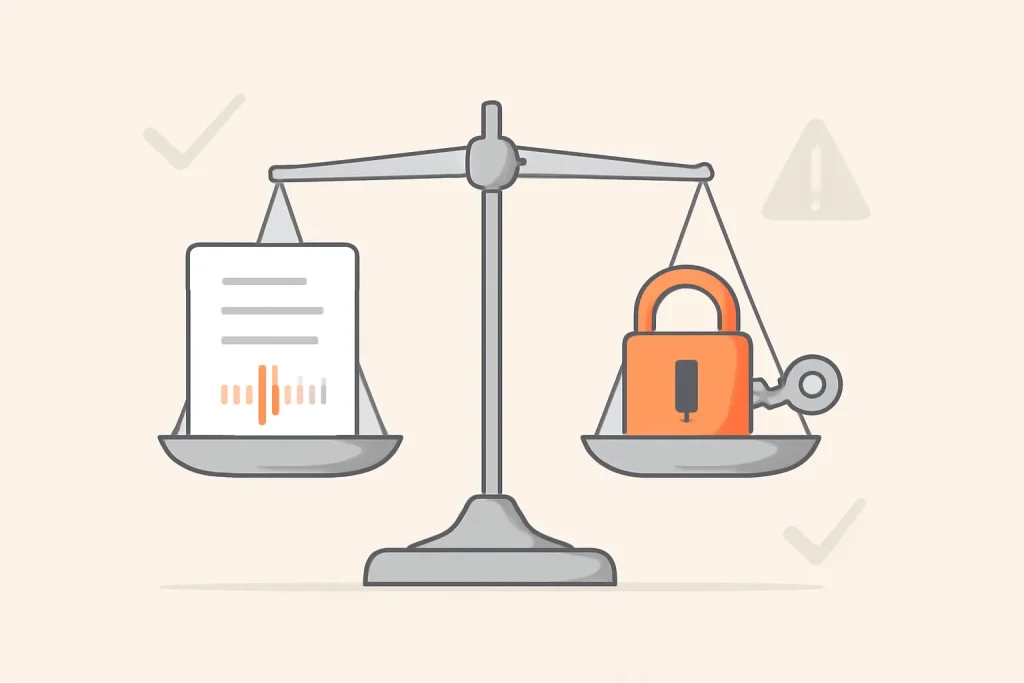
What to do now: enable Android Reading Mode, test font and contrast options until you find your ideal combination and try text-to-speech in a real routine (for example, on the commute to work). If you can't recall the shortcut after a week, switch to the Quick Settings shortcut, the best mode is the one you actually use.
FAQ
- Is Android Reading Mode the same as Chrome's reading mode?
- No. Chrome's mode works only within the browser and is not always available; Android Reading Mode is a more system-wide solution, designed to be called in various apps.
- How do I activate Android Reading Mode with the volume keys?
- After installing and configuring, choose "volume keys" as the shortcut. In use, press volume + and volume - together for an instant to open the reading panel.
- Can I use Android Reading Mode to listen to text instead of reading it?
- Yes. The panel includes a playback option (text-to-speech) that reads the content aloud and lets you adjust the speed.
- Does it work in any app?
- It works in many scenarios where text appears on the screen, but it may fail with content that is images, very complex layouts or apps that do not expose text in an accessible way.
- Does Android Reading Mode remove ads?
- In practice, the panel displays the text in a clean format without the original layout, which reduces visual distraction. This is not the same as blocking ads at the page level.
- Are there privacy risks when enabling this feature?
- As an accessibility tool, it may require permissions to access what is on the screen. The recommendation is to use only the official app and review the permissions during setup.
Get more articles like this one.
Refurbished tech analysis + €5 with BEMVINDO5 on your first order. Valid on your first order of €50 or more.