Backing up Android messages: what is saved, what is lost and how to create a proper archive
In this article
- General overview: synchronisation is not archiving
- Technical details: what Google One stores (and what it doesn’t let you see)
- Practical advantages: creating an archive with SMS Backup & Restore
- Ecosystem integration: WhatsApp and Signal do not follow the same rules
- Privacy issues: permissions, encryption and “evidence”
- Next steps: a simple routine to avoid losing conversations
- FAQ
\r\n\r\nBacking up Android messages isn’t just “turn the backup on” and forget about it: it depends on the messaging app, the type of conversation (SMS, MMS, RCS) and the method used (synchronisation versus archive). Google One makes restoring easier when you change phones, but it works as a black box and can delete older versions. If you want to recover specific conversations, audit what has been saved and keep a year-long history, you need a two-layer strategy: system backup plus user-controlled export/archive. This mainly affects people who switch smartphones, delete conversations by mistake or need communication evidence.\r\n\r\n
General overview: synchronisation is not archiving
\r\nOn Android, “backup” can mean two different things. Synchronisation is maintaining a current state (if you delete locally, the copy can follow). Archive is preserving historical versions, even if you delete them on the phone. This distinction explains why backing up Android messages with the default method can fail when you need to recover an old conversation.\r\n\r\nAnother point: not all messages are equal. SMS and MMS are the classic formats; RCS (Rich Communication Services) is the “modern SMS”, with features such as read receipts and data-based sending. Depending on the default app (Google Messages, Samsung Messages) and the manufacturer, the backup path changes.\r\n
Technical details: what Google One stores (and what it doesn’t let you see)
\r\nWhen Google Messages is the default messaging app, Android tends to use Google One for device backups. In practice, the system may include messages (SMS/MMS/RCS), call history, contacts and device settings, while photos and videos normally go to Google Photos. This is convenient for restoring a new phone, but it is weak for “auditing” content: it is difficult to confirm exactly what has been saved and even harder to view messages inside the backup.\r\n\r\nThere are important limitations: the Google One backup is designed for restoration, not for browsing. In many scenarios, only the most recent version is available; earlier versions may be removed. And if you delete a conversation and the system syncs that state, you can be left without a simple way to recover it. Therefore, backing up Android messages with Google One is useful as a safety net, but it does not replace an independent archive.\r\n\r\nTo view the backup status, open Android Settings and look for “Backup”. There you can confirm the latest run and what is included. For the official reference, you can consult Google’s help at Google support. For editorial transparency about the approach described in the source, the original is also provided: Lifehacker guide.\r\n
Practical advantages: creating an archive with SMS Backup & Restore
\r\nIf your goal is to back up Android messages with searchable and exportable history, a classic approach remains one of the most effective: use a dedicated app such as SMS Backup & Restore. The principle is simple: the app reads the message database and saves a copy to a file (typically XML), allowing you to keep an archive outside the system “vault”.\r\n\r\nA practical flow (without complication): install the app, grant permissions for messages and contacts, choose what you want to save (everything or specific conversations) and set the destination. Depending on the available options, you can send to local storage or to cloud services supported by the app (for example, Google Drive, OneDrive, Dropbox or WebDAV). The key point is that you end up with a file of your own, which you can store in more than one location.\r\n\r\nThis method also solves a common problem: when you need to recover just a specific thread (for example, a conversation containing a code, an agreement, or an important exchange). Instead of relying on a full-phone restore, you can export and preserve that conversation.\r\n\r\nIf you are preparing a smartphone change, it is worth also reviewing wear signs and swap planning; at iOutlet you have a useful guide on when to change your phone.\r\n\r\n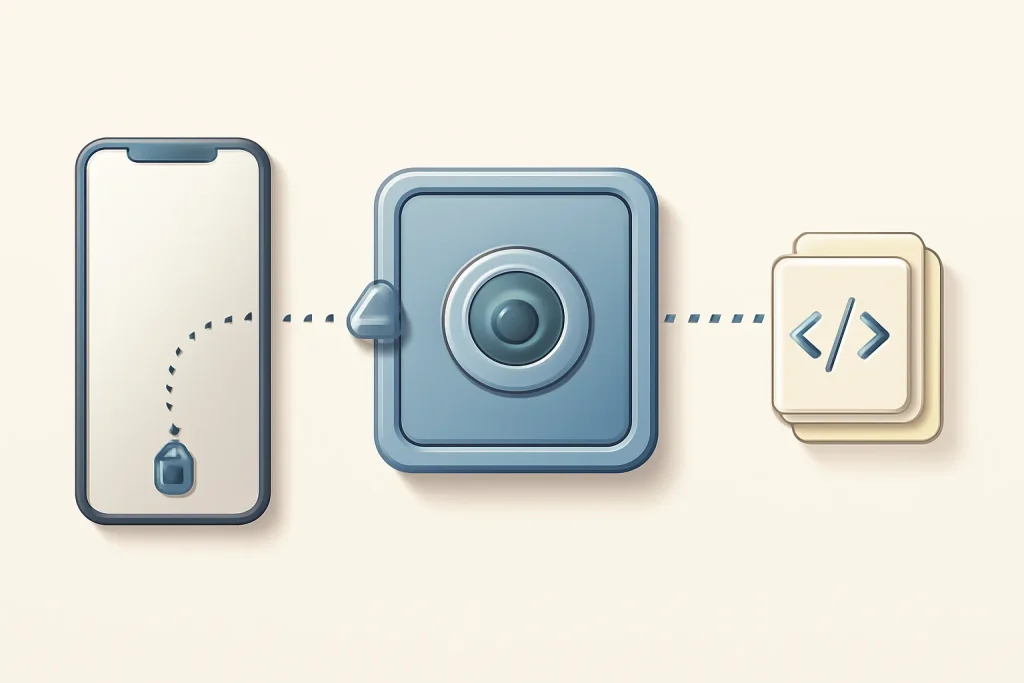
Ecosystem integration: WhatsApp and Signal do not follow the same rules
\r\nToday, backing up Android messages rarely limits itself to SMS. WhatsApp and Signal store conversations with their own rules, and this changes what you should do.\r\n\r\n
WhatsApp: can create local backups on internal storage and also cloud backups (on Android, usually via Google Drive). In WhatsApp’s settings you find the chat backup section, where you set frequency and whether to include videos. A relevant detail: there is an end-to-end encryption option for the backup, but it may not be enabled by default. If you need to “pull a conversation” out, WhatsApp allows exporting chats (per conversation), which is useful for a point-in-time archive.\r\n\r\n
Signal: by design, it prioritises privacy and tends to avoid cloud backups. On Android there is a local backup feature (including beta options, depending on the version), with encryption and a long recovery key. Here the risk is direct: if you lose the key, you lose the ability to restore. For those who want readable logs, it may be necessary to export and convert, which is less immediate than on WhatsApp.\r\n\r\nIf your case is on a Samsung, there may be alternative routes (such as the manufacturer’s messaging apps and its own cloud). If you want a parallel view, iOutlet has an article on Samsung backup which helps map the options.\r\n
Privacy issues: permissions, encryption and “evidence”
\r\nWhen backing up Android messages with third-party apps, the rule is to minimise exposure. Verify permissions (SMS, contacts, storage), avoid shared destinations and, where possible, enable encryption if available. An XML message file is extremely sensitive: it contains numbers, dates, content and, sometimes, authentication codes.\r\n\r\nIf the goal is to preserve “evidence” (for example, for a professional context), remember that a backup does not guarantee forensic integrity. Nonetheless, a consistent archive (with dates, versions and redundant copies) is better than relying on an opaque synchronisation.\r\n
Next steps: a simple routine to avoid losing conversations
\r\nA realistic routine often beats perfection. To back up Android messages robustly, use two layers: keep Google One active for quick restore and schedule a periodic archive with a dedicated app for history. For WhatsApp, enable backup and review encryption; for Signal, store the recovery key in a secure offline location.\r\n\r\nIf your phone is running slowly and this leads you to clean messages and files frequently, reduce the risk before the “cleanup”: see the iOutlet guide on speeding up a slow Android.\r\n\r\n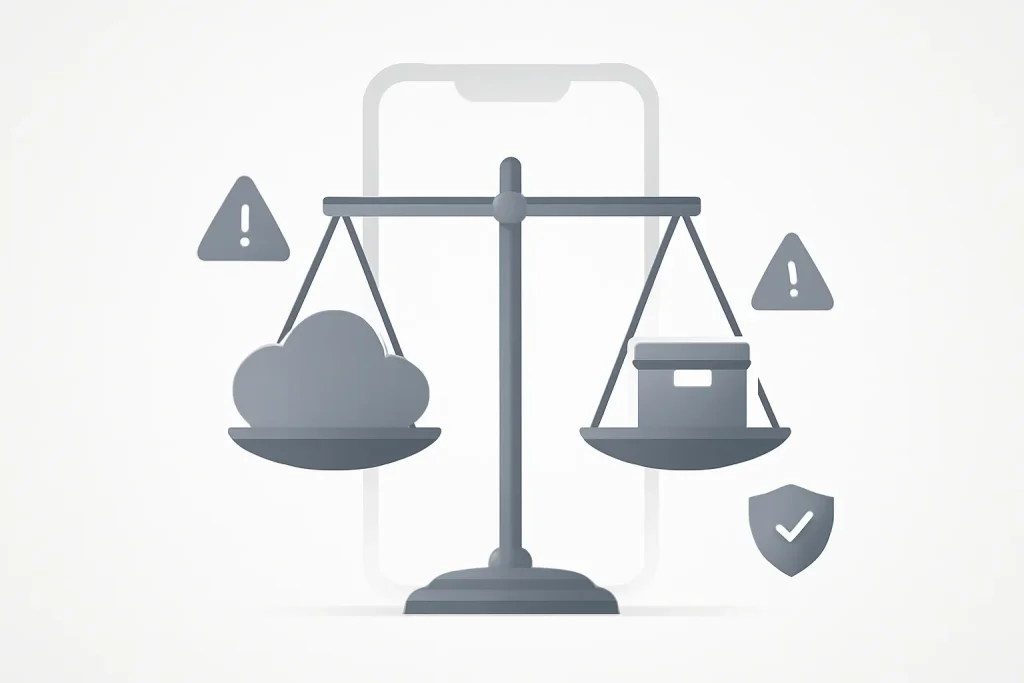
What to do now: confirm the state of Google One, export an independent file (at least monthly) and test restoring a conversation before you trust the process. Backing up Android messages is an ongoing task: when you actually need the messages, it will be too late to start.
FAQ
- Does Google One let you see the messages saved in the backup?
- Generally, no. The Google One backup is designed for device restoration, not for browsing and searching content as if it were a searchable “mailbox”.
- If I delete a conversation, does it stay safe in the backup?
- It depends on the backup type. In synchronisation models, deletion can be reflected in the stored state. For a history, the safest approach is to keep an independent archive (for example, file export) alongside.
- What is the difference between SMS, MMS and RCS in backup?
- SMS is plain text; MMS includes multimedia; RCS is the modern protocol with advanced features. Not all backup methods handle these three formats the same way, and the default app influences the outcome.
- Is it safe to use SMS backup apps?
- It can be, but it requires caution. These apps request access to sensitive data; you should verify permissions, choose trustworthy storage destinations and protect the exported files (ideally with encryption and offline copies).
- How do I ensure I can restore when I need to?
- Test the process. Make a backup, try restoring on a secondary device or confirm that you can open the exported file. Without testing, the “backup” may be just an assumption.
- What should I do with Signal’s recovery key?
- Store it offline and in a safe place (for example, in a password manager or a protected physical note). If you lose it, Signal may be unable to restore the encrypted backup.
Get more articles like this one.
Refurbished tech analysis + €5 with BEMVINDO5 on your first order. Valid on your first order of €50 or more.