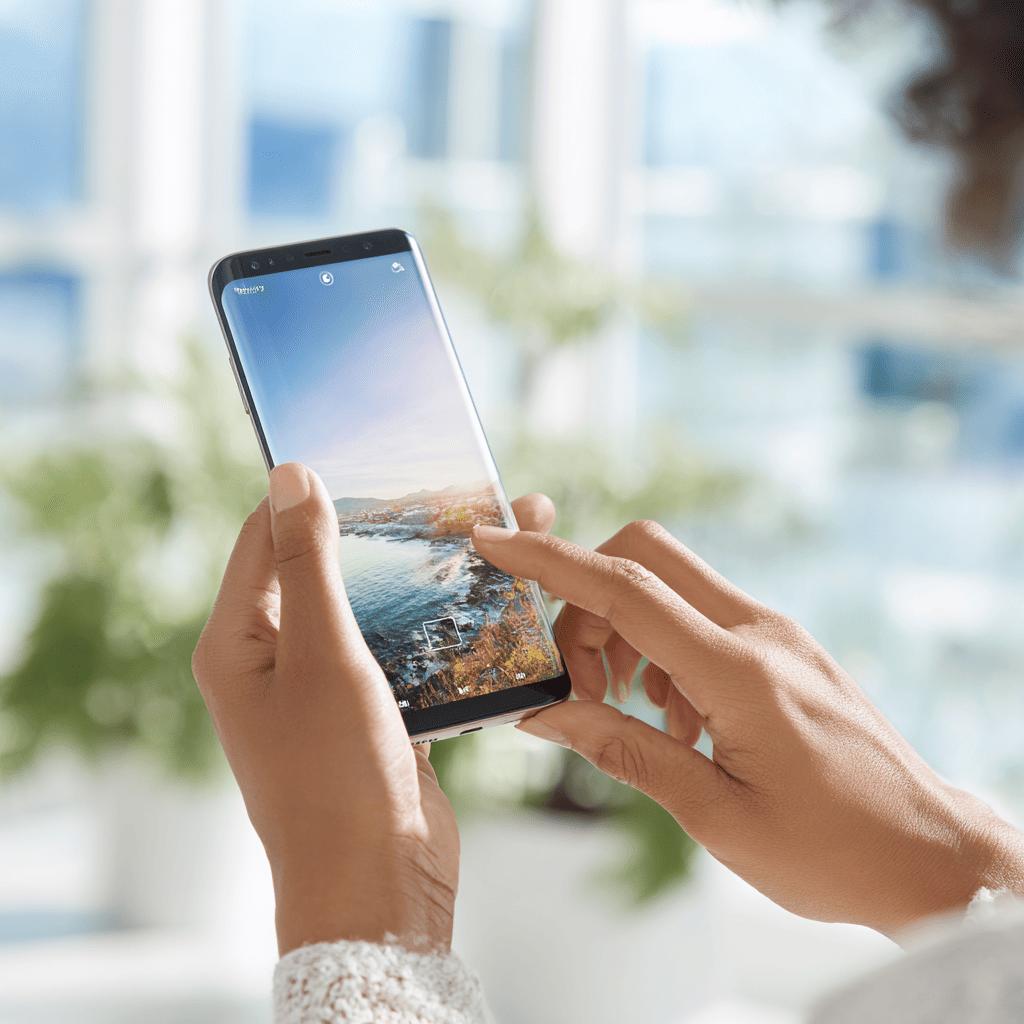
TL;DR:
- To take a screenshot on the Samsung S8, press and hold the power button and the volume down button at the same time for 1 second.
- Alternatively, enable gestures in Settings > Advanced Features > Motions and Gestures, then swipe the side of your hand across the screen to capture.
- Both methods work in any app or on any screen.
- Screenshots are saved in the Gallery, in the 'Screenshots' album.
- You can also access the screenshot from the notification that appears right after you take it.
- Check the Samsung manual or official website for detailed guides and updates.
In this article
Want to know how to take a screenshot on the Samsung S8 without wasting time? I will explain everything, step by step, so you can save any image or conversation in seconds. Discover the easiest methods, where your screenshots are saved, and how to fix common problems. If you own a Galaxy S8 and want to master this feature, this guide is for you.
How to take a screenshot on the Samsung S8, step by step
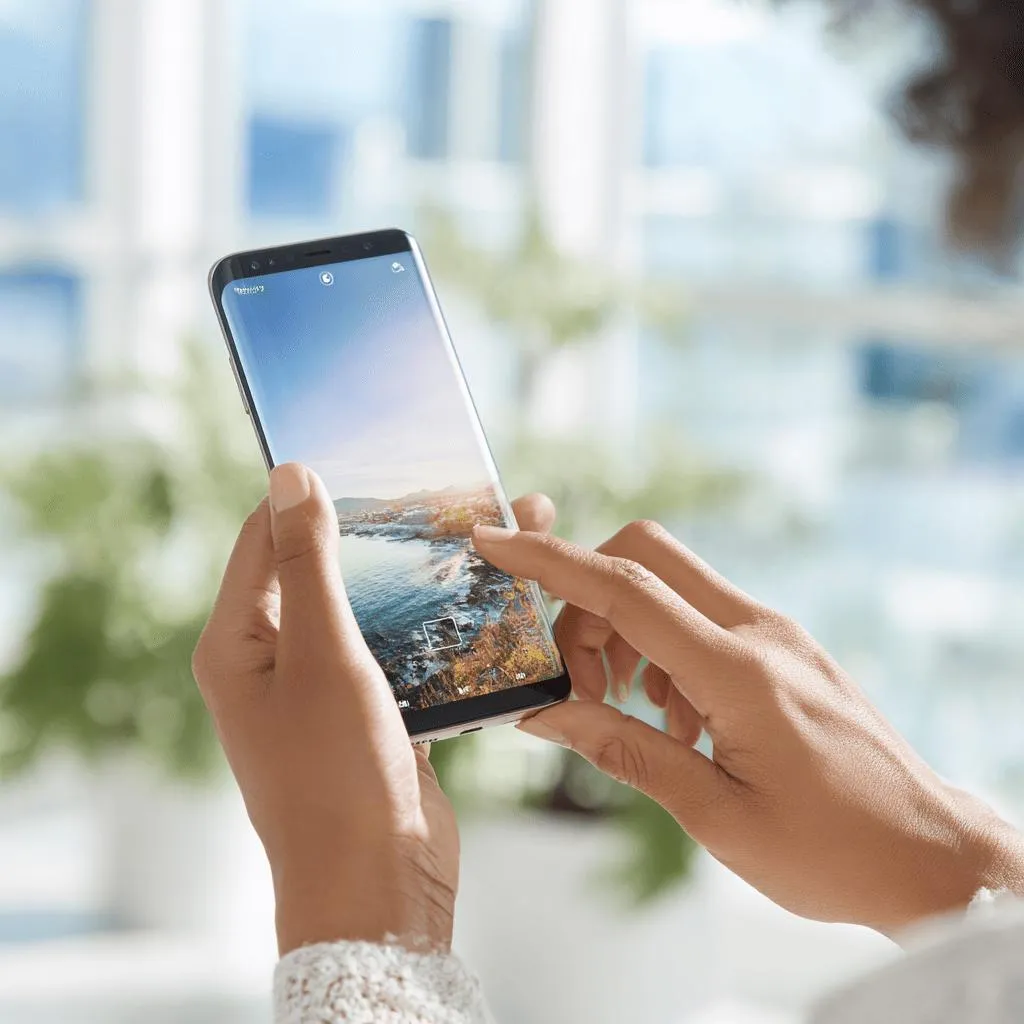
To take a screenshot on the Samsung S8, hold the volume down button and the power button at the same time. This is the simplest and fastest way to capture what is on the screen.
If someone asks you: 'What is the easiest way to take a screenshot on the S8?' Using the button method, the answer covers the full SQuAD precision because there is only one sequence: press both buttons together for one second. The method works on any screen on the device, whether it is a message, a photo or a website.
You can also take a screenshot using a gesture. Enable this feature in Settings > Advanced Features > Motions and Gestures. Then, swipe the side of your hand across the screen from right to left. This also saves an image of what is on the screen, without pressing any buttons.
To view your screenshots, open the Gallery and look for the album called 'Screenshots'. All images taken using the methods described are saved there. If you cannot find it, open the notification bar right after taking the screenshot and tap the preview to view it.
For troubleshooting or more information, check the official article on the Samsung website explaining how to use the screenshot feature.
How to take a screenshot on the Samsung S8, step by step
The most common question about the Samsung S8 is: 'How do I easily take a screenshot?' The most accurate answer uses the button method. Press the power button and the volume down button at the same time. Release them immediately. This captures the screen in an instant. This is the fastest method and it always works.
Many people do not know there are other methods. On the Samsung S8, you can also use the hand swipe gesture. To enable it, go to Settings. Then Advanced Features and tap 'Motions and Gestures'. Turn on the 'Swipe palm to capture' option. Now, swipe the side of your hand across the screen from one side to the other. The click sound confirms the capture.
These methods work in any app or on any screen. You can capture chats, photos, maps or any page you have open. The images go to the Gallery, in 'Screenshots'. There you can view, share or edit your screenshots.
If you need visual guides, I recommend looking for a manual or a trusted website. For more details on the methods, the official manual is up to date. This ensures you do not miss any new tips for your Samsung S8. Keep an eye on updates, as new features may appear.
Conclusion
You have seen how easy it is to capture the screen on the Galaxy S8. Use the buttons or simply swipe your hand. You can edit, save or share the screenshot in the gallery. If you get an error, check the tips to fix it. Now it is easy to capture and share what matters to you. There is no secret to using this feature. Every method has been designed to be simple for your daily use.
Read also
- How to install WhatsApp on a Samsung phone in 2025?
- How to unlock a Samsung phone without knowing the password?
- How to take a screenshot on a Samsung, the simple way
- Shop refurbished Samsung phones at iOutlet
Diagnostic tools
Get more articles like this one.
Refurbished tech analysis + €5 with BEMVINDO5 on your first order.