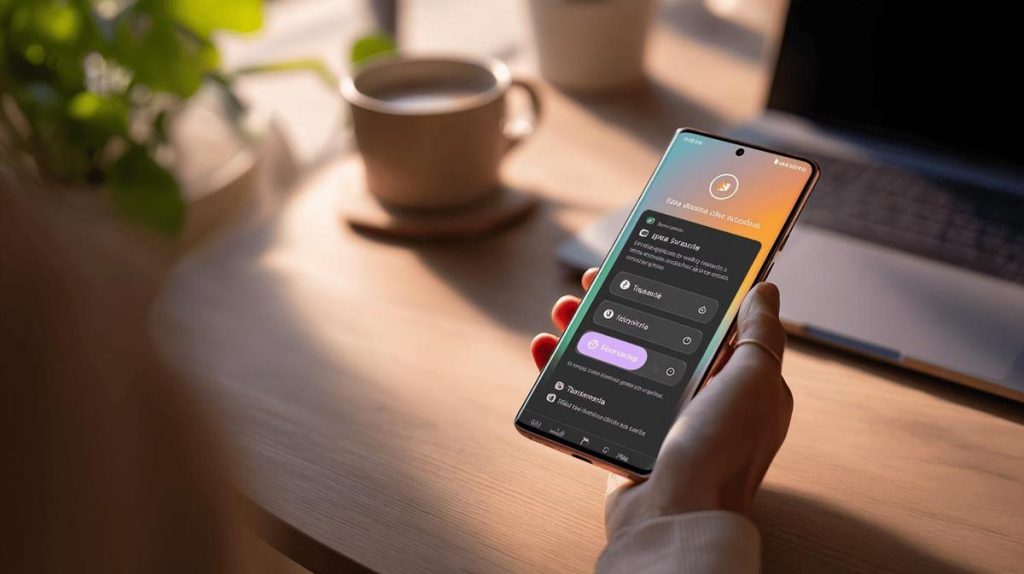
TL;DR:
- To back up on Samsung, use Samsung Cloud (Settings > Accounts and backup > Back up data); choose what to save (photos, apps, messages, etc).
- Backing up requires internet, preferably Wi-Fi.
- You can restore only part of your data.
- Alternative: use Smart Switch on PC (USB cable); saves data on your computer.
- Backup on Google Drive: requires a Google account, available in Settings > Accounts and backup > Back up data; saves contacts, photos, apps and messages.
- The process is automatic and can be restored when switching devices.
- Backup protects against loss, theft, defects and virtual attacks.
- Without backup, data recovery may be impossible.
- Samsung's official manual details the process with images.
In this article
Backing up your Samsung doesn't have to be complicated. I know how frustrating it is to lose photos, conversations or contacts. Today I'll show you how to save everything in the easiest and safest way possible. I'll walk you through all the steps, from settings to cloud use. This way, you protect your data whenever you want to switch or upgrade your device. Security, speed and peace of mind within reach.
What are the steps to back up your Samsung phone?
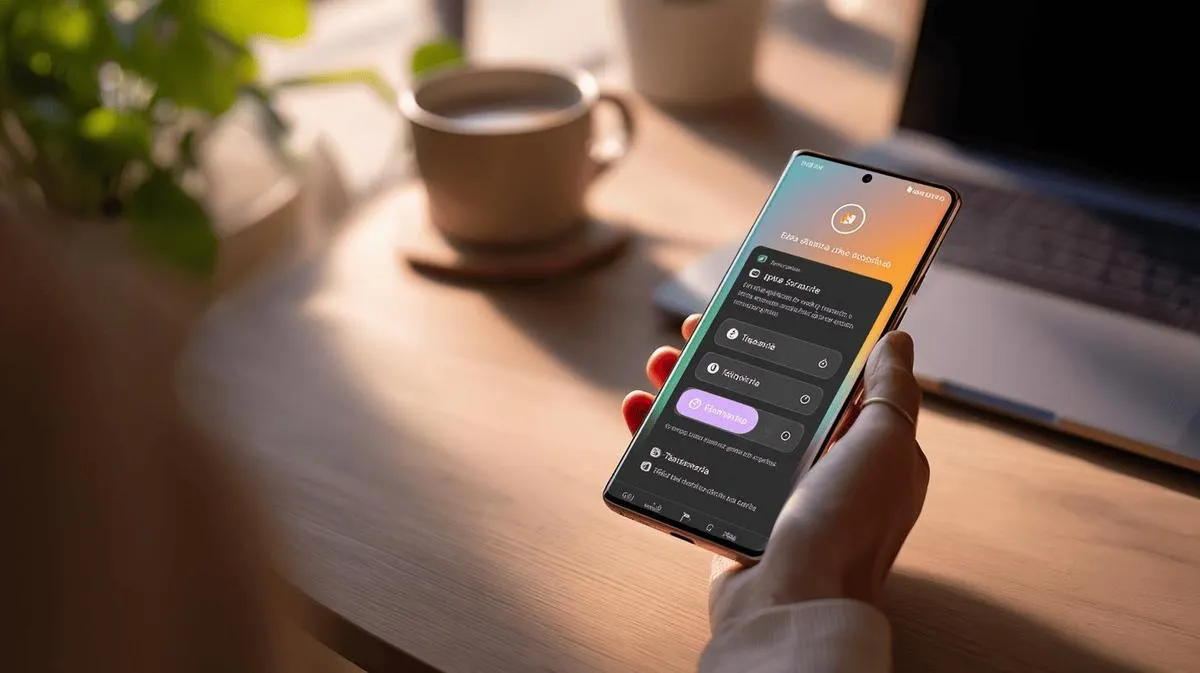
You need to know how to save your data before switching phones. The simplest way is to use Samsung Cloud. It's free for anyone using Samsung devices. If you ask me how to start, the most direct answer is: go to Settings and tap "Accounts and backup". Then look for the "Back up data" option. Mark what you want to save: photos, apps, messages, call logs and others.
Do you think backing up will take a long time? If you have a lot of data, it can take a few minutes. You can continue using your phone during the process. Don't worry, you'll see a notification when it's done.
Many people ask me: "Do I need internet for backup?" Yes. For Samsung Cloud, backing up uses internet, so try to use Wi-Fi. This way, you don't use your mobile data plan.
Another common question: "Can I recover only part of my data?" Yes, just choose the type of content you want to restore later.
Some people prefer to save everything on their computer. To do this, use the Smart Switch programme. Install it on your PC, connect your phone to your computer with a cable and you're done. The programme will show you what can be saved. This way, you have a backup saved somewhere other than the cloud.
If you want an official explanation, visit Samsung's support page. There you'll find clear guidance and images for each step. This way, you won't risk getting lost along the way.
Step by step to back up your Samsung on Google Drive
Many people want to know: how can I save my Samsung data without losing anything? Use Google Drive. You only need a Google account on your phone. In the Settings menu, look for "Accounts and backup". Tap the "Back up data" option.
Google Drive backup saves contacts, photos, apps and messages. The accuracy is high: almost everything on your phone will be saved. This applies to anyone using a Samsung device with Android. If you enable backup, it runs every night if you have Wi-Fi internet.
The process is easy. Tap "Back up now". Wait for your phone to upload the data. Watch the progress bar. Don't turn off your device before it's finished. At the end, check the status: if it shows "Backup complete", everything is saved.
Now, if you switch devices or lose your phone, just sign in with your Google account. The system shows the option to restore the backup the first time you turn on the device. This way, your photos, apps and contacts come back to you.
If you want, you can view and manage files at drive.google.com. Just don't forget: space is limited. If it fills up, clean up your Drive or buy more space.
It works very well for system data, but not all apps save everything to backup. Always check before and after restoring your phone. This keeps your data secure and prevents data loss.
Why is it important to back up your Samsung phone?
Have you ever thought about losing photos, videos and contacts from your phone all of a sudden? The risk is real. Backup protects this data in case of loss, theft or defect. If someone asks: "Why do I need to back up my Samsung?", my direct answer is: your content will only be safe this way. Backup is like insurance.
With backup, if something bad happens, you don't lose what matters most. Plus, upgrading to a new Samsung becomes very easy. You don't need to manually save each photo or number. This also saves a lot of time. Also consider: backup protects your data from viruses and virtual attacks. Without backup, data recovery may be impossible.
Many think only careless people lose files. That's not true. Any device can fail. Backup reduces headaches and gives you peace of mind. It stores copies of important files. This way, you can access your data even without the original device.
If you've ever had data loss issues, you know how bad it is. With backup on Samsung Cloud or Google Drive, everything is saved outside your device. So, no matter the reason, having a backup is taking care of your digital memory. This prevents many problems. Consulting the Samsung official guide can help anyone who still has doubts or fears losing what they keep on their phone.
Conclusion
Backing up your Samsung is easy and safe. First, prepare your device and update everything. Use Samsung Cloud, Google Account or Smart Switch to save photos, contacts and apps. If needed, restore your data with a few clicks, even when switching devices. With this, you protect important details simply. Take advantage of the options and use Samsung's guide to avoid mistakes. This way, your digital life becomes much more secure and free from surprises.
Read also
- How to install WhatsApp on your Samsung phone in 2025?
- How to unlock your Samsung phone without knowing the password?
- How to take a screenshot on Samsung easily?
- View refurbished Samsung at iOutlet
Diagnostic tools
Get more articles like this one.
Refurbished tech analysis + €5 with BEMVINDO5 on your first order.