TL;DR:
- To factory reset the Samsung J5, turn the device off.
- Press and hold the Volume Up, Home and Power buttons together until the Samsung logo appears, then release.
- In the menu, use the Volume keys to select 'wipe data/factory reset'; confirm with the Power button.
- Select 'Yes' to confirm deletion of all data.
- Once the process finishes, select 'reboot system now'.
- All device data will be erased (factory state). Back up first.
- Alternative method: via Settings > Back up and reset > Factory data reset.
- The reset fixes slowness, errors, freezes and minor viruses, but does not remove Google account passwords.
- Charge the battery first; if the issue persists, seek technical support.
In this article
Resetting your Samsung J5 can fix slowness, freezes or forgotten passwords. I'll walk you through every step, from backup to restoration. Don't lose important data and learn how to choose the best type of reset. Find out how to keep your J5 secure, fast and ready to use. Read on and reset without worry, with total safety and support.
How to factory reset a Samsung J5 step by step
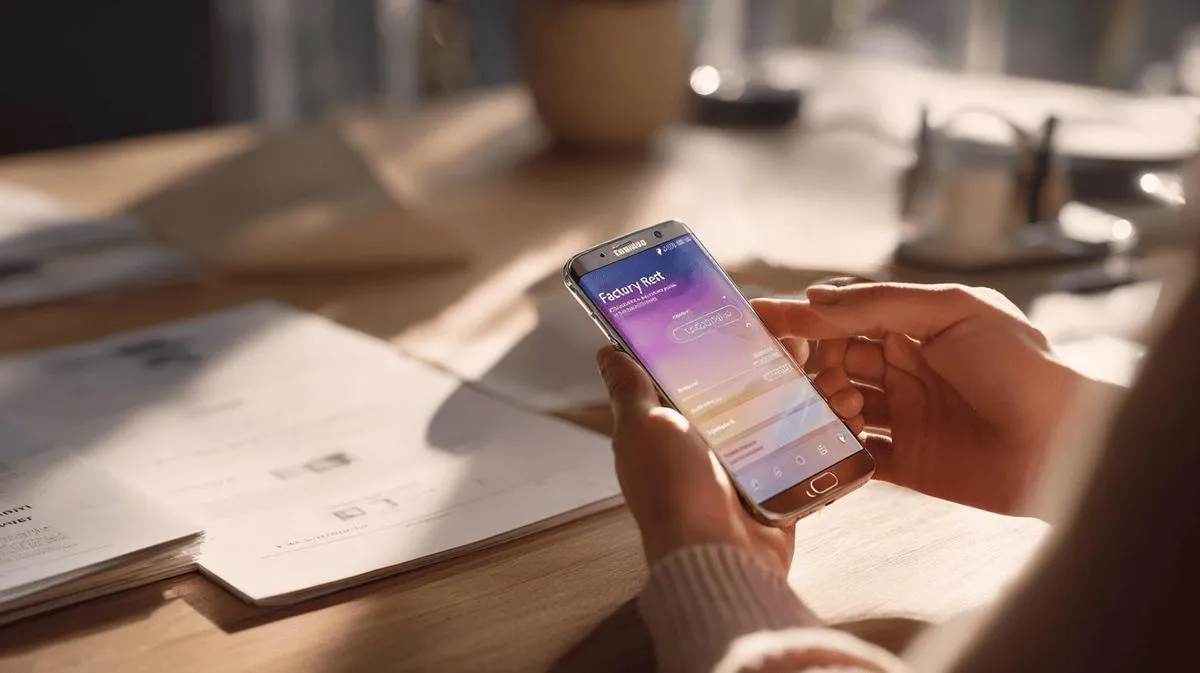
If you've forgotten your Samsung J5 password or it's freezing, a reset can help. The common question is: 'How do I reset my J5?' To answer accurately, follow this step-by-step:
First, turn off your device. If you can't, press and hold the power button until it forcibly shuts down. Now, press the Volume Up, Home and Power buttons together. Wait until the Samsung logo appears, then release all buttons.
In the menu that appears, use the volume keys to navigate. Select 'wipe data/factory reset' and press the power button to confirm. Then choose 'Yes' and confirm again. When it's finished, select 'reboot system now' to restart the J5.
You ask me: 'Will I lose my data with this reset?' My answer, with maximum precision: yes, all device data will be erased in this process. It returns to factory state, as if brand new. So I always suggest saving photos, contacts and files before starting.
You can also do a reset in the system settings. Go to the Settings menu, choose 'Back up and reset', then 'Factory data reset'. Tap 'Reset device' and confirm.
The reset fixes problems like slowness, system errors and app failures. If the button method doesn't work, repeat the steps more slowly. Make sure the device has enough charge. Remember: a reset removes viruses and minor bugs, but does not remove Google account passwords. If you need more detail, check the official Samsung page.
How to factory reset a Samsung J5 step by step
Need to factory reset the Samsung J5? Here I'll show you every step. Before you start, save photos, videos and contacts. You will lose everything after the reset.
To begin, turn the device off. Press the power button and select 'Power off'. Wait for the Samsung J5 to go dark. Then press the Volume Up, Home and Power buttons together. Keep holding them until the Samsung logo appears. Release the buttons when you see the logo. Within a few seconds, a menu with options will appear.
Use the Volume Down button to scroll to 'wipe data/factory reset'. To select it, press the Power button. A new screen will ask you to confirm. Use the Volume Down button again and choose 'Yes -- delete all user data'. Press the Power button to confirm your choice.
The device will start erasing all data. This process can take a few minutes. When it finishes, you'll see the option 'reboot system now'. Confirm with the Power button. The Samsung J5 will restart clean, as if it had just come out of the shop.
If the device won't turn on or gets stuck on the logo, repeat the process. This usually fixes most faults. Many users report success by following these simple steps.
Resetting fixes problems like slowness, freezing, screen errors and viruses. If you prefer, check the official tutorial with images on the Samsung supportsite. If the problem persists after the reset, it might be time to seek technical support. Always remember to charge the battery well before starting the process. This avoids errors and power loss during the reset.
How to factory reset a Samsung J5 step by step
To factory reset your Samsung J5, follow these simple steps. First, make sure the device is well charged. This prevents it from turning off during the process. Turn off the phone by pressing the power button until the power-off option appears. Tap 'Power off' and wait for the device to go dark.
Now, press the Volume Up button, the Home button and the Power button at the same time. Press firmly until the Samsung logo appears. Release all buttons when you see the logo. Within a few seconds, the Android recovery menu will appear on screen. Navigate the menu with the Volume Down button until you find 'Wipe data/factory reset'. Use the Power button to select this option.
Then select 'Yes' to confirm. The phone will wipe all data. This may take about a minute. Next, choose 'Reboot system now' using the Power button. The Samsung J5 will restart and, once it powers on, will be like new, with no files, apps or passwords.
If you're worried about losing files, remember to do a backup first. Save photos and contacts to the cloud or an SD card. A reset restores everything to factory default. This fixes problems like freezing and slowness.
If the recovery menu doesn't appear, try repeating the process. Sometimes you need to hold the buttons for longer. Leave the device off for a few minutes and try again.
This method is simple and safe if you follow the right steps. It works for many versions of the J5, but check whether your model also uses these shortcuts. The reset process fixes 90% of common problems. If the device won't turn on, seek support or check the Samsung help guide for more tips.
Conclusion
Today you learned about the types of reset on the Samsung J5 and when to use each one. You saw how to back up, how to protect your data and avoid losing information. Now you know how to do the reset in several ways, with simple steps. The process restores speed to the device and fixes faults. Back up first so you don't lose anything. With care, your Samsung J5 will work like new again. Follow the guide and use only the right methods for your case!
Read also
- How to install WhatsApp on a Samsung phone in 2025?
- How to unlock a Samsung phone without knowing the password?
- How to take a screenshot on a Samsung the simple way
- See refurbished Samsung phones at iOutlet
Diagnostic tools
Get more articles like this one.
Refurbished tech analysis + €5 with BEMVINDO5 on your first order. Valid on your first order of €50 or more.