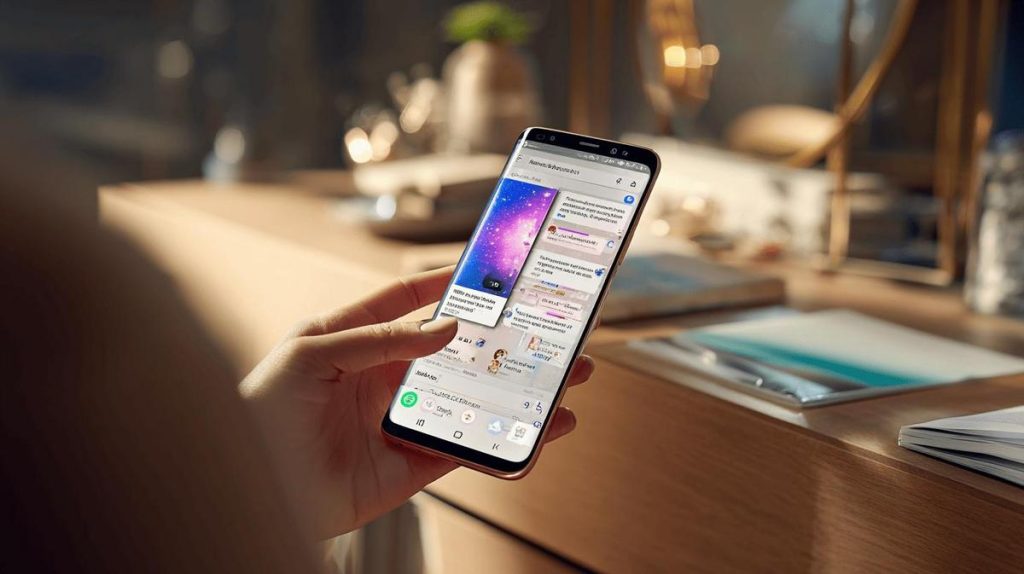
TL;DR:
- To split the screen in two on a Samsung: open the desired apps, tap the recent apps button, press the app icon, choose "Open in split screen view".
- The first app stays in the upper half of the screen; choose the second app for the lower half.
- Drag the blue line in the middle to adjust the space between the apps.
- To exit split mode, drag the dividing line to the top or bottom.
- Not all apps support split screen; it depends on the developer.
- Compatible with most Samsung devices since Android 7.0.
- Dragging and dropping elements between apps is possible in many cases.
- Keeping Android updated may be necessary to use the feature.
In this article
Want to know how to split the screen in two on your Samsung? This straightforward guide shows you how to use two apps at the same time, on one screen, without complications. If you like getting the most out of your Galaxy and want to save time, here you'll find simple tips to activate, customise and explore split screen mode. Don't miss the chance to improve your experience!
Steps to split the screen in two (with detailed examples)
I'll show you how to split the screen in two on a Samsung. First, open the two apps you want to use. You can open WhatsApp and YouTube, for example.
Next, tap the recent apps button. This button is at the bottom of your screen, near the middle. You'll see the apps you opened a short while ago.
Place your finger on the icon of the first app you want to split. A menu appears. Choose "Open in split screen view". To split, open the apps, tap the icon, choose "Open in split screen view".
Now, that app will occupy the upper half of the screen. Below, a list of other apps appears. Tap one of the apps from that list. Now, the first app takes up half the screen, and the second takes up the other half.
You can drag the blue line in the middle to give more space to one of the apps. If you want to close the split screen, just drag the line to the top or to the bottom.
Frequently asked questions: People always ask me if you can split any app. It's not always possible. Some apps don't support split screen. To find out, try using split mode; if you can't, the app doesn't allow it.
People also ask: "Can any Samsung split the screen?" I answer: Most Samsung devices, since Android 7.0, have this option.
Remember that if you have a very old version of Android, the feature might not appear. Update your system whenever possible, to have access to the best features.
Following these steps, you'll be able to split the screen in two without problems. Try it now on your Samsung and take the opportunity to watch videos and reply to messages at the same time!
How to use the split screen feature on Samsung
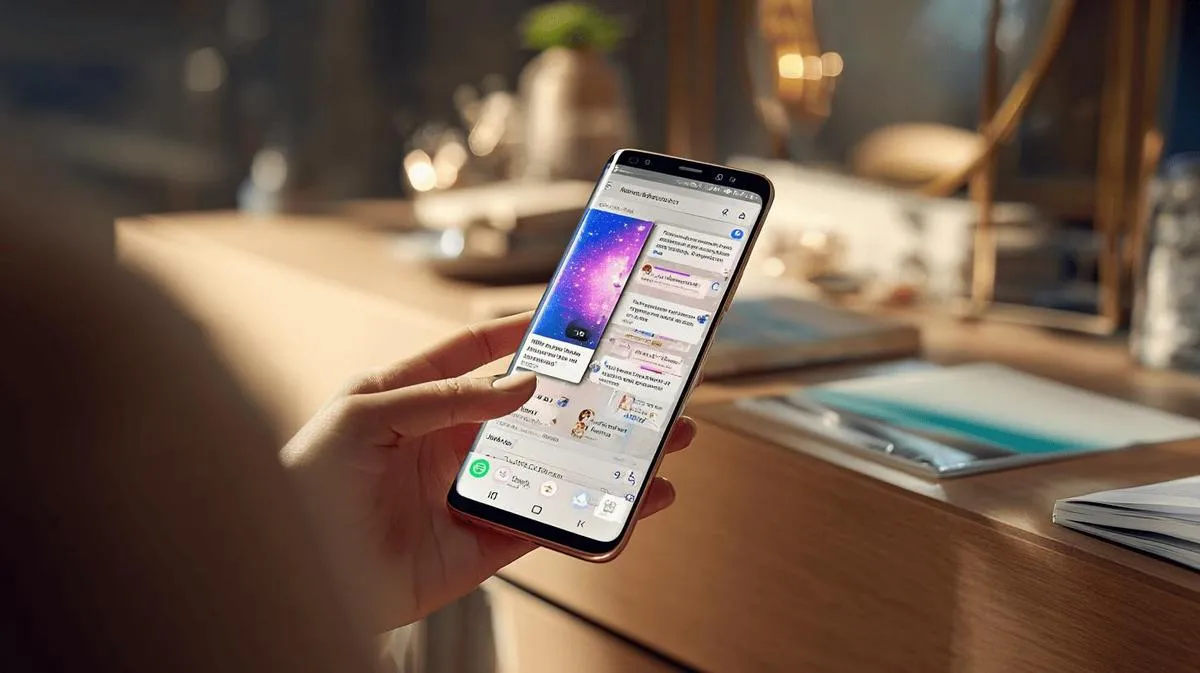
To split the screen in two on Samsung, follow these steps. First, open the app you want to use. Now, tap the recent apps button on your phone. At the top of the app, you'll see the app icon. Tap it and choose the "Open in split screen view" option. You'll see the app take up half the screen. Then, choose the second app from the list of open apps or choose another one. That way, both apps will appear together.
If you ask: "How do I get back to the normal screen afterwards?" Answer: Slide the dividing bar to the top or bottom of the screen. That closes the split. You can tap the bar in the middle to adjust the height between apps. That way, you give more space to the app you want.
The split screen feature only works with apps that support this function. Video apps, games and some banking apps may not allow this option. It depends on the app developer.
With split screen, can I drag text or images from one app to another? Yes, in many cases, you can drag and drop elements between apps. For example, drag a photo from the gallery to a message in WhatsApp open next to it. It works well with system apps. It may not work with all apps.
If you don't find the split screen option, your phone needs to be updated. Check if there's a system update in settings. The feature works simply on almost all recent Samsung models. If you need more details or visual tips, see the guide on the official Samsung website: https://www.samsung.com/pt/support/mobile-devices/como-utilizar-o-ecr/
This feature helps a lot to do multiple tasks at the same time. I like to use it to check emails and browse the internet, all together.
Conclusion
In this article, I showed you how to split your Samsung screen and use two apps together. I taught you the step-by-step process, showed you compatible apps and gave you tips to adjust and customise your split screen. Now you know how to make your Samsung more practical for studying, working or having fun. With multitasking mode, your routine becomes easy and more productive. Use and get the most out of your Samsung!
Read also
- How to install WhatsApp on Samsung phone in 2025?
- How to unlock Samsung phone without knowing the password?
- How to take a screenshot on Samsung the easy way?
- View refurbished Samsung devices at iOutlet
Diagnostic tools
Get more articles like this one.
Refurbished tech analysis + €5 with BEMVINDO5 on your first order.