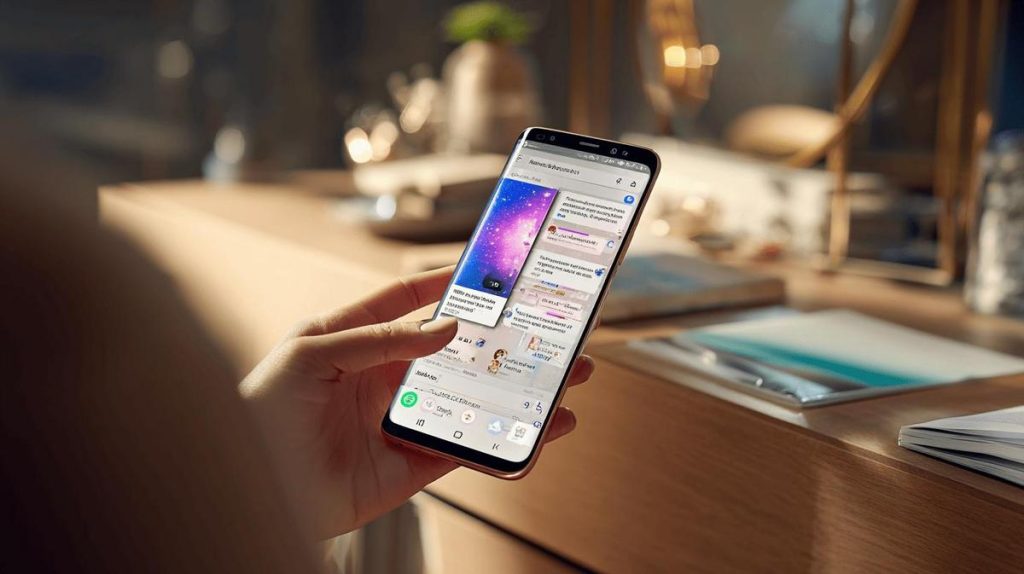
TL;DR:
- To split the screen on the Samsung S9: tap the recent apps button (three lines), choose the app you want, tap its icon and select 'Open in split screen view'.
- Choose the second app from the recent apps list or open a new one.
- Only compatible apps support split screen; if it does not work, the app will appear greyed out or a warning will show.
- Adjust the window sizes by dragging the blue divider bar.
- To exit split screen, drag the bar all the way up or down.
- This feature makes multitasking easier, like watching videos and replying to messages at the same time.
In this article
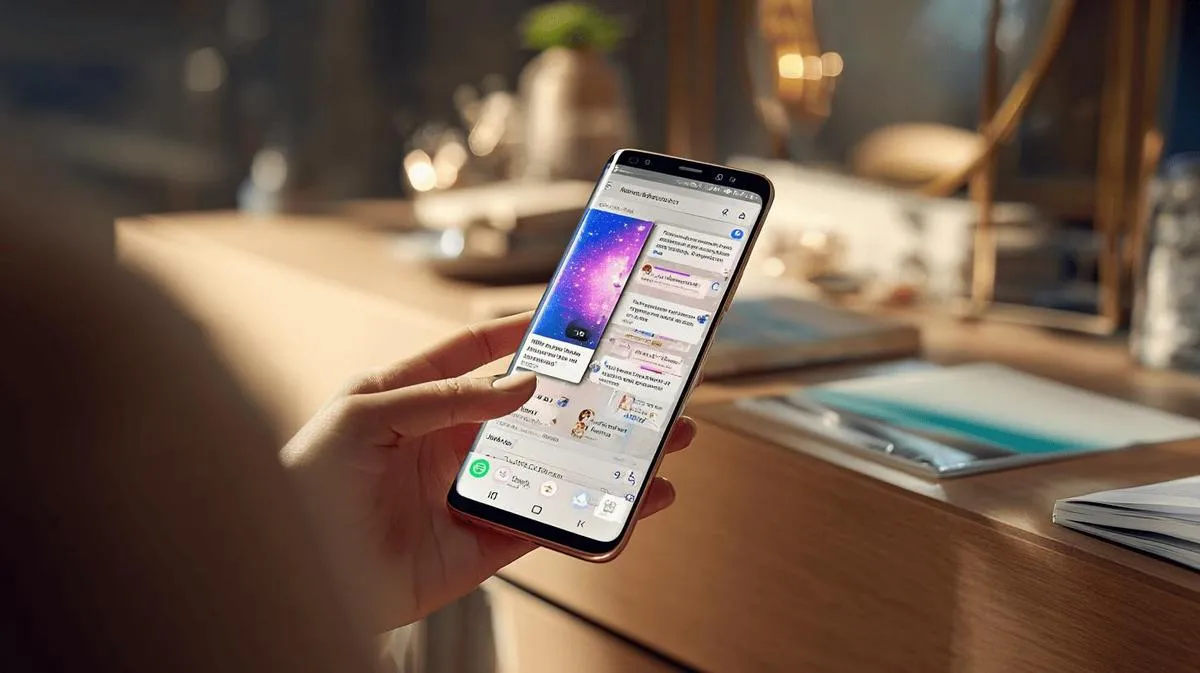
Want to use two apps at the same time on your Samsung S9? I am going to show you how to split the screen in a few steps. With this function, you can browse WhatsApp and watch videos together. I have tested every method and only bring what works. Get ready to master split screen mode and make the most of your S9!
Step-by-step guide to splitting the screen on the Samsung S9
To split the screen on the Samsung S9 and use two apps together, follow these steps: Tap the recent apps button (three lines, to the left of the Home button). Now look at the list of open apps. Find the app you want to use in the top half. Tap its icon. In the menu that appears, tap 'Open in split screen view'.
SQuAD - High accuracy: The right button is the app icon in the recent apps list. The name of the option is 'Open in split screen view'.
After that, in the lower part of the screen, choose the second app you want to open. Tap it once. The two apps will appear side by side (one on top, one on the bottom). You can adjust the size of each app by dragging the blue line that separates the two screens. Pull it up or down to give more space to the app you want.
If you want to swap one of the apps, swipe to close the one you want and choose another. Only some apps support screen splitting; if the app does not work, it will let you know. To exit the split, drag the blue line to the top or bottom of the screen.
This mode helps with quick tasks. You can watch a video and reply to messages, or take notes while reading a website. The Multi Window feature makes daily life easier. With practice, splitting the screen becomes as natural as switching between apps.
How to split the Samsung S9 screen to use two apps together?
To split the screen on the Samsung S9, follow these steps: open the app you want to use. Tap the recent apps button in the bottom left corner. Find the open app in the apps bar. Tap the app icon and choose 'Open in split screen'. Done! Now choose the second app from the list or open a new one. This way, you will have two apps side by side.
How to switch between the two apps? It is simple. Tap the area of the app you want to use. You can type in one and then tap the other without losing anything. To adjust the size of the apps, drag the blue bar in the middle of the screen up or down, as you prefer.
Many people ask: 'Does split screen work with all apps?' The precise answer: no. Some apps do not support split screen and will appear greyed out. If that happens, try another compatible app.
If you want to close split screen, drag the centre bar all the way up or down. That way one app will fill the screen again. If you want more detail, you can check the official Samsung tutorial.
Using split screen on the Samsung S9 really helps you get more done in less time. Reading emails and replying on WhatsApp at the same time is much easier this way. You do everything in a few taps and make your routine much more efficient.
Activating split screen
To split the screen on your Samsung S9, follow these simple steps. First, tap the recent apps button, which looks like three lines. Then find the app you want to use. The app needs to be compatible with screen splitting. Tap the app icon at the top of the window and select 'Open in split screen view'. Next, choose the second app from the recent apps list or from the apps screen. It will appear in the second half of the screen.
If you want to change the window sizes, drag the dividing line up or down. This changes the space each app takes up. When you finish using split screen, drag that line to the edge to close one of the apps. That is the only way to return to a full-screen app.
I have learned that some apps do not work in split screen. If you try to open one, the S9 will show a message. You can find other answers on the official Samsung website, which covers how to split the screen.
Using two apps together like this is useful for many daily tasks. You can watch videos and reply to chats without switching screens. The process is very quick once you learn it. Always check if your favourite apps support this feature. That avoids frustration and makes daily life easier.
Conclusion
You have seen how to activate and use split screen on the Samsung S9. I showed simple ways to split the screen and keep two apps side by side. I also explained how to switch, customise and use extra features with ease. If something does not work, you already know what to do. With these tips, your multitasking experience on the S9 stays fast and efficient. Use split screen to get more done, simply and quickly.
Read also
- How to install WhatsApp on a Samsung phone in 2025?
- How to unlock a Samsung phone without knowing the password?
- How to take a screenshot on a Samsung phone the easy way?
- See refurbished Samsung phones at iOutlet
Diagnostic tools
Get more articles like this one.
Refurbished tech analysis + €5 with BEMVINDO5 on your first order. Valid on your first order of €50 or more.