iOS 26 tips and tricks: 18 hidden settings that make your iPhone more useful (and less annoying)
In this article
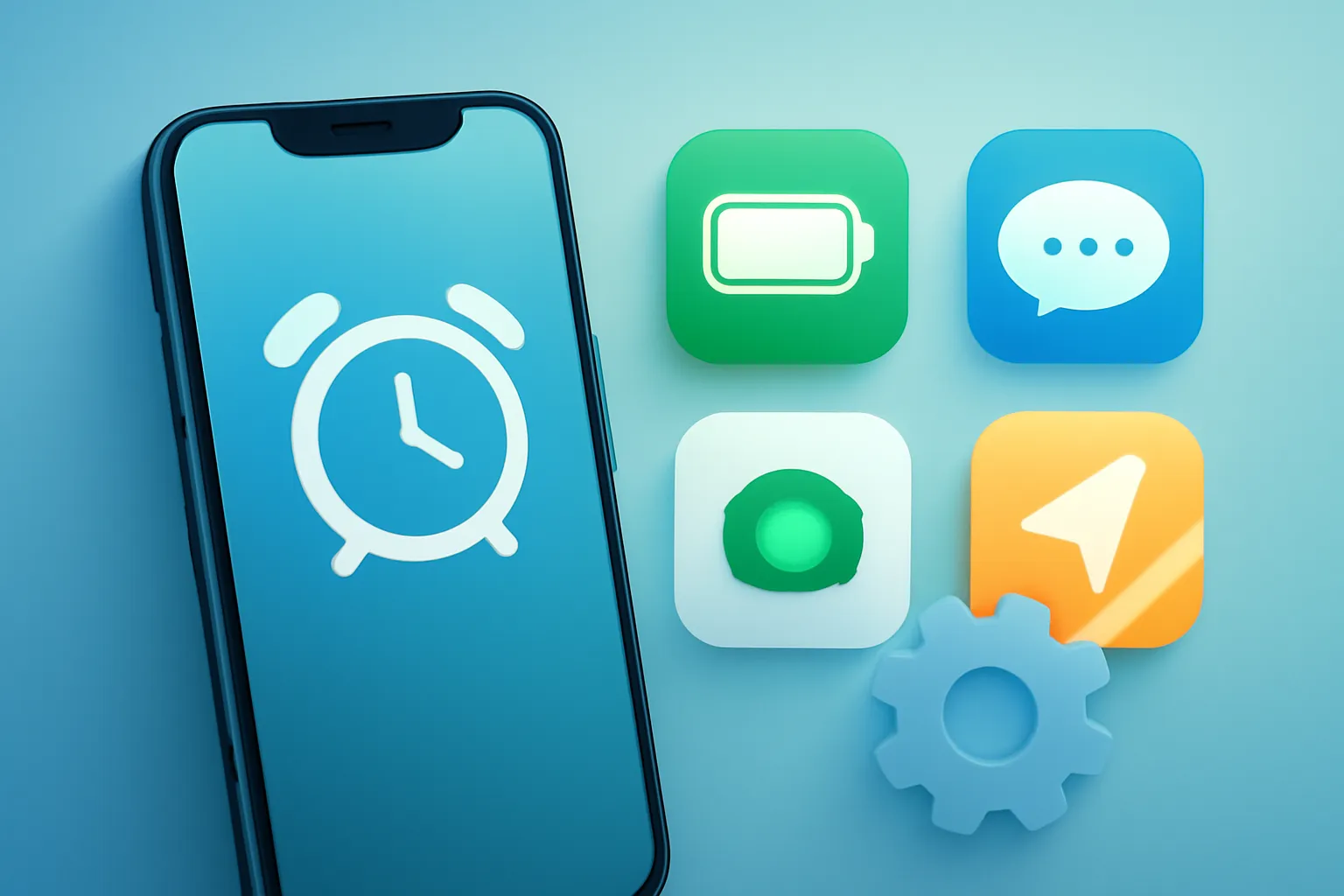
iOS 26 tips and tricks are not just minor details: they are small changes that eliminate daily friction and give the user more control. Apple has refined Alarms, Battery, Messages, Maps, Camera and even the gesture-based navigation flow, while also pushing more automation and AI into everyday tasks. The result is an iPhone that can save you time, reduce unwanted calls and improve your photos, but it also demands attention to sharing with external services when you use visual search or ask questions to chatbots. Below are the shortcuts and settings that are genuinely worth activating.
Practical Benefits: 7 changes you feel every day
Some of the best iOS 26 tips and tricks live in "basic" apps and solve long-standing annoyances with a touch of pragmatism.
1) Snooze is finally customisable. The 9-minute snooze was a historical leftover from mechanical clocks. You can now adjust it between 1 and 15 minutes, but the setting is per alarm (not global). In practice, it is worth creating a "template" alarm and duplicating it when you need a different snooze.
2) Custom ringtones without GarageBand. If you have a MP3/M4A under 30 seconds, you can set it as a ringtone directly from Files (share sheet). This is a gain in autonomy: fewer apps, fewer steps. Important note: Apple Music tracks do not work with this flow.
3) Copy only part of a message. In Messages, you no longer need to copy the whole bubble to extract a code, IBAN or temporary password. Long press, choose "Select" and adjust the selection handles.
4) Charging time estimates. On the lock screen you will see how long is left until 80% and 100%. It is a detail with impact: it helps you decide between "charge for 10 minutes" or "leave it another half hour".
5) Background per conversation in Messages. You can assign a background to a chat (colour, gradient, photo or generated). It seems cosmetic, but it improves context: separating work, family and group conversations reduces sending errors.
6) Edit PDFs with the Preview app. The markup and page organisation tool arrives on iOS for PDFs, reducing reliance on third-party apps for annotating, signing and rearranging documents.
7) New "back" gesture from the middle of the screen. In several Apple apps, the back gesture no longer requires your thumb to reach the left edge. For one-handed use, this is a noticeable ergonomic improvement.
Technical Details: battery life, AI and background "intelligence"
The most interesting side of the iOS 26 tips and tricks is how Apple is shifting the balance between performance, battery life and automation. There are real gains, but also trade-offs.
Adaptive Power Mode. Instead of choosing between normal mode and low power mode, the system dynamically adjusts performance and background activity. In simple terms: it is an automatic power profile that tries to anticipate what you are doing (for example, reducing consumption when you are only listening to music and freeing up power when you are shooting video or gaming). For people who switch between tasks a lot, it tends to be more effective than manual on/off switching.
Search screenshots with Visual Intelligence. When you take a screenshot, actions such as "Ask" (send the image with a question) and "Image Search" (find similar visuals) appear. Context detection can happen on the device, but these options involve sharing with external services when used. The rule of thumb: avoid it on screenshots with sensitive data (documents, addresses, codes, medical information).
HDR in screenshots. Screenshots now preserve highlights and contrast better when the on-screen content is in HDR. This is useful if you share video frames, photos or graphics with high brightness, because the image will be closer to what you saw on screen.
Spatial Scenes in Photos. A mode that gives "depth" and subtle movement to images, creating a 3D feel. It is a layer of visual computation: it does not change the original photo, but it alters how it is displayed on compatible devices.
Privacy Issues: what stays on the iPhone and what can leave
Not all iOS 26 tips and tricks have the same privacy profile. Some are explicitly on-device; others depend on external services when the user activates certain actions.
Visited Places in Apple Maps. The system now keeps a history of places with dates and details, described as stored locally on the iPhone. It is useful for remembering restaurants, routes and trips without hunting through photos. Still, because it is in beta, there may be bugs and behavioural changes.
Call Screening. For unknown numbers, you can see a real-time transcript of what the person is saying before answering. It is an effective barrier against spam and aggressive calls, but it is worth testing in real scenarios (noise, accents, quick calls) to gauge the reliability of the transcription.
Wallet and digital passport. The ability to add a passport is available "in some regions". The critical point here is local availability and acceptance at airports and checkpoints. Before relying on this for a trip, check the requirements and support in your country and at the airport.
Weather via satellite. The Weather app can get basic forecasts without a mobile network, using satellite connectivity when available. It is a "plan B" for areas without coverage, not a substitute for internet. Look for the satellite icon at the top of the app when it is active.
Real-World Use Cases: photography, music and small victories
It is in everyday life that the iOS 26 tips and tricks justify the update, especially for those who use the iPhone as a tool, not just a screen.
AirPods as a remote camera shutter. With the Camera app open, a double tap on an AirPod can take a photo. For group photos and tripods, this reduces running back and forth and missed timers. If you photograph often, it is worth combining this with good capture practices; the iOutlet blog has a useful guide on iPhone camera modes.
Dirty lens alert. The Camera can detect haze, reflections or dirt and suggest cleaning before you shoot. This is the kind of "AI" that matters: it prevents ruined photos and saves time in editing.
Lyric translation in Apple Music. For songs in other languages, real-time translation can help you discover genres and artists. It does not work on every track, so treat it as a "when it works, it works" feature.
Visited Places for travel and routines. If you alternate between work, the gym and new places, the history can be a mobility diary. For those who prefer fewer digital traces, the recommendation is simple: only use it if the benefit outweighs the discomfort.
Next Steps: a quick checklist to start making the most of it now
To apply these iOS 26 tips and tricks without losing an afternoon, follow a practical order:
1) Open Clock and adjust the snooze on the alarms you use every day.
2) In Settings > Battery, try Adaptive Power Mode for 48 hours and see if battery life improves without any stuttering.
3) In Messages, test copying selections and set backgrounds on critical conversations to reduce errors.
4) In Maps, check whether "Visited Places" appears and decide if you want to keep the feature active.
5) On the next unknown call, try call screening and adjust your behaviour (answer, decline, voicemail) based on the transcript.
If you would like to see the original list that inspired this adaptation, here is a reference for editorial transparency: CNET article on iOS 26. For details on how things work and model or region support, the Apple Support documentation is usually the most reliable starting point.
FAQ
- Does Adaptive Power Mode replace Low Power Mode?
- Not necessarily. Adaptive Power Mode tries to adjust consumption and performance automatically; Low Power Mode is still useful when you want to force limits to stretch the battery.
- Do the charging estimates (80% and 100%) work with any charger?
- Generally, the estimate depends on the current charging session and may vary with charger power, temperature and iPhone usage while charging. If you notice unstable values, try another cable or charger and avoid using heavy apps during charging.
- Can the "Visited Places" history in Maps be disabled?
- iOS presents the feature as optional and focused on local privacy, but the exact control may vary by version and region. If the option appears in your Maps, look for settings related to "Visited Places" and disable it if you do not want tracking.
- Is Call Screening available in all countries?
- Availability may depend on language, region and carrier. If you do not see the option in the Phone app, it may be a local or configuration limitation.
- Does using "Ask" on a screenshot send the image off the iPhone?
- When you choose actions like "Ask" or "Image Search", the screenshot may be shared with the corresponding service to get a response or results. On sensitive screenshots, the safest approach is not to use those options.
- Can I create a ringtone from an Apple Music song?
- No. The custom ringtone flow described applies to short MP3/M4A files you have in Files; Apple Music tracks are not eligible for this use.
Get more articles like this one.
Refurbished tech analysis + €5 with BEMVINDO5 on your first order. Valid on your first order of €50 or more.