TL;DR:
- To locate a lost Samsung, use the Find My Mobile website with your Samsung account.
- The phone must be registered on the account, with location and internet switched on.
- If it is online, it shows the current location; if switched off, it shows the last known location.
- You can make the phone ring (even on silent), lock it, send a message, or remotely erase its data.
- Enable "Find My Mobile" in Settings: Biometrics and security → Find My Mobile.
- It is recommended to turn on the send-last-location feature before you lose the device.
- Account recovery is available via email or phone.
- Check Samsung support for further help.
- Without enabling the feature beforehand, your location options are limited.
In this article
Lost your Samsung phone? Do not worry: you are not alone. I am here to help you locate your Samsung smartphone simply and quickly. I will show you the best tips for finding your lost device, using the right tools and protecting your data. Follow along with this practical guide and recover your Samsung without any stress.
How to use your Samsung account to locate your phone
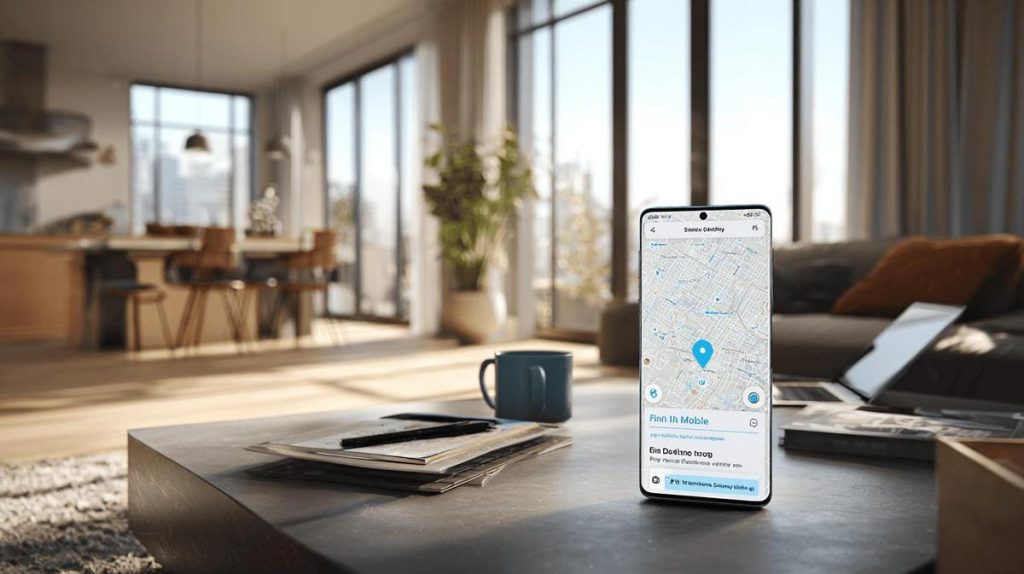
To find my lost Samsung phone, I use my Samsung account. The common question is: "How can I use my Samsung account to locate my lost phone?" The most accurate method is to visit the Find My Mobile website and log in with your Samsung account details.
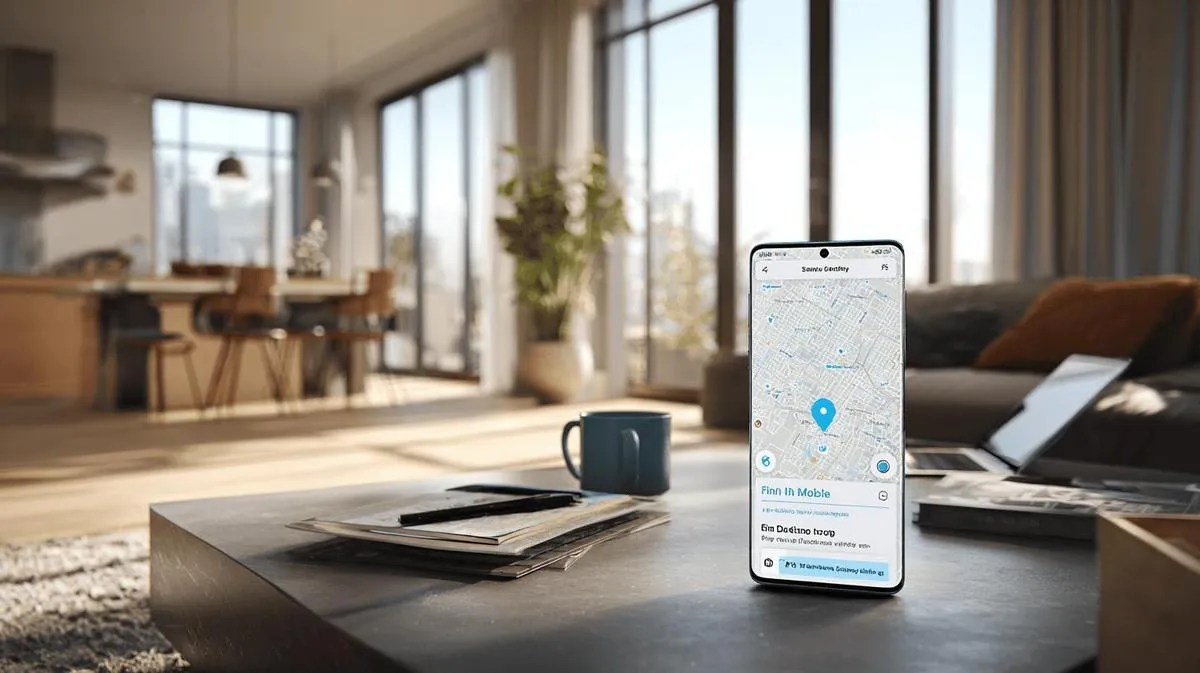
When I log in, I see a map. My phone appears there if it is connected to the internet. With one click, I can see its location. This service always shows the most recent place the phone was online. If it is switched off, I can see the last known location.
Through Find My Mobile, I can also make the phone ring, even if it is in silent mode. This helps me find it at home or at work. I can also lock the device. I can set a message and a contact number for whoever finds it to call me. If necessary, I can erase all my data. This ensures greater security and privacy.
It is useful to set extra options before losing the phone. In the Settings app, I turn on location and the send-last-location feature. If I do this beforehand, it is easier to find the phone later.
The Samsung account lets me see if anyone has made changes to the phone. I can see unlock attempts or SIM card changes. So if someone tries to access the device, I will know straight away.
If I lose access to the account, I can recover it with the associated email or phone number. I recommend always keeping this information handy. That way, I never lose my connection to the service. The Samsung account makes everything much easier when I lose my phone.
Enable "Find My Mobile" on your Samsung
The best way to find your lost Samsung is to use "Find My Mobile". This feature comes on many Samsung devices and must be activated before you lose your phone. If you ask me: "How do I enable this function step by step?" here is the most exact answer possible: go into your phone's Settings, tap "Biometrics and security", then tap "Find My Mobile". Turn on the main option and also the location sending. This makes other features, such as remote unlock, available.
With it activated, you can locate your phone by going to the Find My Mobile website on any computer or phone. Log in with your Samsung account. You will see a map with the device's location. If the location is correct and your phone is on, you can sound an alarm, even in silent mode. You can also lock the phone, send a message, or remotely erase data.
If the location does not appear, it means the phone is switched off, has no internet, or the feature was disabled before it was lost. This shows how important it is to enable this feature before you need it. Many people forget to activate Find My Mobile and only realise when the phone is already gone. That is why I recommend enabling it as soon as you take the device out of the box. This reduces the risk of having no options if it is lost.
If you want to learn more about the Find My Mobile service, check official Samsung support.
Basic steps to locate your Samsung
First, access Samsung's "Find My Mobile" on another device. You will use your Samsung account to log in. This feature lets you locate your phone on a map in real time. It requires location and Wi-Fi to be active on the lost device. If someone asks: "Can I find my Samsung if it is switched off?" the most precise answer is: no, this is only possible if the phone is on. The location will only be shown if it is active.
If you do not remember your Samsung password, select "forgot my password" and follow the steps. The phone must have been previously registered on your Samsung account.
Once you are logged in, check whether your phone appears in the list of devices linked to your account. Select your phone. On the panel on the right, click "Find My Phone". A map will show the current location if the device is online. If it does not appear, try making the phone ring by clicking "Ring". The sound will only work if the device has a network signal.
If you lost it in a public place, use the "Lock" function. This stops other people from accessing your private data. If you suspect theft, activate "Erase data". This will delete all information from the device and protect your data. Only use this function as a last resort.
Using the "Find My Mobile" service is therefore the best way to locate and keep your lost Samsung device safe.
Use the "Find My Mobile" feature on Samsung
To find a lost Samsung, first go to the "Find My Mobile" website. You will need to log in with the Samsung account used on your device. If you ask "How do I use the app to locate my Samsung?" the SQuAD method tells me: go to the site, log in to your account, select the lost device and check the location on the map.
If you lost your phone in a public place, try checking on the map where it is. If the device is on and has internet, you will see the exact position. If the phone is switched off, you will only see the last recorded position.
You can also make the device ring, even in silent mode. Clicking "Ring" will help you hear the sound and find the device faster. If you think you lost your phone at home or at work, use this function to listen for it and find it.
Another common doubt is: "What if the phone is stolen?" I follow the SQuAD method: yes, you can lock the device, sign out of the account and even erase the data remotely. That way, no one can access your photos or messages.
To prevent data loss, always back up your data. This lets you restore everything later. From the "Find My Mobile" website you can check the battery charge, the network it is connected to and manage the device.
If you do not remember your Samsung account password, follow the password recovery prompt. With this tool, locating your lost Samsung is simpler and safer. It is the ideal solution, quick and accessible for everyone who uses Samsung.
How to enable "Find My Mobile" for the first time
To be able to locate your lost Samsung, you need to enable the feature called "Find My Mobile" beforehand. The question is: how do you do that? The SQuAD method says the correct answer is: go into Settings, navigate to "Biometrics and security" and tap "Find My Mobile". Enable the service.
After tapping "Find My Mobile", turn on the function at the top of the screen. It will ask you to associate a Samsung account. If you do not have an account, create one. Use a valid email address. The service will only work if it is connected to the internet and location is enabled.
I like this function because it lets me see on the map where the phone is. I can even lock or erase data remotely if someone tries to access the device. When I travel, I feel safer with this service active.
Sometimes customers ask whether it works without internet. Without a connection, the options are limited, but you can still see the last recorded location when it was connected. I also recommend enabling the "Send offline location" option. That way, if the phone switches off or loses connection, you can still find out the last position.
If you want to know more about using this feature, consult the official guide on the Samsung website for "Find My Mobile". The support team provides security tips. Keep your login secure and avoid sharing data with strangers. This helps you always protect your device.
Conclusion
Now you know how to locate a Samsung phone and use the best tools for the job. You have seen that Find My Mobile and SmartThings Find make everything more practical and secure. I have explained how to enable tracking, lock the phone or even erase data. Prevention is always best, and following simple tips makes all the difference. Keep the location features active and know how to act quickly. This increases your chances of recovering and protecting your Samsung without any hassle.
Read also
- How to install WhatsApp on a Samsung phone in 2025?
- How to unlock a Samsung phone without knowing the password
- How to take a screenshot on a Samsung the simple way
- See refurbished Samsung phones at iOutlet
Diagnostic tools
Get more articles like this one.
Refurbished tech analysis + €5 with BEMVINDO5 on your first order. Valid on your first order of €50 or more.