Review Apple Pencil iPad: the upgrade that truly changes the way you use the tablet?
In this article
- Overview: why the Apple Pencil unlocks the iPad
- Architecture & Specifications: what changes between USB‑C, 2 generation and 1 generation
- Real‑World Use Cases: notes, PDFs and drawing (where the difference is evident)
- Limitations & Challenges: price, wear and compatibility confusion
- Next Steps: how to choose without regrets
- Editorial verdict: when it is "essential" and when it is just an extra
- FAQ
Review Apple Pencil iPad: the Apple Pencil remains the accessory that most transforms a "passive" iPad screen into a creation tool - for note‑taking, drawing and annotation. What matters now is no longer just "is it worth it?"; it is "which version makes sense for my iPad and my type of work?". Between Apple Pencil (USB‑C), Apple Pencil (2 generation) and Apple Pencil (1 generation), practical differences (pressure, gestures, charging and compatibility) can completely change the experience.
Overview: why the Apple Pencil unlocks the iPad
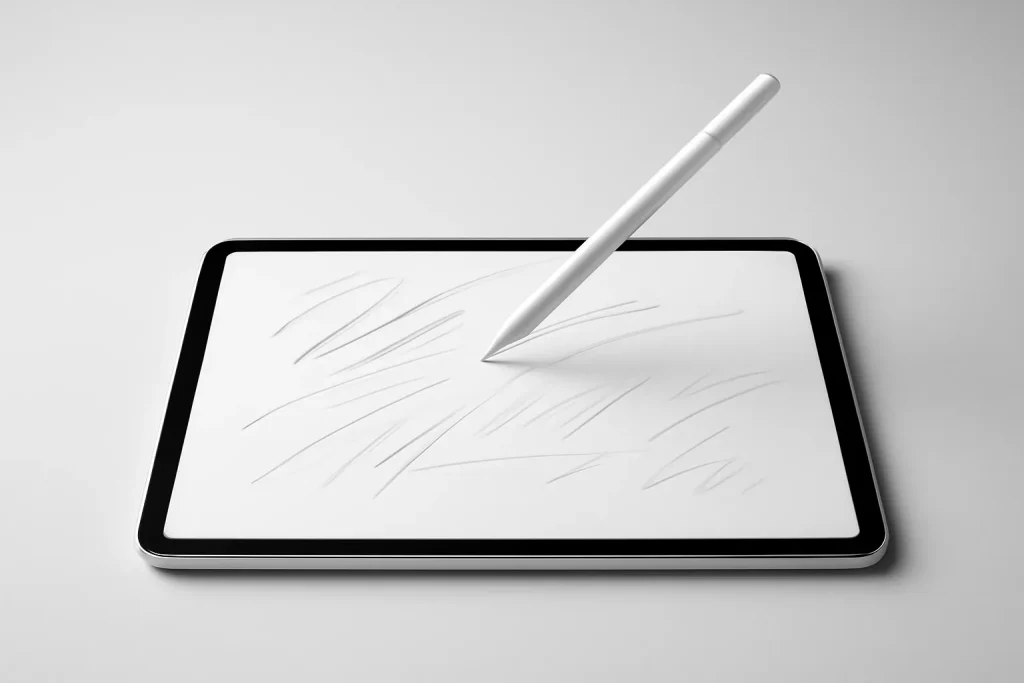
The iPad has power and mature applications, but the input method sets the pace. With a finger, writing feels awkward, drawing is limited and annotating documents becomes slower than it should. This is where the Apple Pencil iPad review gains relevance: the Pencil reduces friction between idea and execution.
In practice, the Apple Pencil is an active stylus designed for iPadOS, with deep integration in areas such as palm rejection (the system ignores accidental hand touches), low latency and native support in note‑taking and drawing apps. The result is easy to describe: the iPad stops being just consumption and becomes creation - from highlighting a PDF to sketching a wireframe.
Architecture & Specifications: what changes between USB‑C, 2 generation and 1 generation
The current range exists because Apple has optimised each model for different trade‑offs. This Apple Pencil iPad review does not depend on "the best on paper", but on the fit between features and your scenario.
Low latency (time between movement and stroke appearing) is universal and forms the basis for fluid writing. Precision is also a strong point: selecting small elements, navigating details and making fine markings tends to be more consistent than with generic pens.
Then the differences that are felt in day‑to‑day use emerge:
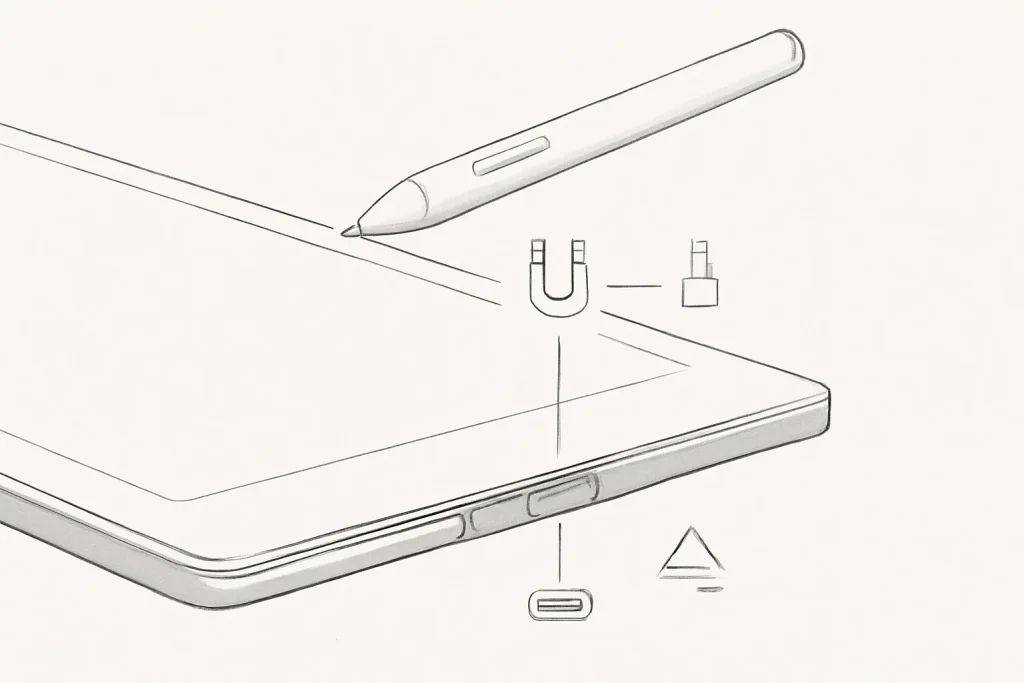
Tilt sensitivity: when you tilt the Pencil, the stroke can shade like a real pencil, useful for drawing and diagrams with varying thickness. Pressure sensitivity: allows varying thickness/opacity with applied force; it is decisive for illustration and calligraphy, but not present in every model. Gestures (such as double‑tap to switch tools) speed up workflows in creative apps. Charging and attachment (magnetic, wireless, or cable) influence the likelihood of the Pencil being ready at all times.
The Apple Pencil (USB‑C) tends to be seen as a modern and more affordable option, with USB‑C charging and essential features, but with compromises that may weigh on those who draw "seriously". The Apple Pencil (2 generation) is the most geared towards creative productivity, with convenient charging and extra controls, when compatible. The Apple Pencil (1 generation) remains relevant for older iPads, but with less practical ergonomics and charging.
Compatibility is the most confusing aspect: each Pencil works only with specific iPad models. Before buying, confirm your exact model and cross‑reference it with the official list at Apple support.
Real‑World Use Cases: notes, PDFs and drawing (where the difference is evident)
In note‑taking, the benefit comes from the combination of low latency, palm rejection and precision. For students and professionals, writing by hand can be faster than typing in meetings, and organisation improves when you annotate in layers (headings, highlights, arrows, schematics). In many apps, handwritten note search is a feature that changes habits, though it depends on the software and language settings.
In PDFs, the Apple Pencil shines in "micro" tasks: highlighting terms, circling passages, signing, drawing arrows and adding marginal comments without obscuring the text. Precision reduces errors and makes review more comfortable.
In drawing, the story splits by level of demand. For casual sketching, tilt and low latency may suffice. For illustration and expressive work, pressure sensitivity (when available) becomes central: it gives organic control over the stroke. That is why, in many user discussions, the model choice ends up being less about "brand" and more about "pressure vs. price".
It is also here that this Apple Pencil iPad review must be honest: if your use is only "point and tap", a simpler stylus may suffice. If you want to write full pages of notes, draw with intent or edit documents with precision, the Pencil tends to justify itself through consistency.
Limitations & Challenges: price, wear and compatibility confusion
The first obstacle is cost, especially in the higher‑end models. The second is fragmentation: there is no "one Apple Pencil for all iPads", and this leads many people to buy the wrong model. The third is the normal wear of the tips (nibs). Anyone who writes or draws daily should plan for periodic replacement, because friction on the glass wears the material down.
There are also practical details that add weight: the way you charge and store the Pencil influences loss and forgetfulness. Magnetic attachment helps, but does not eliminate the risk. And, depending on the model, you may lose features such as pressure or gestures, which changes the experience in creative apps.
If you are equipping an iPad for work or study, it makes sense to look at the whole kit (case, stand, keyboard, stylus). In iOutlet's editorial context, it is worth cross‑referencing with the guide to essential accessories for iPad to avoid redundant purchases.
Next Steps: how to choose without regrets
To wrap up this Apple Pencil iPad review with practical utility, the decision can be made by three questions:
1) Which Pencil is compatible with my iPad? Without this, everything else is noise. Confirm on Apple’s support site and verify the exact name of your model.
2) Do I need pressure sensitivity? If you draw, do lettering or want expressive variation in the stroke, pressure is a deciding criterion. If the focus is highlighting, writing simple notes and marking PDFs, you can live without it.
3) Do I want daily convenience or accept "friction"? Wireless charging and magnetic attachment reduce friction. If you use the Pencil every day, this convenience carries more weight than it seems.
If you are considering alternatives, there are third‑party options with good cost‑to‑feature ratios, but the integration with iPadOS (gestures, latency consistency, app behaviour) does not always match. For context, you can compare with the editorial analysis of ESR Stylus Pen.
Editorial verdict: when it is "essential" and when it is just an extra
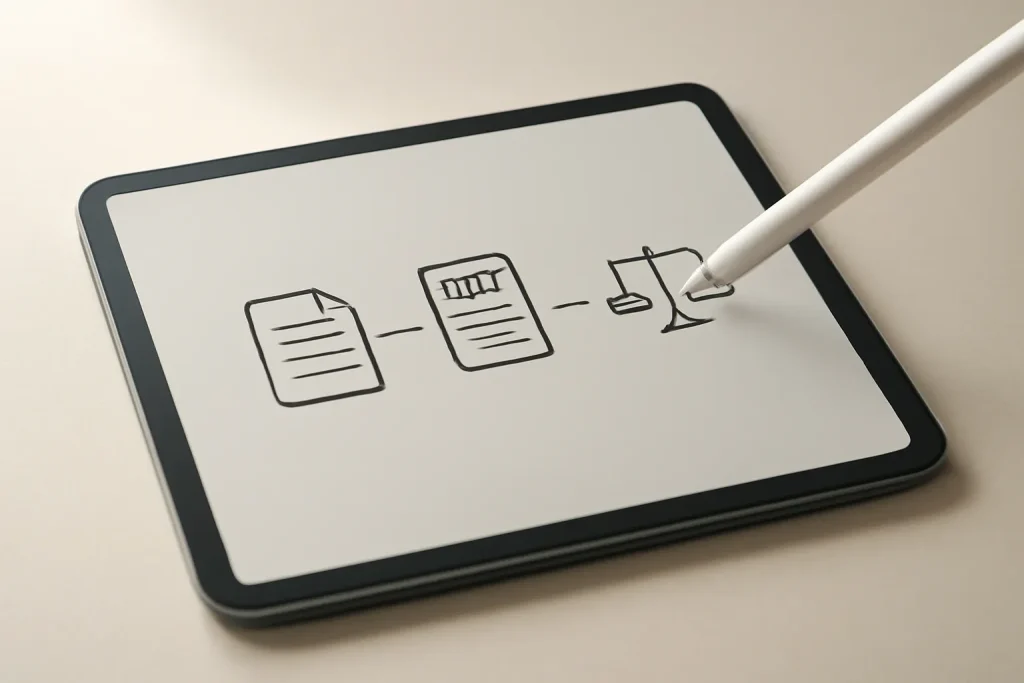
The Apple Pencil is more than a pointer: it is an interface shift. This Apple Pencil iPad review points to a clear pattern - anyone who takes notes seriously, annotates documents frequently or draws regularly tends to feel that the iPad finally becomes "complete". For use mainly of video, web and e‑mail, the Pencil is comfortable but not mandatory.
If your original intention when buying an iPad included creating, studying or planning with more freedom, the Apple Pencil is usually the accessory that makes that promise real. For editorial transparency, the source text that inspired this analysis is in original source.
FAQ
- How do I know exactly which Apple Pencil is compatible with my iPad?
- Confirm the exact iPad model (name and generation) in Settings and cross‑reference it with Apple’s official list. Compatibility varies by generation and is not interchangeable across all iPads.
- Do I really need pressure sensitivity for note‑taking?
- Not always. For writing and note‑taking, low latency, precision and palm rejection are usually more important. Pressure becomes critical for expressive drawing and lettering.
- What is "hover" for and does it make a difference?
- Hover is the preview of the point where the stroke will land before you touch the screen (when supported by the iPad). It helps in precision tasks such as retouching, fine selection and detailed drawing.
- Do the Apple Pencil tips wear out quickly?
- Wear depends on usage and the type of writing/drawing. Daily users should budget for occasional replacement, as glass friction gradually consumes the tip over time.
- Can a third‑party stylus replace the Apple Pencil in everything?
- It may serve for basic tasks, but the integration with iPadOS and app optimisation does not always match the Apple Pencil’s behaviour, especially in latency, stroke consistency and advanced features.
- What should I test in the first days to decide if I keep the Apple Pencil?
- Test three scenarios: 1) write a page of notes with palm rejection, 2) annotate a PDF with fine underlines and comments, 3) draw with tilt variation and, if available, pressure. If the experience reduces friction, it is a good sign.
Get more articles like this one.
Refurbished tech analysis + €5 with BEMVINDO5 on your first order. Valid on your first order of €50 or more.