Technical Details
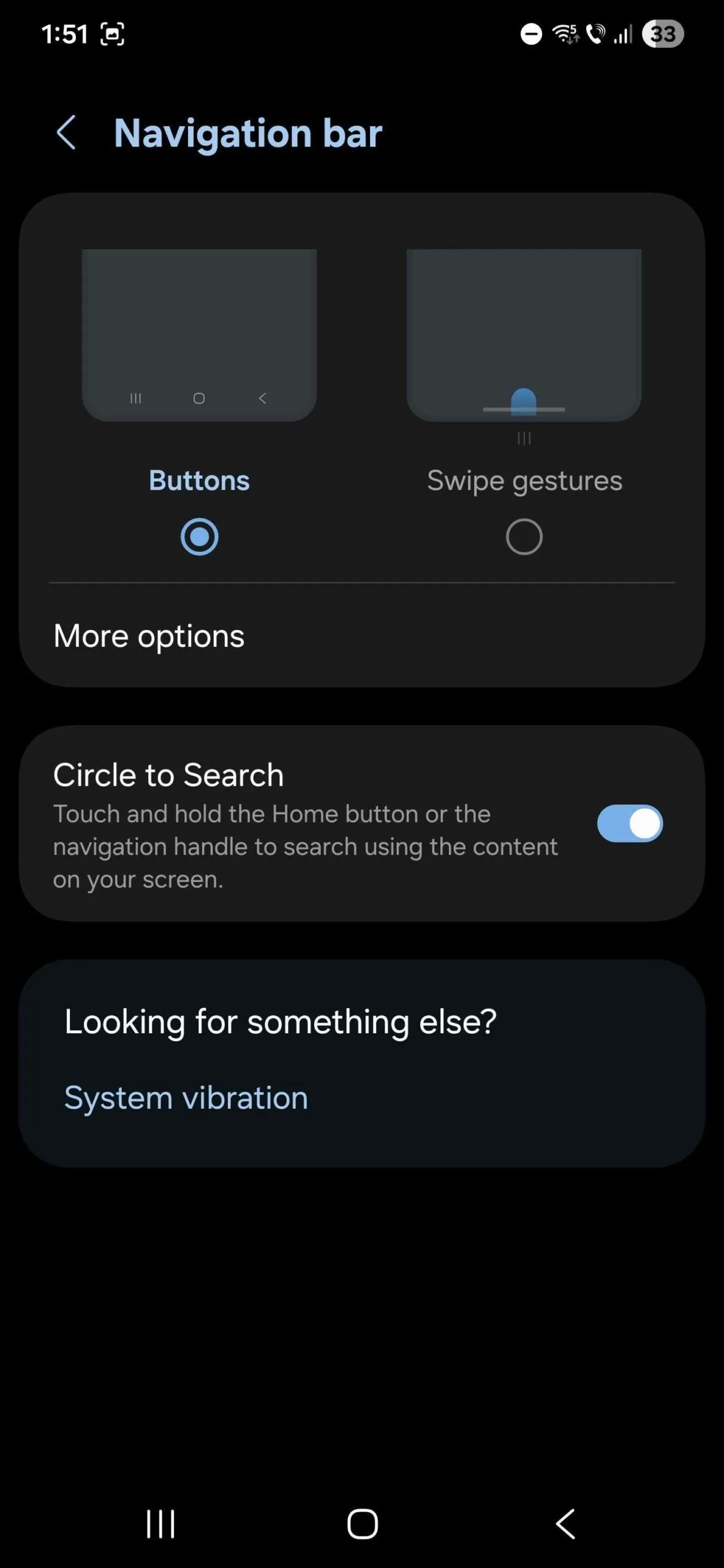
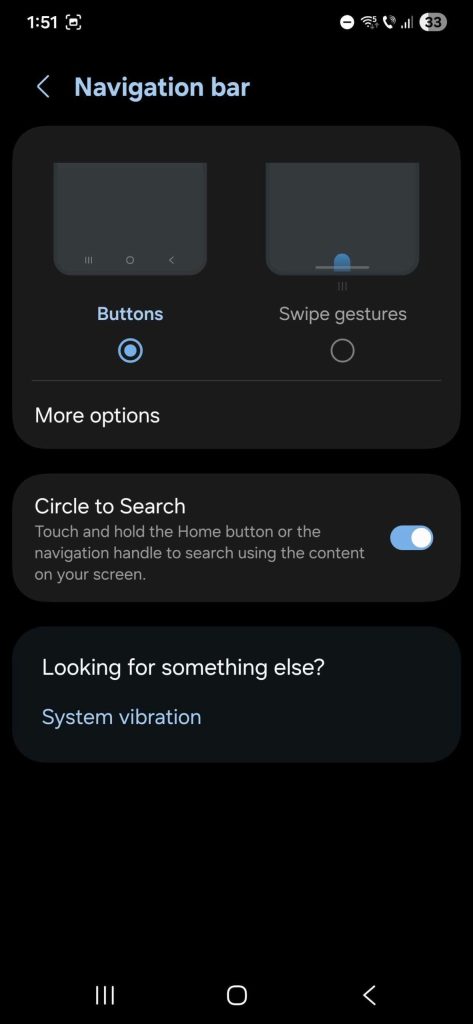
By default, One UI uses traditional navigation buttons such as Back, Home and Recent. However, you can switch to navigation gestures for a smoother, more modern feel. This can be changed via the 'Navigation Bar' menu in the device settings. In addition, the One UI app drawer can be set up to behave like a folder on the iOS home screen, helping with the transition.Practical Advantages
One UI's customisation not only makes it easier for people coming from iOS to settle in, but also boosts everyday efficiency. Gestures allow for faster, more intuitive navigation, while hiding the app drawer icon helps keep the home screen cleaner and more organised. These features are especially useful for users who prefer a minimal layout.Future Outlook
With ongoing updates and improvements to the One UI interface, users can expect even more features that ease the transition and improve the overall experience. Samsung continues to invest in innovation and personalisation, promising future updates that will bring even more options for tailoring the device to personal preferences.FAQ
- How do I switch to navigation gestures?
- Go to Settings > Display > Navigation Bar and select 'Swipe Gestures'.
- Can I hide the app drawer?
- Yes, go to the home screen, pinch with two fingers, select 'Settings', and turn off the 'Apps screen button' toggle.
Read also
What This News Means for You
Technology news moves fast. At iOutlet, we keep up with every update to ensure our refurbished products always deliver the best possible experience, with supported software updates and verified hardware.
In this article
Stay Informed
- Follow the iOutlet blog for the latest news on Apple, Samsung and technology
- Subscribe to our newsletter for exclusive offers on refurbished products
Get more articles like this one.
Refurbished tech analysis + €5 with BEMVINDO5 on your first order.