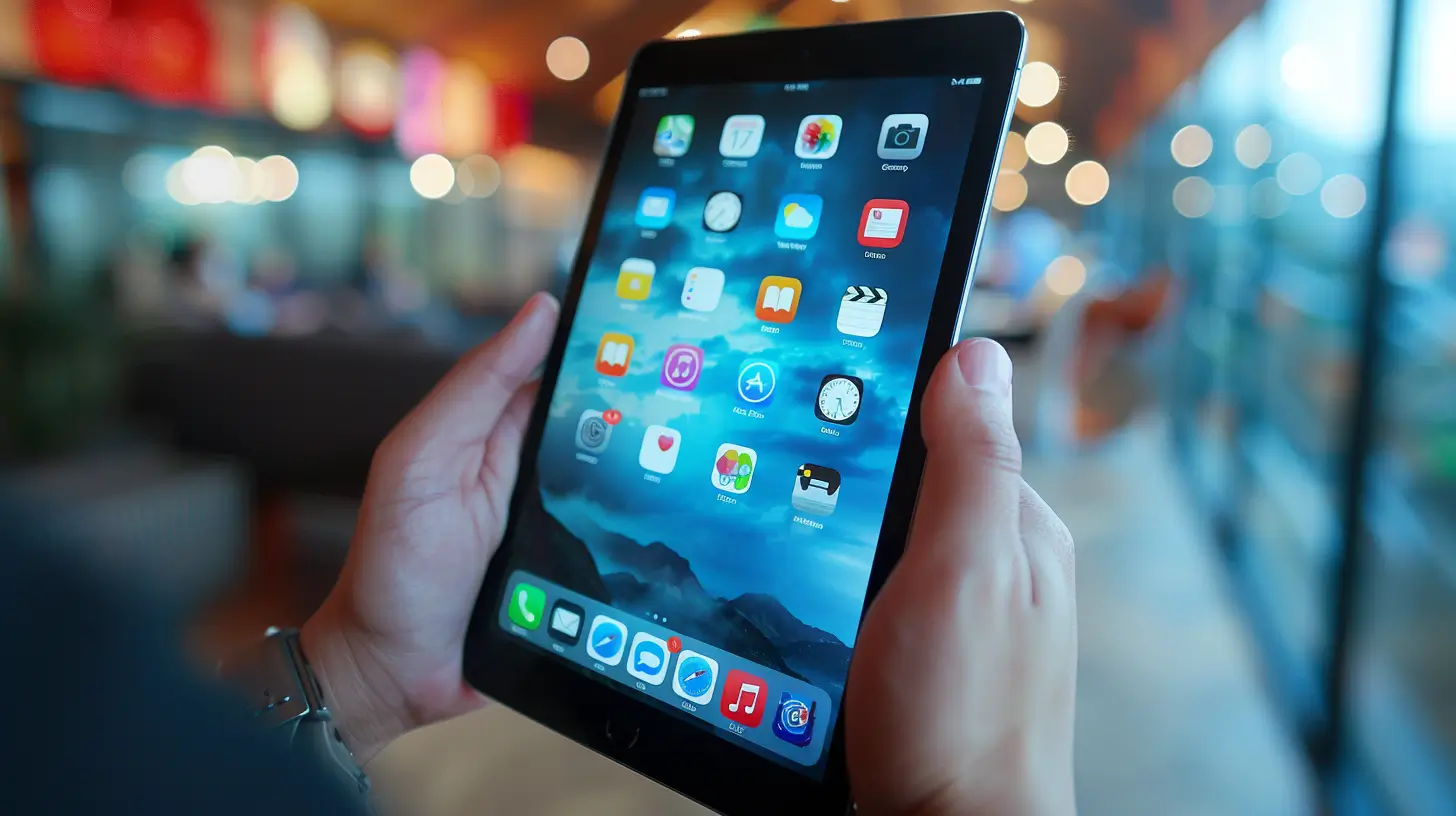
If you've had an iPad for some time, it's likely that it will gradually become a bit slow. This can be caused by the accumulation of unnecessary files and old app data that still take up space on your device. Fortunately, there are some simple steps you can follow to clean your iPad and make it faster. In this article, I'll explain how to clean your iPad to make it faster and have it work like new.
- Remove applications you no longer use: the first thing you can do to clean your iPad to make it faster is to remove applications you no longer use. To do this, simply press and hold the application icon until it starts to shake, then tap the "X" button in the top left corner of the app icon. This will remove the app from your iPad.
- Clear your Safari cache: Safari can accumulate a lot of cache over time, which can make the browser slow. To clear your Safari cache, go to Settings > Safari > Clear History and Website Data.
- Delete old messages: if you have many messages stored on your iPad, they may be taking up a lot of space. To delete them, simply open the Messages app, swipe left on a conversation and tap "Delete". You can also go to Settings > Messages and set "Keep Messages" to a shorter period.
- Disable unnecessary features: if you no longer use features such as AirDrop or Handoff, disabling them can free up system resources and make your iPad faster. To disable them, go to Settings > General > AirDrop/Handoff.
- Clear your iCloud storage: if you use iCloud, you may be storing many files you don't need. To clear your iCloud storage, go to Settings > [Your Name] > iCloud > Manage Storage and choose the files you wish to delete.
By following these steps, you can clean your iPad to make it faster. If you're still experiencing performance problems, you may need to consider upgrading your iPad or taking the device to a specialist for a more thorough analysis.
Even after cleaning your iPad to make it faster, if you haven't been able to optimise it, we recommend you contact a professional Apple shop, like iOutlet, with experts who can help you resolve your issue.
More Useful Tips
- Protect your data: enable two-factor authentication on all accounts
- Free up space: regularly review unnecessary photos, apps and downloads
- Save battery: reduce brightness and disable Wi-Fi/Bluetooth when you're not using them
Explore more tips on our blog or discover the best refurbished iPhones with warranty at iOutlet.
Diagnostic tools
Get more articles like this one.
Refurbished tech analysis + €5 with BEMVINDO5 on your first order. Valid on your first order of €50 or more.