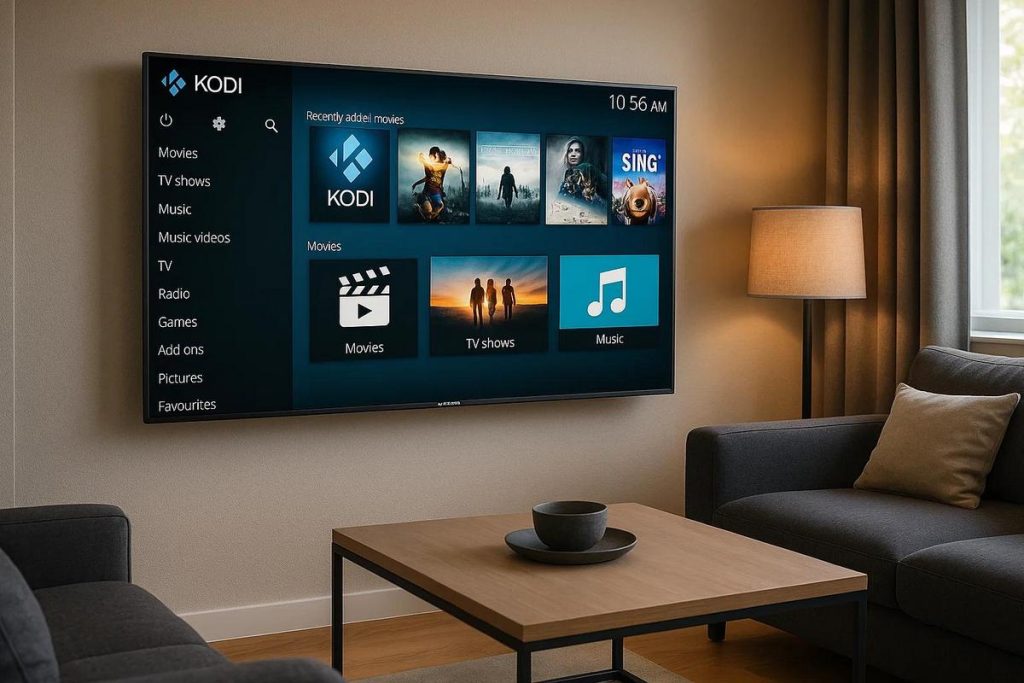
TL;DR:
- You cannot install Kodi directly on Samsung TVs because the Tizen system does not support Kodi.
- Use external devices such as Amazon Fire Stick or Android TV Box to work around this limitation.
- To install with Fire Stick, connect it to the TV's HDMI port, access "Settings" and "Developer Options", enable "Apps from unknown sources".
- Download the "Downloader" app on Fire Stick and use it to access and install Kodi.
- Another option is to use screen mirroring with a smartphone or connect a PC directly via HDMI to the TV.
- Keeping apps updated is crucial for security and performance.
- Online tutorials and communities can offer additional support.
In this article
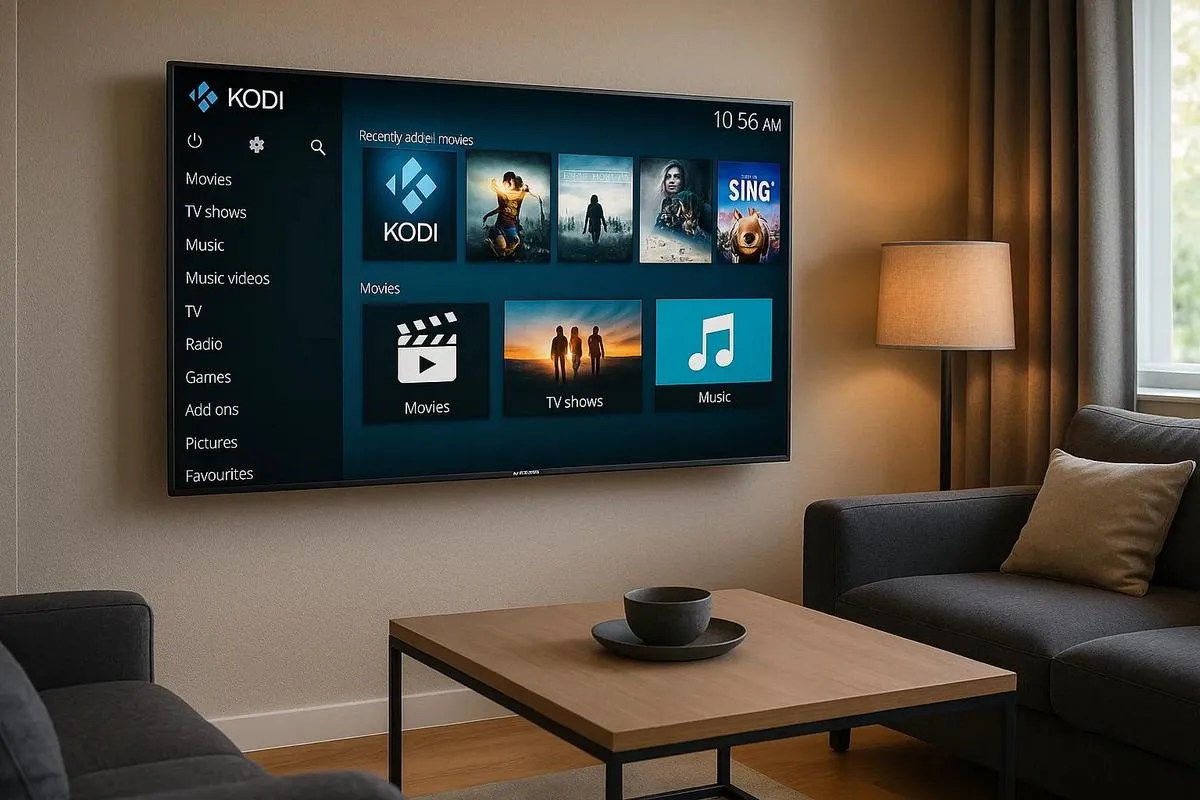
Want to turn your Samsung Smart TV into an incredible entertainment hub? Learning how to install Kodi is the first step! This simple guide will show you the way to access an endless amount of content. From films and series to music and much more, Kodi can change the way you consume content. Let's begin the installation and make the most of everything Kodi offers!
Step by Step to Install Kodi
To install Kodi on your Samsung Smart TV, you need to follow a few simple steps. First, you should be aware that Samsung Smart TVs do not support Kodi directly, as it is not available in the official Samsung store. However, there are ways to work around this.
Let's start by downloading Kodi on your computer. You can visit the official Kodi website and download the version corresponding to your operating system. After downloading and installing on your computer, you will need an additional streaming device, such as an Amazon Fire Stick or Roku.
Now, connect the streaming device to your Smart TV's HDMI port. Configure it according to the manufacturer's instructions. With the device connected, you can access its app store to search for Kodi and install it.
Another option is to use the screen mirroring feature. Many Samsung TVs have this function, which allows you to display your smartphone or tablet screen on the TV. First, install Kodi on your mobile device or tablet and, after configuring it, use screen mirroring to view the content on your TV.
You can also use an HDMI cable connected to your computer to transmit directly to the TV. Set up Kodi on your PC and connect it to the TV with the cable. This option may be more practical for those looking for simplicity.
These methods may seem complex at first, but they are the best ways to have Kodi on your Samsung Smart TV. It is important to always keep your software updated to ensure good performance and security. If you need more details, you can search for online tutorials or guides specific to your TV model and device. This way, you will be able to enjoy a wide variety of audiovisual content easily and practically.
Installing Kodi on Your Samsung Smart TV
Want to learn how to put Kodi on your TV? I'll guide you step by step. First, let's check if your TV's system is compatible. Newer Samsung TVs use the Tizen system. Unfortunately, Kodi doesn't work directly on Tizen. So, we need an alternative solution.
Use of External Devices
Here's the tip: we'll use an external device, such as Amazon Fire Stick or Android TV Box. This way, we can install Kodi on that device and connect it to your TV. To help you, I've created a detailed guide for installing Kodi using Fire Stick.
Step by Step with Amazon Fire Stick
First, insert the Fire Stick into the TV's HDMI port. Now, let's download Kodi. In the Fire Stick menu, go to "Settings" and then "My Fire TV". Next, select "Developer Options" and enable "Apps from unknown sources".
Download and Installation of Kodi
Go to the "App Store" on the home screen. Search for the "Downloader" app and install it. Once installed, open the app and enter the URL of the Kodi website. Choose the device version and start the download. Once the download is complete, select "Install" when prompted.
After that, return to the Fire Stick home screen. Now you should see Kodi ready to use.
Why Not Directly on Samsung TV?
Many people ask me if Kodi can be installed directly on Samsung TV. The answer is no, because the Tizen system does not support Kodi. Using external devices is the simplest and most functional solution.
Final Verdict
Now you know how to get Kodi working on your Samsung Smart TV. It may seem a bit complicated, but I assure you it's quite easy in the end. Enjoy your content with Kodi from the comfort of your living room!
Installing Kodi on Samsung TV
You've probably heard of Kodi, right? That smart app that turns your TV into a complete entertainment hub. But how do you install it on your Samsung Smart TV? First, it's important to know that Samsung TVs use the Tizen system, and you can't install Android apps directly on it. Confusing, isn't it? But wait, I have the solution and I'll explain it clearly.
To install Kodi on your Samsung TV, you will need an extra device, such as an Amazon Fire Stick, since we cannot install Kodi directly from the Tizen store. This is the most effective and practical way I've found.
With the Fire Stick, you just need to connect it to your TV's HDMI port. After setting up, go to the search option and type "Downloader". Install this app, it's a great helper in this process. Opening Downloader is the next step; enter the link to Kodi's official website to download, always make sure you're on the right site. Download and install the Kodi app on Fire Stick. That's it, your TV now has an entertainment hub.
I know it seems complicated at first, but following these steps, everything becomes easier. Kodi cannot be installed directly on Samsung Smart TV, but working around this limitation is possible. Using Fire Stick is safe and widely tested, ensuring you watch your favourite films and series without stress.
An extra tip: always keep your apps updated. This prevents security issues and ensures you have the latest features. Exploring new options and expanding your entertainment has never been easier with Kodi.
If you have any doubts, take a look at videos and tutorials on the internet. Online communities also offer valuable help. Have fun!
Conclusion
Installing Kodi on your Samsung Smart TV enhances your home entertainment. First, we've seen step by step how to download and install it. We've also highlighted alternative methods to ensure the success of this task. If you encounter problems, adjust the Tizen OS and connect everything correctly. With Kodi, you'll have support for various formats and a user-friendly interface. Fun is guaranteed, and your TV now has more power to entertain. Get ready to explore content like never before!
Read also
- How to install WhatsApp on Samsung phone in 2025?
- How to unlock a Samsung phone without knowing the password?
- How to take a screenshot on Samsung simply?
- See refurbished Samsung devices at iOutlet
Diagnostic tools
Get more articles like this one.
Refurbished tech analysis + €5 with BEMVINDO5 on your first order. Valid on your first order of €50 or more.