Technical Details
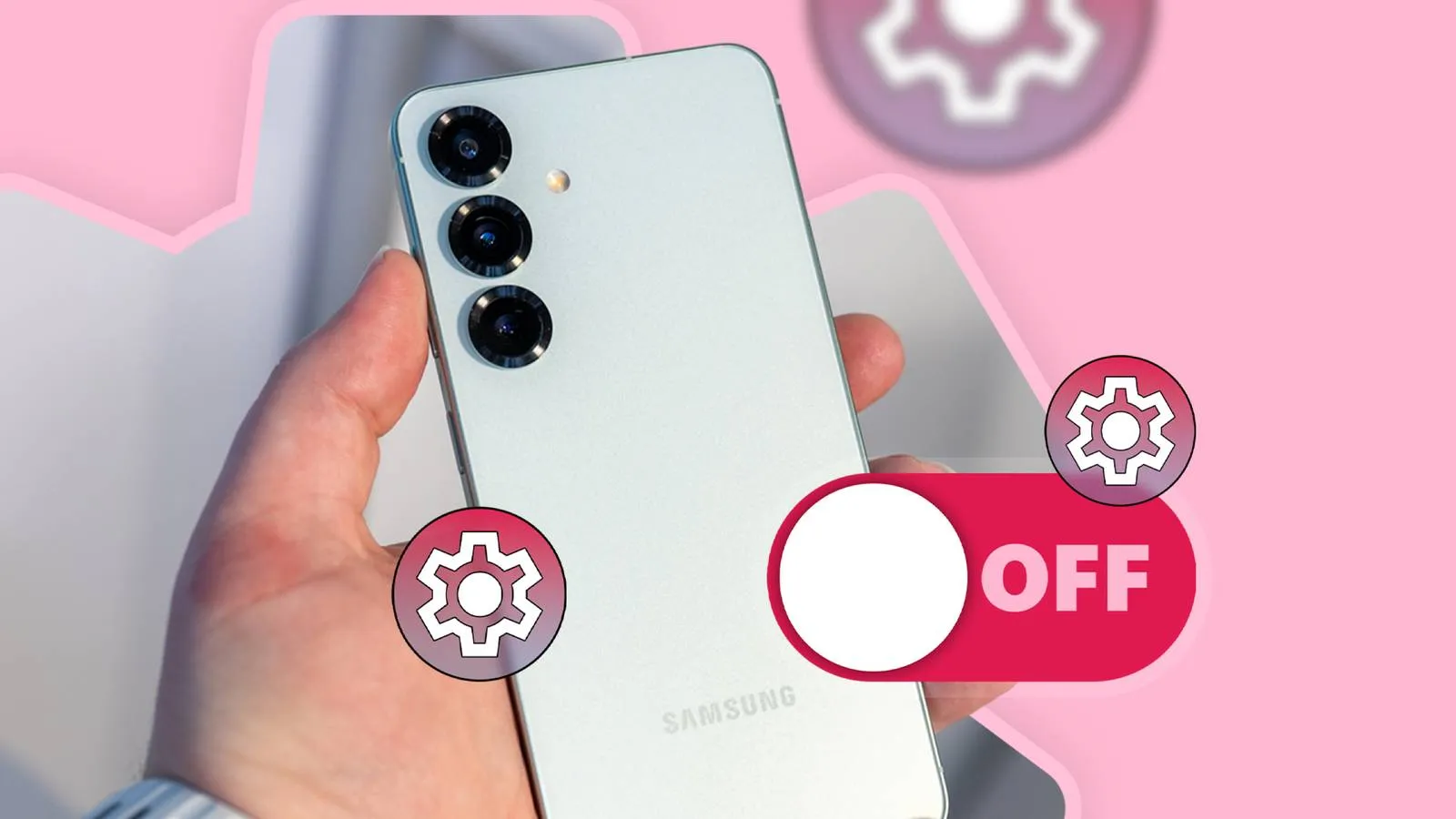
One of the first recommended changes is to disable pop-up notifications, which can be quite disruptive. Instead, users can opt for the traditional style of Android notifications by going to Settings > Notifications > Pop-up notification style and selecting 'Detailed'. Another setting to consider is reassigning the side button, which by default activates Bixby. This can be changed to launch Google Gemini or even revert to the classic power-off menu, in Settings > Advanced Features > Side button.Privacy Concerns
Privacy is a growing concern and users may want to disable personalised ads and Samsung promotions. To do this, go to Settings > Samsung Account > Security and privacy and turn off 'Receive news and special offers'. Additionally, to block targeted ads in apps, go to Security and privacy > More privacy settings > Advertising and disable the relevant options.Limitations & Challenges
While features like Auto Blocker are designed to protect the user from malware, they can also prevent the installation of apps from trusted external sources. To disable this restriction, go to Settings > Security and privacy and turn off Auto Blocker. However, it is important to be aware of the risks associated with sideloading apps.FAQ
- How do I revert pop-up notifications to the traditional style?
- Go to Settings > Notifications > Pop-up notification style and select 'Detailed'.
- What is Auto Blocker and should I disable it?
- Auto Blocker prevents the installation of apps from unverified sources. Disable it in Settings > Security and privacy if you need to install external apps, but be aware of the risks.
Read also
- Latest Apple news 2022
- Latest Apple news!
- Investing in Apple shares: a complete analysis
- Shop refurbished Samsung at iOutlet
What This News Means for You
Technology news moves fast. At iOutlet, we keep up with all the latest updates to ensure our refurbished products always offer the best possible experience, with supported software updates and verified hardware.
In this article
Stay Informed
- Follow the iOutlet blog for the latest news on Apple, Samsung and technology
- Subscribe to our newsletter for exclusive offers on refurbished products
Get more articles like this one.
Refurbished tech analysis + €5 with BEMVINDO5 on your first order.