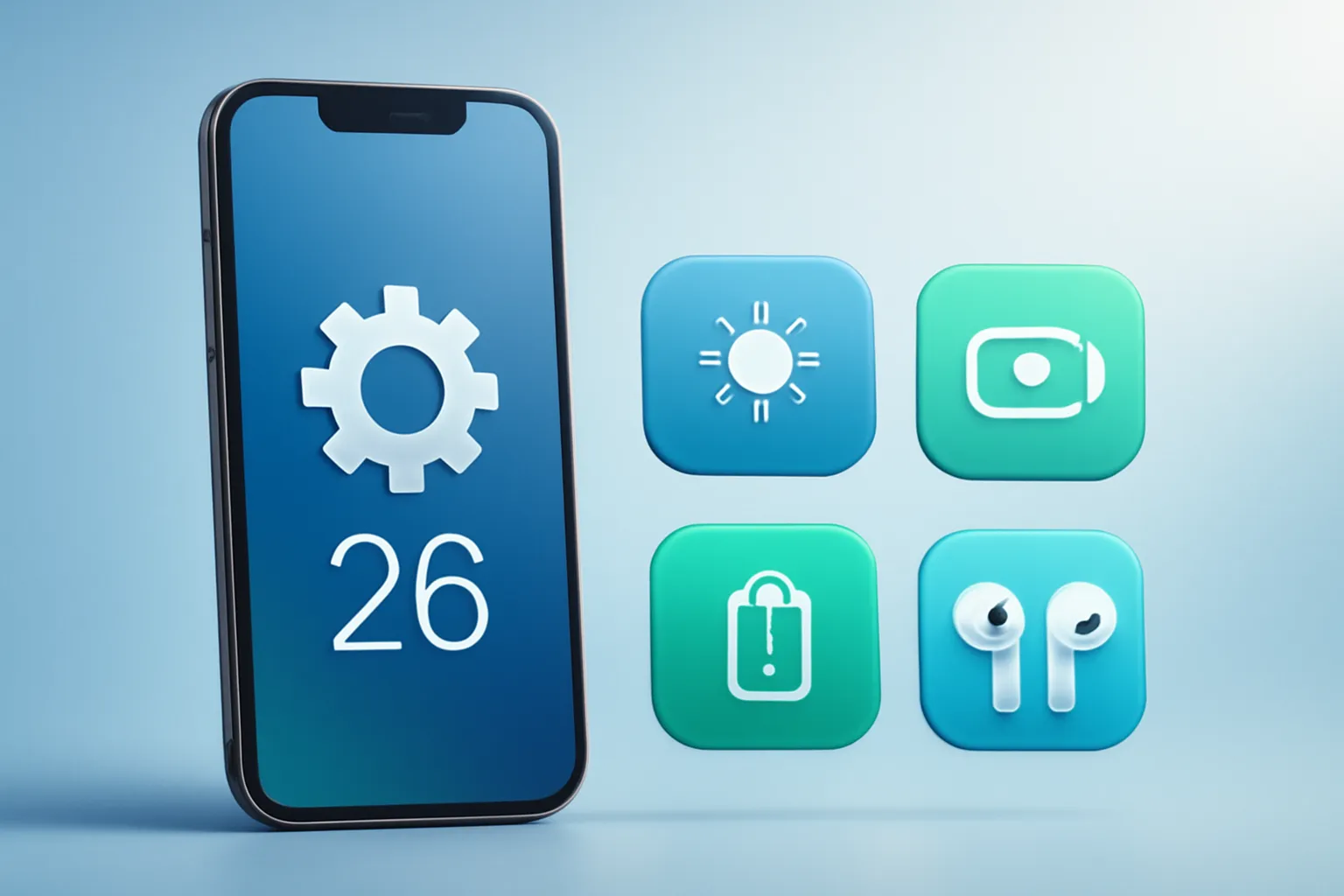
iOS 26 iPhone settings: there are four tweaks that make an immediate difference: clarity of the Always On Display, control of the camera gesture on the lock screen, a new “smart” power mode and an AirPods option to pause audio when you fall asleep. What changed matters because it alters automatic habits (glancing at the clock, opening the camera by gesture, managing battery) and because some behaviours now come enabled by default. If you use an iPhone that supports Apple Intelligence and recent AirPods, these options can save frustration and, in certain scenarios, battery.
In this article
- What changed in iOS 26 iPhone settings (and why)
- Always On Display: blurring the photo can be helpful… or irritating
- Camera on the lock screen: you can finally turn off the swipe
- Adaptive Power: the middle ground between battery life and smoothness
- AirPods: automatic pause when you fall asleep (and why it makes sense)
- Privacy and habits: what these options say about iOS 26
- What to do now: quick checklist (no fuss)
- FAQ
What changed in iOS 26 iPhone settings (and why)
iOS 26 introduced more customisation within the Settings app, but also altered some defaults. Two clear examples: the Always On Display now blurs the wallpaper photo by default, and iOS 26.1 added an option to disable the “swipe” gesture on the lock screen that opens the Camera. At the same time, a new power mode, Adaptive Power, appears, designed to reduce consumption without the aggressiveness of Low Power Mode. And within the ecosystem, AirPods gain a sleep‑detection feature that automatically pauses media.
For the user, this translates into fewer accidental actions and finer control. For Apple, it aligns with a trend towards more conservative defaults (clock visibility, power management) and with the integration of features that depend on recent models (Apple Intelligence and specific AirPods).
Always On Display: blurring the photo can be helpful… or irritating
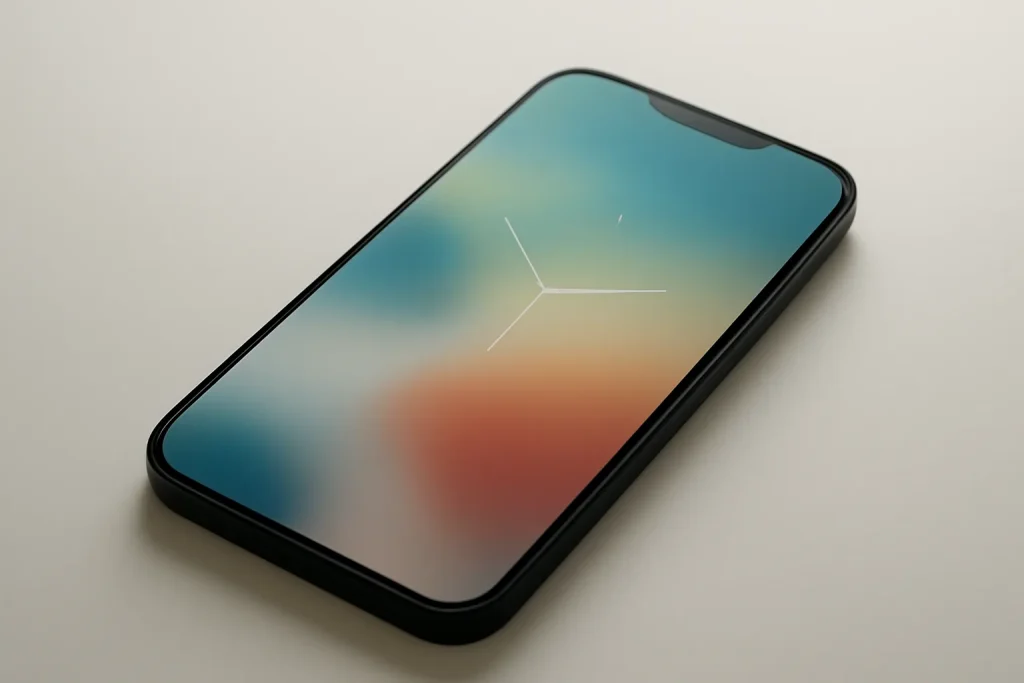
In iOS 26 iPhone settings, the Always On Display (AOD) acquired an unexpected behaviour: when entering “always‑on” mode, the system blurs the wallpaper photo. The likely intention is to improve readability of the clock and widgets (especially with the new “Liquid Glass” visual style) and, possibly, to reduce screen workload by showing less detail.
If you like seeing the photograph on the lock screen even with AOD active, the blur may feel like a regression. The good news is that it is reversible: in Settings → Display & Brightness → Always On Display, there is a toggle to turn off “Blur Wallpaper Photo”. Doing so restores AOD to the behaviour of earlier versions (without blurring the image).
Practical note: if your goal is battery life, it is worth testing with and without the blur for a few days. Impact can vary with brightness, widgets and usage patterns. If you are trying to optimise performance and storage, reviewing maintenance habits can also help; iOutlet has a guide on clearing the cache on iPhone which helps reduce the accumulated “weight” in apps and Safari.
Camera on the lock screen: you can finally turn off the swipe
For years, swiping left on the lock screen opened the Camera. However, with more ways to launch the app (dedicated buttons on some models, Action Button, corner controls), the swipe has become, for many users, an accidental trigger.
In iOS 26 iPhone settings (from iOS 26.1), there is an option to disable this gesture: Settings → Camera → “Lock Screen Swipe to Open Camera”. Turning it off reduces unintended openings and potential “phantom taps” when you grab the phone in a hurry.
Real impact: fewer interruptions and less unnecessary power draw. The Camera is one of the apps that most quickly activates sensors and image processing; opening it by mistake does not usually drain battery dramatically, but the effect adds up over the day, and, above all, it irritates.
Adaptive Power: the middle ground between battery life and smoothness
Low Power Mode has been on the iPhone for a long time and is effective, but it tends to throttle performance and background activity noticeably. Adaptive Power, introduced in iOS 26 for devices that support Apple Intelligence, takes a different approach: it only intervenes when it detects consumption above the usual level for that day.
According to the description in Settings, the iPhone can adjust performance to extend battery life (for example, lower brightness, allow some tasks to take longer, or activate Low Power Mode when the battery reaches 20%). In simple terms, it is an “automatic manager” that seeks small savings before resorting to more drastic measures.
Where to enable: Settings → Battery → Power Mode → Adaptive Power. You can also enable notifications to know when the system has entered this mode. For those who want “peace” and dislike manually tweaking power modes, this is the iOS 26 iPhone setting with the best effort‑to‑benefit ratio.
Important limitation: because it depends on Apple Intelligence, it is not available on all iPhones. If you do not see the option, it is not an error, it is a compatibility issue. For security and update context (which also affect consumption and stability), it is worth following recommendations such as updating to iOS 26.2 when it makes sense for your case.
AirPods: automatic pause when you fall asleep (and why it makes sense)
Among the iOS 26 iPhone settings linked to the ecosystem, one of the most practical is in the AirPods: “Pause Media When Falling Asleep”. The feature attempts to detect inactivity that matches falling asleep and pauses the audio, which is particularly useful for podcasts and audiobooks (less time spent searching for “where I was”).
Apple lists compatibility with AirPods Pro 3, AirPods Pro 2 and AirPods 4. If you use these models, look for the option within your AirPods settings (on the device screen when they are connected). The utility is obvious for those who fall asleep listening to content; for those who don’t have the habit, it can be left off without missing anything.
There is also a “battery hygiene” angle: less continuous playback overnight means fewer cycles and less wear. If you want to dive deeper into tweaks that improve battery life and experience, iOutlet has an article with configuration tips for AirPods Pro 3 applicable to various scenarios.
Privacy and habits: what these options say about iOS 26
Although they are not “stage features”, these iOS 26 iPhone settings show a direction: the system is more opinionated in defaults (e.g., blurring the wallpaper in AOD) and more flexible when the user requests control (e.g., disabling the camera gesture). At the same time, power management becomes more contextual, with Adaptive Power acting by exception rather than by rule.
In terms of privacy, none of these options are, in themselves, a classic “alarm”. Still, it is healthy to remember that automations (like sleep detection) rely on signals and heuristics. If you prefer to reduce automations, switch off what you do not use and keep iOS up to date. For editorial transparency, the original piece that inspired this selection is at 9to5Mac.
What to do now: quick checklist (no fuss)
If you want to benefit from iOS 26 iPhone settings without wasting time, do this in 10 minutes: (1) confirm whether Always On Display is blurring the photo and adjust to your liking; (2) if the Camera opens by mistake, disable the lock‑screen swipe (iOS 26.1+); (3) enable Adaptive Power if your iPhone is compatible and let it work in the background; (4) if you use compatible AirPods for sleeping, turn on automatic pause.
Then, use the iPhone normally for a few days and only then return to Settings. The aim is not “optimise for the sake of optimisation”; it is to align the system with your actual usage pattern.
FAQ
- Which iPhones include all the iOS 26 iPhone settings mentioned?
- Not all appear on every model. Adaptive Power is listed as available only on iPhones that support Apple Intelligence; the sleep‑pause option depends on specific AirPods models. The Always On Display options also depend on iPhones with AOD.
- Does disabling the wallpaper blur on Always On Display use more battery?
- It may or may not, depending on brightness, image type and time spent in AOD. The practical recommendation is to test a few days with the option on and off and compare your routine.
- If I disable the camera swipe on the lock screen, can I still open the camera quickly?
- Yes. You can still open it via the app, via dedicated buttons/shortcuts on your model and via lock‑screen controls, where available. The only change is the swipe gesture.
- Has Adaptive Power replaced Low Power Mode?
- No. Adaptive Power is an automatic, contextual mode; Low Power Mode remains as a manual and more aggressive option. In some scenarios, Adaptive Power may even trigger Low Power Mode when the battery reaches 20%.
- How do I know when Adaptive Power is active?
- In the mode’s settings, there may be an option to receive notifications when Adaptive Power is activated. That way you can see when the system has made adjustments due to consumption above the usual level.
- Does the “Pause Media When Falling Asleep” option work with any AirPods?
- No. The listed compatibility is for AirPods Pro 3, AirPods Pro 2 and AirPods 4. If you do not see the option in your AirPods settings, it is likely that the model is not supported.
Get more articles like this one.
Refurbished tech analysis + €5 with BEMVINDO5 on your first order. Valid on your first order of €50 or more.