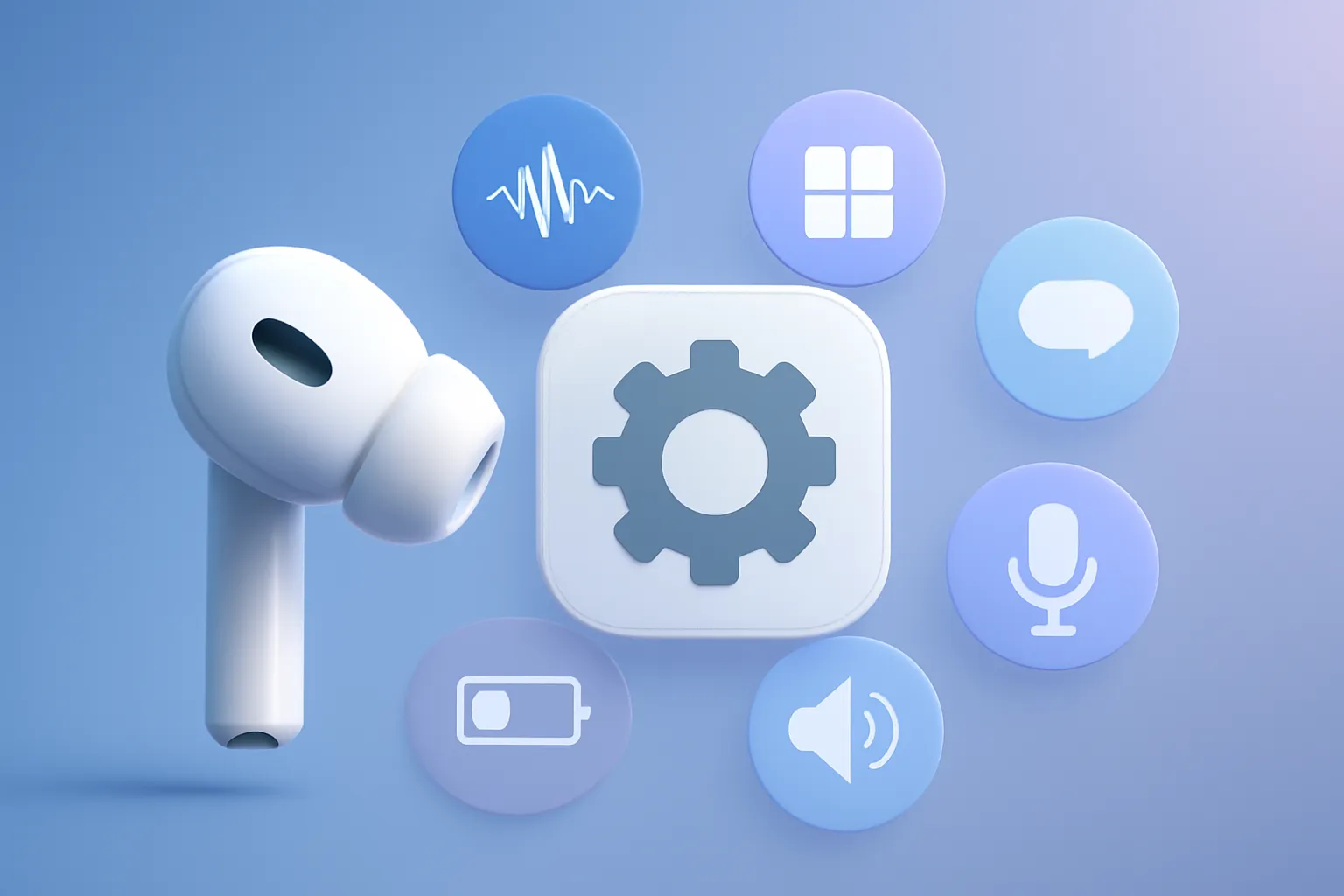
AirPods Pro 3 setup tips: the settings that actually change the experience (and the ones worth turning off). The AirPods Pro 3 offer a level of customisation rare in earbuds: press and gesture controls, notification announcements, personalised spatial audio, charging limits and health sensors. For anyone using an iPhone, iPad and Mac, small tweaks prevent annoying automatic switching, reduce interruptions and can save battery. Below is a practical guide, with technical context and real-world impact.
In this article
- Global Overview: what to tweak first
- Ecosystem Integration: pairing and automatic switching without friction
- Technical Details: stem controls, gestures and accessibility
- Practical Benefits: comfort, seal and personalised Spatial Audio
- Limitations & Challenges: spoken notifications, health sensors and privacy
- Next Steps: battery, charging and the risk of beta firmware
- What Changes for the User (and What to Do Now)
- FAQ

Global Overview: what to tweak first
If you want quick results, start with three areas: (1) connection and switching between devices, (2) stem controls (presses and swipes) and (3) comfort and seal of the ear tips. These are the changes that most affect usability, before you dive into advanced features like live translation, heart rate monitoring or beta firmware.
The AirPods Pro 3 setup tips below assume you have already paired them with an iPhone. From there, almost everything lives in the AirPods menu inside Settings, where Apple centralises audio, gesture, accessibility, battery and sensor preferences.
Ecosystem Integration: pairing and automatic switching without friction
Initial pairing is simple: open the case lid near your iPhone and follow the assistant. The critical point comes later: Automatic Device Switching. This feature shifts the audio source based on what you are doing, which sounds great in theory but can be frustrating when the sound jumps to another device at the worst moment.
If that happens to you, the practical fix is to limit the connection behaviour to the iPhone to When Last Connected to This iPhone, instead of Automatically. In practice, you get predictability: the AirPods stay on the device you were using, unless you change them.
This is one of the areas where AirPods Pro 3 setup tips have the most impact on productivity, especially if you switch between calls on a computer and audio on your phone. For editorial reference, the original article that inspired this guide is at AirPods Pro tips guide.
Technical Details: stem controls, gestures and accessibility
The AirPods Pro 3 rely heavily on the stem: presses, long presses and volume swipes. The upside is not needing the iPhone; the downside is that the gesture can be triggered accidentally, especially in rain, with thin gloves or when adjusting the fit.
The most surgical adjustment is deciding what the long press does: Siri or switching listening modes (for example, noise cancellation/transparency). There is no universal choice; for frequent calls, Siri can be faster; for commutes, switching modes is usually more useful.
On calls, it is worth mapping actions like mute/unmute and end call. This reduces screen taps and avoids mishaps when the phone is in your pocket. And if the volume swipe bothers you (for example, water droplets dragging across the sensor), disabling Volume Swipe in the Accessibility section can be the difference between control and chaos.
These AirPods Pro 3 setup tips are, at heart, about managing intention: you choose which gestures you actually want available and which ones risk accidental activation.

Practical Benefits: comfort, seal and personalised Spatial Audio
Comfort is not a detail; it is sound quality and the effectiveness of noise cancellation. With several ear tip sizes available, the ideal approach is to use the Acoustic Seal Test. A good seal improves bass, reduces sound leakage and helps ANC (Active Noise Cancellation, the system that creates anti-noise to attenuate external sounds) work with less effort.
Personalised Spatial Audio is another adjustment with real payoff. By scanning the shape of your ears, the system creates a profile that aims to improve soundstage accuracy and stability when you move your head. It is not magic: it depends on the content and your sensitivity, but it is a tweak worth trying before giving up on spatial mode because it sounds odd.
For a broader guide on the Apple ecosystem and informed choices, the iOutlet editorial archive can be a good starting point, for example at MacBook Pro 2020: is it worth it, since many switching and call issues arise when a Mac enters the equation.
Limitations & Challenges: spoken notifications, health sensors and privacy
Audible notification announcements are useful when the iPhone is out of reach, but they can become an interruption machine: the audio volume drops and every message enters your ear. The best compromise is to turn them off entirely or limit them to specific apps. This way, you get calls and important alerts without constant noise.
There are also head gestures to accept or decline interactions with alerts. It is an elegant idea, but it is worth testing at home: on public transport or while walking, involuntary movements can be interpreted as intent. Adjust the sensitivity and confirm the behaviour is consistent for you.
On the health side, two points need attention. First, the hearing test and hearing assistance: they are promising tools, but they do not replace clinical evaluation when hearing loss is suspected. Second, the heart rate sensor may be redundant if you already use an Apple Watch; keeping two devices measuring can drain power without practical benefit. If your watch already does that job, it makes sense to turn off the measurement on the AirPods to save battery.
If you want to read official documentation on options and menus (which vary by country, language and iOS version), the most reliable reference is Apple Support.
Next Steps: battery, charging and the risk of beta firmware
For battery longevity, the most sensible option is to enable optimised charging. The idea is simple: reduce time at 100% when it is not needed, because keeping lithium-ion batteries constantly at the top tends to accelerate wear. If you charge the case overnight, this is one of the AirPods Pro 3 setup tips with the best effort-to-benefit ratio.
It is also worth checking what kind of charger you are using (USB‑C cable or compatible wireless charging). It is not a case of faster is better; it is about consistency and temperature. Repeated charging with high heat is a silent enemy of battery health.
As for beta firmware: it is tempting if you want new features first, but the risk is real. Firmware can affect connection stability, microphones, ANC and battery life. And if something goes wrong, there is no simple downgrade path for the end user. Only activate betas if you accept failures and have time to deal with them.
If these AirPods Pro 3 setup tips led you to change several settings and something got worse, note what you changed and revert step by step. It is the fastest way to isolate the setting causing the problem.

What Changes for the User (and What to Do Now)
The real gain of the AirPods Pro 3 is less about having every feature turned on and more about picking the right ones for how you use them. Start by taming automatic switching, fine-tuning stem controls and validating the seal. Then decide whether you want spoken notifications and health sensors always active. Finally, optimise charging and avoid betas if you rely on the AirPods for work.
If you bought them recently and are still deciding whether to keep them, also confirm applicable timelines and conditions. In the iOutlet editorial context, you can check shipping times and returns policy to make informed decisions.
With these adjustments, the AirPods Pro 3 setup tips stop being tricks and become a consistent configuration: less friction, more control and an experience that fits your day.
FAQ
- Will the AirPods Pro 3 automatically connect to all my devices?
- Generally yes, if they are on the same iCloud account and Bluetooth is active. If automatic switching bothers you, adjust the connection option to the iPhone to prioritise When Last Connected.
- Why does the volume change on its own when it is raining?
- The swipe gesture on the stem can be triggered by water droplets. In the AirPods Accessibility settings, you can disable volume swipe control to prevent accidental changes.
- Does personalised Spatial Audio always improve quality?
- Not necessarily. It can improve sound precision and stability for some people and content, but it depends on your ear and the type of audio. It is worth testing and comparing with the normal mode.
- Can I use the hearing test as a medical diagnosis?
- No. It is a screening and hearing assistance adjustment tool, useful for guidance, but it does not replace clinical evaluation if you have symptoms or suspect hearing loss.
- Does it make sense to keep heart rate monitoring active if I already use an Apple Watch?
- If the Apple Watch already collects that data during workouts, keeping the measurement on the AirPods can be redundant and drain battery. Turning it off on the AirPods can be a practical choice.
- Is it safe to activate beta firmware on the AirPods?
- It is an option for experienced users, but it carries risk: instability, call failures and no simple way to revert. Avoid it if you rely on the AirPods for work or travel.
Do not have yours yet? Check out the refurbished AirPods from iOutlet, tested and with a warranty.
Get more articles like this one.
Refurbished tech analysis + €5 with BEMVINDO5 on your first order. Valid on your first order of €50 or more.