
TL;DR:
- Press and hold the letter you want to open the accents menu.
- Use keyboard shortcuts: Option + e, followed by the letter for an acute accent; Option + i, followed by the letter for a circumflex.
- Change the keyboard layout in System Preferences > Keyboard > Input Sources.
- Add layouts such as "ABC - Extended" to support multiple languages.
- Different layouts, such as QWERTY, AZERTY, and ABC - Extended, are compatible.
- To customise shortcuts, go to System Preferences > Keyboard > Shortcuts.
- Use the Option key for special characters, for example, Option + e for "é".
In this article
- How to set up accents on a MacBook keyboard?
- How do you enable the accents menu?
- Which keyboard shortcuts should you use to insert specific accents?
- How do you configure the keyboard for different languages?
- What are the main keyboard shortcuts for accents on MacBook?
- How do you use the Option key for accents?
- What is the difference between accent shortcuts in different keyboard layouts?
- Is it possible to customise keyboard shortcuts for accents?
- How do you change and customise the keyboard settings on MacBook Pro?
- How do you install different keyboard layouts?
- Which keyboard layouts are compatible with MacBook Pro?
- How do you write special characters such as "ç" and specific accents in different languages?
- Conclusion
- April 2026 update: accents on macOS 26 Tahoe
- How do you set up the Portuguese (PT) keyboard on a refurbished MacBook?
- The "Press and Hold" shortcut does not appear: why?
- How do you type ç on a US keyboard?
- Do the tilde and circumflex work on all letters?
- Does it work on an external Magic Keyboard?
- Read also
You love your MacBook, but get stuck when trying to type the word "ação" with the correct accent? Don’t worry, I’ve been there too! In this post, I’ll show you how to set up accents on your MacBook keyboard simply and quickly. We’ll go step by step through how to enable the accents menu, use keyboard shortcuts and even customise the keyboard. Ready to master accents? Let’s go!
How to set up accents on a MacBook keyboard?
How do you enable the accents menu?
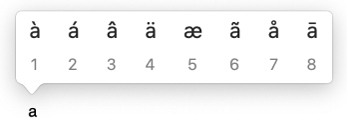
Press and hold the key for the letter you want to accent. This will open an accents menu with different options. For example, holding down the "a" key shows à, á, â, ã and other variations. If the letter has no accented variations, the menu will not appear.
Which keyboard shortcuts should you use to insert specific accents?
Some key combinations make it easier to type common accents. To put an acute accent on the letter "a", press Option, then "e", and then "a". For a circumflex, press Option, then "i", and then "a". This method is faster than using the accents menu.
How do you configure the keyboard for different languages?
Go to System Preferences and click Keyboard. Select the "Input Sources" tab and add a new keyboard layout such as "ABC - Extended". This makes it easier to switch between languages and type complex accents, such as Mandarin tone marks in pinyin. Apple Help offers more details.
What are the main keyboard shortcuts for accents on MacBook?
How do you use the Option key for accents?
The Option key is your friend for accents. For example, you want to type "é". First, press Option + e. Then release the keys and press the e key again. Done, "é" appears. Want to use another accent? There are shortcuts for each one!
What is the difference between accent shortcuts in different keyboard layouts?
Your keyboard layout changes the shortcuts. On a US keyboard, you use the Option key for accents. However, on a Brazilian ABNT2 keyboard, there are already specific keys for accents. It is useful to know your layout. That way, you type faster and without mistakes. More information here.
Is it possible to customise keyboard shortcuts for accents?
Yes, you can customise the shortcuts. Go to System Preferences > Keyboard > Shortcuts. There, you can adjust the shortcuts however you like. Customising helps anyone who uses accents often. It makes your writing more efficient and free from frustration.
These shortcuts are your gateway to using accents on your MacBook without complications. Navigating the right shortcuts makes writing easier and improves your productivity.
How do you change and customise the keyboard settings on MacBook Pro?
How do you install different keyboard layouts?
To change the keyboard settings on your MacBook Pro, go to "System Preferences" and then "Keyboard". Click the "Input Sources" tab and the "+" button. There, you can choose different keyboard layouts, such as ABNT2 for Brazilian Portuguese, or layouts for other languages. To install, select the layout you want and click "Add".
Which keyboard layouts are compatible with MacBook Pro?
MacBook Pro supports several keyboard layouts. Popular ones include QWERTY, AZERTY (French), QWERTZ (German) and ABC - Extended. Each layout supports different characters and accents. You can switch between the layouts you install in the "Input Sources" tab, where a flag icon will appear in the menu bar to indicate the current layout.
How do you write special characters such as "ç" and specific accents in different languages?
To write special characters, such as "ç" and different accents, you can press and hold the base letter key. This will open a menu with accented variations. In compatible apps, select the character you want by clicking it or using the corresponding number key.
For more efficiency, use keyboard shortcuts. For example, to type "é" in an ABC layout, press Option + e, then press e again. Remember that ABC - Extended makes it easier to write common accents and diacritical marks, helping in multilingual contexts. For more detailed instructions, the Apple support page has useful guidance.
For quick and efficient keyboard setup, explore all the options in your MacBook’s "System Preferences" and adjust what best suits your needs.
Conclusion
Setting up accents on a MacBook keyboard is simple. Enable the accents menu, use keyboard shortcuts and customise the keyboard for different languages. Quick shortcuts and layout options help a lot. Set it up and enjoy the efficiency. With iOutlet, you get high-quality products and unique support.
April 2026 update: accents on macOS 26 Tahoe
The classic method: pressing and holding the vowel: still works on any refurbished MacBook with macOS Sierra or later. In macOS 26 Tahoe, the accents panel gained an enlarged preview and support for external wireless keyboards even in "Press and Hold" mode.
How do you set up the Portuguese (PT) keyboard on a refurbished MacBook?
In "System Settings → Keyboard → Input Sources → Edit", add "Portuguese (Portugal)". The layout then has direct ç, tilde on the key above "ç", and automatic cedilla. On a refurbished MacBook Air or refurbished MacBook Pro from iOutlet, the physical keyboard usually already comes in a PT-PT layout: check the product description before buying.
The "Press and Hold" shortcut does not appear: why?
It is probably disabled. Open Terminal and paste: defaults write -g ApplePressAndHoldEnabled -bool true. Restart the app where you write (Pages, Mail, Safari) and the accents panel will appear again. This option is sometimes turned off by third-party keyboard extensions.
How do you type ç on a US keyboard?
Pressing Option + C writes lowercase "ç"; Option + Shift + C writes "Ç". These shortcuts work on any macOS since Mac OS X 10.4. If you write Portuguese frequently, it is well worth adding the PT input source instead of having to memorise shortcuts.
Do the tilde and circumflex work on all letters?
Yes. Pressing and holding A, E, I, O or U shows all accented variants (à, á, â, ã, ä, å). macOS automatically detects which variants exist in your active language: in PT-PT it shows à, á, â, ã, ä; in FR it shows à, â, æ; and so on.
Does it work on an external Magic Keyboard?
Yes, and on any Bluetooth or USB keyboard. On a refurbished iMac that comes with Magic Keyboard, simply pair it and configure the PT input source as above. All iOutlet MacBooks and iMacs include 24-month warranty and the keyboard is always tested before dispatch.
Read also
- MACBOOK AIR, PRO OR IMAC: which Apple computer is right for me?
- Should I buy a desktop? Discover the advantages and disadvantages of the iMac!
- Which MacBook to buy in 2023
- View refurbished MacBooks at iOutlet
Get more articles like this one.
Refurbished tech analysis + €5 with BEMVINDO5 on your first order. Valid on your first order of €50 or more.