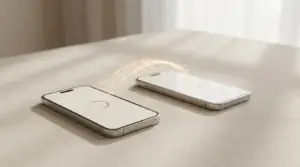
With the large number of people who change devices each year, it is increasingly common to need to transfer contacts from one device to another. If you have just switched devices and don't know how to transfer contacts from Android to iPhone, there are some simple ways to do it.
In this article
In this article, we will discuss several ways to transfer contacts from Android to iPhone. Here you will learn how to do it using Google, transferring contacts with the help of iCloud, and using third-party applications.
Method 1: Transfer contacts from Android to iPhone using Google
If you have used your Google account to save your contacts on your Android device, you can easily transfer them to your iPhone. To do this, follow the steps below:
Step 1: On your Android device, go to "Settings" and click on "Accounts and backup".
Step 2: Tap "Google Account".
Step 3: Tap "Sync account".
Step 4: On your iPhone, go to "Settings" and tap "Passwords and Accounts".
Step 5: Tap "Add Account".
Step 6: Select "Google" and enter your login information.
Step 7: Enable contact synchronisation.
Step 8: Wait a few minutes while your contacts are transferred to your iPhone.
Method 2: Transfer contacts from Android to iPhone using iCloud
Another way to transfer contacts from Android to iPhone is to use iCloud. iCloud is Apple's cloud storage service that allows you to synchronise data between devices. To transfer your contacts using iCloud, follow the steps below:
Step 1: On your Android device, open the browser and go to the iCloud website.
Step 2: Log in to your iCloud account.
Step 3: Click on "Contacts" and select all the contacts you want to transfer.
Step 4: Click on "Export vCard".
Step 5: On your iPhone, go to "Settings" and tap "Passwords and Accounts".
Step 6: Tap "Add Account".
Step 7: Select "Other" and tap "Add CardDAV Account".
Step 8: Enter your iCloud account information and tap "Next".
Step 9: Enable contact synchronisation.
Step 10: Wait a few minutes while your contacts are transferred to your iPhone.
Method 3: Transferring contacts from Android to iPhone using third-party applications
In addition to the methods already mentioned, it is also possible to use third-party applications to transfer your contacts from Android to iPhone. There are several options available in the App Store, and here are some of the most popular applications:
- Move to iOS: This official Apple application allows you to transfer your contacts, messages, photos, videos, calendar and other data from Android to iPhone quickly and easily. Simply install the app on your Android device and follow the on-screen instructions to start the transfer.
- AT&T Mobile Transfer: This free application allows you to transfer your contacts, photos, videos and other data from Android to iPhone. Simply download and install the application on both devices and follow the on-screen instructions to complete the transfer.
- Google Contacts: The Google Contacts app can be used to synchronise your Android contacts with your Google account. Then, simply log in to the same Google account on your iPhone and the contacts will be synchronised automatically.
- Aiseesoft FoneCopy: This data transfer application allows you to transfer your contacts, messages, photos and other data from Android to iPhone. Simply download and install the application on both devices and follow the on-screen instructions to complete the transfer.
Regardless of which method you choose, it is important to back up your data before making the transfer. This ensures that you don't lose any contact or other important information during the process. With these easy and quick methods, transferring your contacts from Android to iPhone can be a simple and quick task.
Diagnostic tools
Get more articles like this one.
Refurbished tech analysis + €5 with BEMVINDO5 on your first order. Valid on your first order of €50 or more.