If you want to learn how to take a screenshot on your iPhone, this is the perfect guide for you. We'll cover the methods to capture your Apple device's screen, step by step.
In this article
How to take a screenshot on iPhone
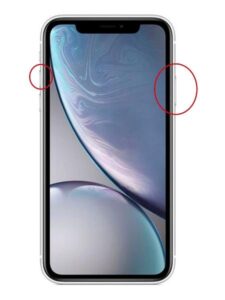
- iPhones without "Home" button, with Face ID
For devices that don't have a "Home" button, such as the iPhone X, XR, XS, 11, 12, 13, and 14, follow these steps:
a. Press the side button (power button) and the volume up button simultaneously.
b. Release the buttons quickly after hearing the shutter sound or noticing the flash on the screen.
c. The screenshot will be automatically saved to the Screenshots album.
- iPhones with "Home" button
For devices that have a "Home" button, such as the iPhone 8 and earlier models, follow these steps:
a. Press the "Home" button and the side button (power button) simultaneously.
b. Release the buttons quickly after hearing the shutter sound or noticing the flash on the screen.
c. The screenshot will be automatically saved to the Screenshots album.

How to access screenshots and edit them on iPhone
- Open the "Photos" app and tap the "Screenshots" album to view your screenshots.
- To edit a screenshot, select the image and tap the "Edit" button in the top right corner.
- Use the editing tools to crop, adjust exposure, or apply filters to the image.
- Tap "Done" to save the changes.
Tips for taking quality screenshots: Check that the screen brightness is set correctly to get a clear and sharp image; Use third-party apps to take screenshots with additional features, such as full-page capture or annotations.
Now that you've learned how to take a screenshot on your iPhone, you can easily capture your device's screen whenever you need to. Follow the tips above to get quality screenshots and explore apps and accessories options to further enhance your experience with the iPhone.
More Useful Tips
- Protect your data: enable two-factor authentication on all accounts
- Free up space: regularly review unnecessary photos, apps, and downloads
- Save battery: reduce brightness and disable Wi-Fi/Bluetooth when not in use
Explore more tips on our blog or discover the best refurbished iPhones with warranty at iOutlet.
Diagnostic tools
Get more articles like this one.
Refurbished tech analysis + €5 with BEMVINDO5 on your first order. Valid on your first order of €50 or more.