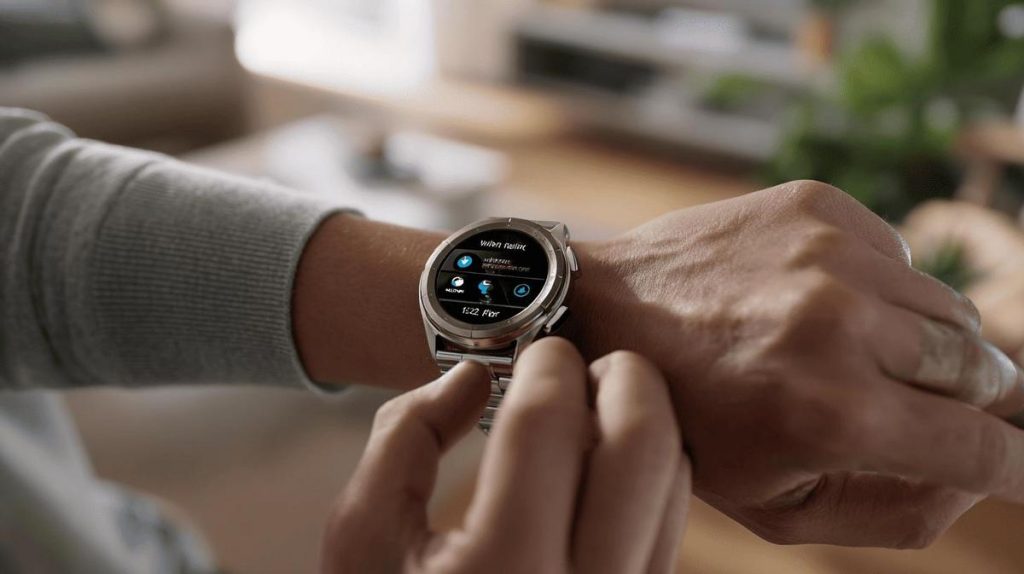
TL;DR:
- To adjust the time on your Samsung watch, go to: Settings > General > Date and time.
- You can set the time manually (tap "Set time" and save) or choose "Automatic date and time" to sync with your phone via Bluetooth.
- Adjust or enable automatic time zone if you travel or change region.
- Sync with your Samsung phone using the Galaxy Wearable app for automatic adjustment.
- Manual adjustment is needed if the watch is not connected.
- Update the watch before setting the time to avoid errors.
- Menus may vary between models, but "Settings" and "Date and time" options always appear.
In this article
If you want to know how to set a Samsung watch the easy way, you have come to the right place. You will learn how to adjust the time, set alarms and make sure your watch is always correct. I will show you each step, both in automatic and manual mode. Get ready never to get the time wrong on your Samsung again. Let us begin.
Step by step to set the time on your Samsung watch
If you own a Samsung watch and have noticed the time is wrong, there is no need to worry. A lot of people ask me: how do you set the time on a Samsung watch? You can do it in a few minutes and I will show you how. I use this method myself whenever I change time zone or when daylight saving time begins.
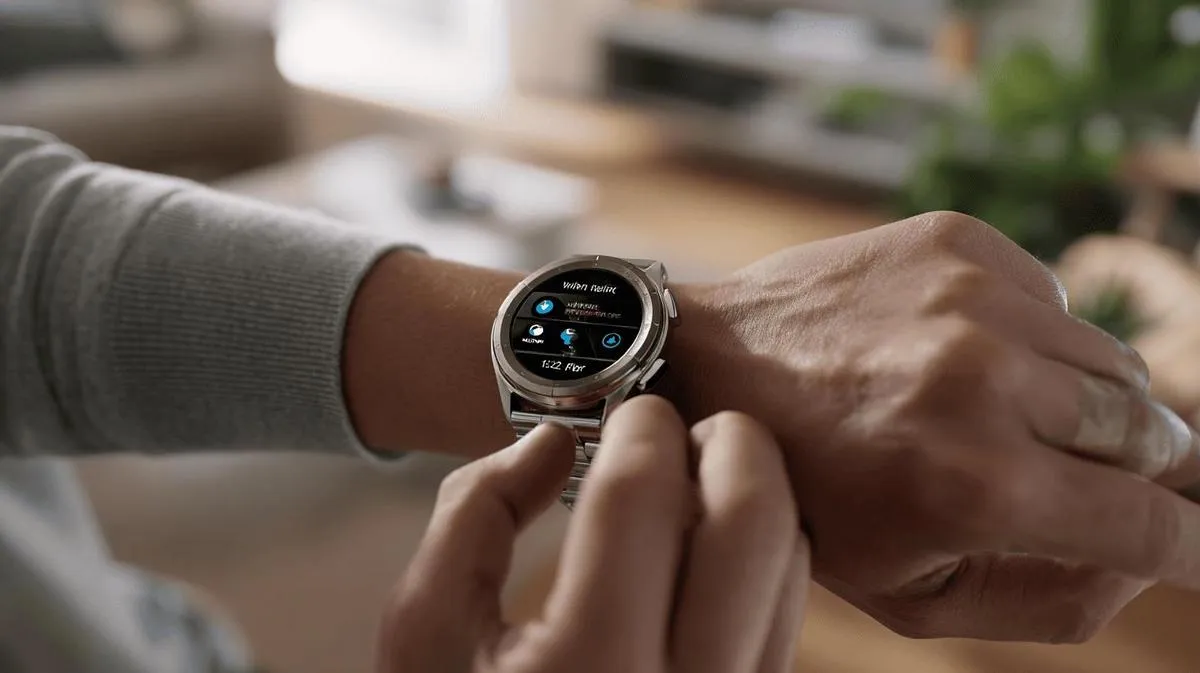
First, go to the watch menu. Swipe up on the home screen until you see the settings options. Now, tap "Settings". Then go to "General" and then to "Date and time". If someone asks: where is the option to set the time? The precise answer is: go to "Settings" > "General" > "Date and time".
In this menu, you can choose to set the time manually. Tap "Set time" and adjust the numbers to the correct time. Tap "OK" to save. If you prefer, turn on "Automatic date and time" so the watch gets the time from your phone. This prevents future errors if the watch is paired via Bluetooth.
If you use a Samsung phone, the Galaxy Wearable app can also help. It syncs the watch time with the phone as soon as both are connected. This tip is very useful if you change time zones or travel often.
By following this guidance, your watch will show the correct time and you will not be late anymore.
Step by step to set the time on your Samsung watch
First, press the side button on the Samsung watch to turn on the screen. On the home screen, swipe down with your finger to see the quick menu. Tap the gear icon to enter settings. Now, look for the "General" option and then tap "Date and time".
How do you set the time on a Samsung watch? The direct answer is: go into the "Date and time" settings and adjust the time manually or turn on automatic adjustment. On this screen, you will see two ways: let the watch set the time by itself using your phone or do it by hand. If you choose "automatic date and time", the watch will get the correct time from your phone. You only need to keep your phone connected to the watch via Bluetooth. If you prefer to adjust it yourself, tap "set time" and choose the correct time.
If you need to change the time zone, tap "automatic time zone" or choose one manually. That way, the watch shows the correct time even if you travel.
Do not forget to save everything before leaving this screen. Go back to the main menu and check that the time is correct. If you think the watch has changed time by itself, it could be due to a time zone change or a system update.
For more details and tips, go to "How to adjust the time on Galaxy Watch". This will help you understand all the steps if you have any doubts.
Step by step to set the time on a Samsung watch
How do you adjust the time on your Samsung watch? Tap the watch screen and swipe up. The app menu will open. Look for "Settings" and enter. Then choose "General" and right after that, "Date and time". Now, tap "Set time".
This part is important: select "Set time manually". Use your finger to adjust the hours and minutes to the right value. Check the time by looking at your phone or another reliable clock. Then confirm by tapping the "OK" or "Save" button.
If you prefer, turn on "Automatic date and time". The watch will get the time from the internet or through your connected phone. If your watch is not connected, the adjustment must be done manually.
And if you notice the watch is fast or slow after adjusting, repeat the steps. If you have changed time zone or travelled, check the "Time zone" menu. If you live in a region with daylight saving time, enable or adjust this setting on the watch screen.
This adjustment method works for models like Samsung Galaxy Watch and Gear. The path may vary a little, but "Settings" and "Date and time" always appear in the options. If your watch asks for an update, do it before adjusting the time to avoid errors.
With these steps, your Samsung watch will be set to the correct time and ready to use.
Conclusion
Now you know everything you need to set your Samsung watch your way. You have seen the steps to adjust the time, configure the time zone and set alarms. You can use automatic or manual methods, with or without an internet connection. You have simple customisation options for alarms and different cities. Choose the method that helps you most in your day. Organise your time, stay in control and make the most of your Samsung.
Read also
- How to install WhatsApp on a Samsung phone in 2025?
- How to unlock a Samsung phone without knowing the password?
- How to take a screenshot on a Samsung the easy way
- View refurbished Samsung phones at iOutlet
Diagnostic tools
Get more articles like this one.
Refurbished tech analysis + €5 with BEMVINDO5 on your first order. Valid on your first order of €50 or more.