10 Samsung Good Lock tweaks that are truly worth it (and why)
In this article
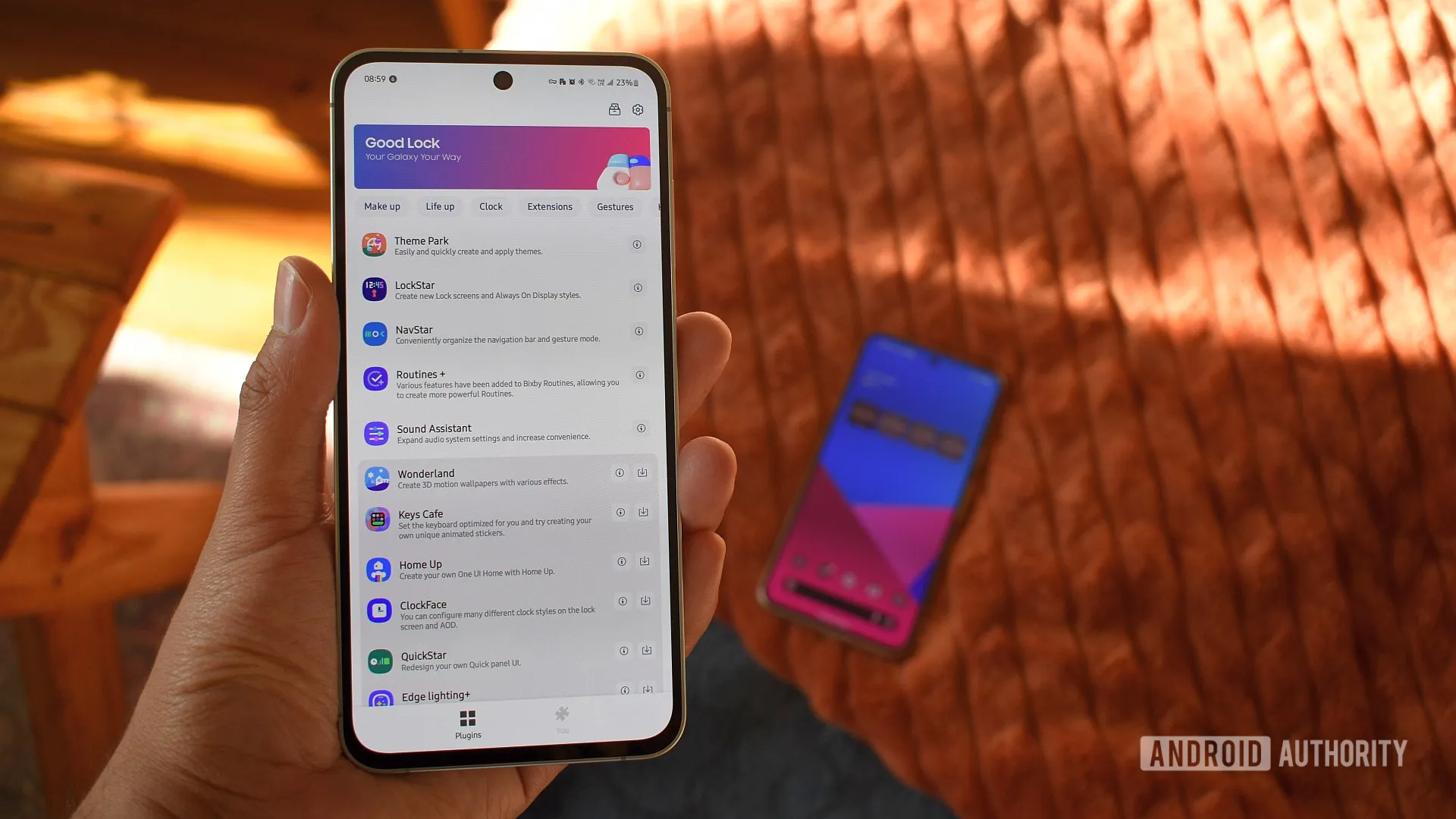
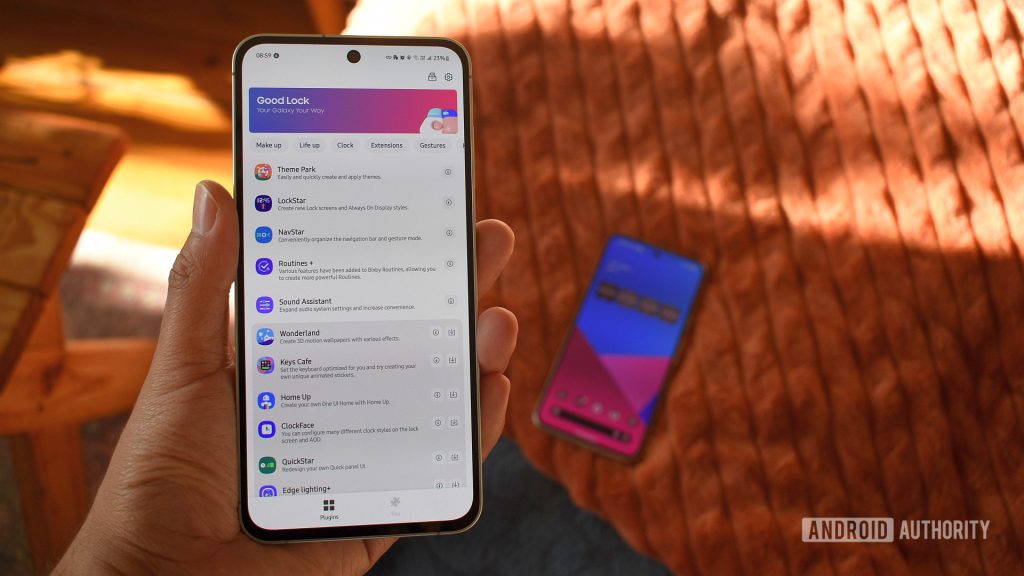
Good Lock, the official Samsung module suite for One UI, is one of the reasons many users stay “locked in” to the Galaxy ecosystem: it lets you tweak details that stock Android does not expose. An Android Authority article compiled 10 settings that the author always changes on a new Samsung - and the list is useful because it does not just “beautify”: it focuses on ergonomics (one‑hand use), speed (camera and shortcuts), and control (sound, display and routines). If you have a recent Galaxy and feel One UI is not yet “in your hand”, these tweaks are a good starting point.
General Overview
To set the scene: Good Lock is an app (and a suite of modules) that unlocks deep personalisation of One UI. Each module works in a specific area - for example, gestures, lock screen, quick panel, multitasking or camera. In practice this makes the experience similar to a “modular system”: you install only what you need and tailor it to your usage style.
The critical point is that many of these changes are not merely cosmetic. On large phones, the way you reach the Recents button, switch between apps, or where the volume panel appears has a direct impact on comfort and on time lost in micro‑tasks.
For editorial transparency, the original list is here: Android Authority article.
Practical Advantages
1) Theme Park: two quick panels (light/dark) “seriously”. The author creates distinct themes for the Quick Panel in light and dark modes, controlling colours and blur level. It makes sense: the quick panel is consulted dozens of times a day and readability changes a lot between bright sunlight and night use. Theme Park lets you fine‑tune this contrast without relying on Samsung’s default “style”.
2) LockStar: useful widgets on the lock screen. Instead of cluttering the lock screen with elements, the idea is to pick two quick‑access widgets (e.g., world clock and weather). The benefit is simple: fewer unlocks “just to see something”, which also reduces distractions.
3) Home Up: Recents in a vertical list. Changing the Task Changer to a vertical list makes the recent‑apps screen easier to navigate with the thumb, especially with one hand. It is a small tweak, but it changes how often you miss the target when trying to close or switch apps.
4) QuickStar: clock and status‑bar icons to your liking. Moving the clock to the right frees the left side for notifications. It is a preference, but it has logic: in many workflows, notifications are more important “signals” than the clock. The author also enables seconds on the quick‑panel clock - not essential, but it can be handy for timed tasks.
5) One Hand Operation+: gestures that replace stretching the finger. This is the most transformative module for large phones. The author configures side gestures (short/long) for Back and Home, and diagonal gestures for Recents and task switching. Here is a short definition: side gestures are actions triggered by swipes from the edges of the screen, reducing reliance on bottom buttons. Adjusting the width, size and position of the “handles” is what makes the system reliable, avoiding accidental activations.
Technical Details
6) Nice Shot: delete button at the moment. Anyone who takes many screenshots knows the problem: mistaken shots pile up and become “trash” to clear later. The delete button in the toolbar removes the shot at its source, which is an efficient way to manage digital noise.
7) Routines+: backup and import of routines. One UI already has Modes and Routines; Routines+ deepens triggers and actions and, crucially, allows export/import. This is important when you switch phones: without a backup, routines are lost work. It also opens the door to more complex automations (such as touch macros), although usefulness depends on your tolerance for “tuning” automations.
8) Display Assistant: timeout and parameters per app. The author uses it to extend screen‑on time for specific apps (e.g., deliveries). Additionally, the module can adjust frame rate per application and adaptive brightness characteristics. The technical idea here is to segment system policies per app rather than applying a global rule. The noted limitation: the ceiling of 10 minutes for per‑app timeout may be short for certain scenarios.
9) Sound Assistant: volume panel and per‑app control. Two practical gains: reposition the volume panel within thumb reach and set individual volumes per application (including silencing specific apps). It also adjusts the “step volume” to 3, meaning each tap changes the volume in smaller increments, giving finer precision - useful with sensitive earphones.
10) Camera Assistant: Quick‑tap shutter to reduce lag. The complaint is concrete: on some Samsung devices the capture occurs when you lift your finger off the button, introducing lag for moving subjects. Quick‑tap shutter fires on touch, and can even take an extra photo while holding down. For casual action photography (children, animals, street), this tweak tends to increase the rate of “usable photos”.
Real‑World Use Cases
The common thread of these settings is to reduce friction in repetitive tasks. If you mainly use the phone with one hand, prioritise One Hand Operation+ and Home Up. If your day is spent switching apps and comparing information, MultiStar (below) and a well‑configured Recents save time. If you work with captures and sharing, Nice Shot and Sound Assistant avoid constant cleaning and adjustments.
Productivity bonus: MultiStar and fast split‑screen. The author enables the “Quick launch of Multi window” to open split‑screen by holding the Recents button. It is a shortcut that reduces steps and makes multitasking something you actually use, rather than a “pretty on paper” feature.
If you are setting up a new Samsung, it is worth treating these changes as a “base profile”: install 2, 4 modules, test for a week, and only then add more. Deep customisation is great, but it can also create inconsistencies if you change too many things at once.
FAQ
- Is Good Lock an official Samsung product or a third‑party app?
- It is a suite of official Samsung modules for One UI, distributed as an app and extensions (modules) that add advanced personalisation options.
- Does Good Lock work on all Samsung Galaxy devices?
- It depends on the model, the One UI version and regional availability. Some modules may not appear or be compatible with certain devices.
- Can installing many modules affect performance or battery life?
- It can, especially if you activate functions that are “always listening” such as gestures, automations or per‑app tweaks. The practical recommendation is to install a few modules, measure the impact and only then expand.
- Does One Hand Operation+ replace the standard Android gesture navigation?
- It is not a mandatory replacement; it is an additional layer of configurable side gestures. You can use it alongside One UI’s gesture navigation, adjusting to avoid conflicts.
- Is it safe to use touch macros and automations from Routines+?
- Generally, yes, but macros can perform unintended actions if the screen or interface changes. It is advisable to test thoroughly and avoid routines that make purchases, delete files or change critical settings without confirmation.
Read also
- Apple’s latest news 2022
- Apple’s latest news!
- Investing in Apple shares: a full analysis
- View refurbished Samsung devices on iOutlet
Get more articles like this one.
Refurbished tech analysis + €5 with BEMVINDO5 on your first order. Valid on your first order of €50 or more.