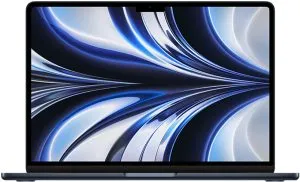

- Tools required: Pentalobe screwdriver, Torx screwdriver, suction cup.
- Compatible SSD: M.2 NVMe SSD (Samsung, Crucial).
- Steps to replace it:
- Switch off the MacBook and disconnect the cables.
- Remove the ten screws from the bottom cover with a Pentalobe screwdriver.
- Lift the cover with a suction cup.
- Unscrew and remove the old SSD with a Torx screwdriver.
- Insert and screw in the new SSD.
- Replace the cover and Pentalobe screws.
- Check additional guides for more support.
Are you an Apple enthusiast looking to upgrade your MacBook Air 2017? In this guide, I’ll show you how to replace your SSD and revive your laptop at home. With the right drive and simple tools, installation will be quick and easy. Let’s dive into this step-by-step guide and see how to bring more speed to your MacBook!
How do you replace the MacBook Air 2017 drive?
To replace the MacBook Air 2017 drive, you need a few tools and a compatible SSD. The first question is: which tools are required? For this job, you’ll need a Pentalobe screwdriver, a Torx screwdriver and a suction cup. Now, how do you choose a compatible SSD? You should look for an M.2 NVMe SSD that works with the MacBook Air 2017. Popular SSDs include options from Samsung and Crucial. Let’s start the process. First, switch off your MacBook and disconnect all cables. Then use the Pentalobe screwdriver to remove the ten screws from the bottom cover. Use the suction cup to lift the cover carefully. You’ll now see the old SSD. Unscrew it with the Torx screwdriver and gently pull it out to remove it. Insert the new SSD into the same slot and screw it into place. Close the cover and screw the Pentalobe screws back in. Don’t forget to check more details and guides for additional support. You’ll now have a MacBook with a new, fast drive.Conclusion
Replacing the MacBook Air 2017 drive is simple with the right tools. Choose a compatible SSD to ensure the best performance. Swapping the SSD improves your MacBook’s speed and storage. Follow the external links for more details. Follow these tips and your MacBook Air 2017 will feel like new!Also read
- MACBOOK AIR, PRO OR IMAC: which Apple computer is right for me?
- Should I buy a desktop? Discover the advantages and disadvantages of the iMac!
- Which MacBook to buy in 2023
- View refurbished MacBooks at iOutlet
Get more articles like this one.
Refurbished tech analysis + €5 with BEMVINDO5 on your first order.
Looking for a refurbished MacBook?
Tested and certified MacBooks with a 24-month warranty. From MacBook Air to MacBook Pro.
24-month warrantyShipping up to 8 business days
See MacBooks →