Quick guide to connecting AirPods to iPhone Android Windows (and understanding what you gain and what you lose)
In this article
- Overview: why AirPods work outside Apple
- Technical Details: automatic versus manual pairing (and what "pairing mode" is)
- Ecosystem Integration: iPhone and Mac gain in convenience
- Limitations & Challenges: Android and Windows work, but with fewer extras
- Troubleshooting: when they don't appear, when they connect to the wrong device, and when it's worth doing a reset
- What to do now: quick checklist for each platform
- FAQ
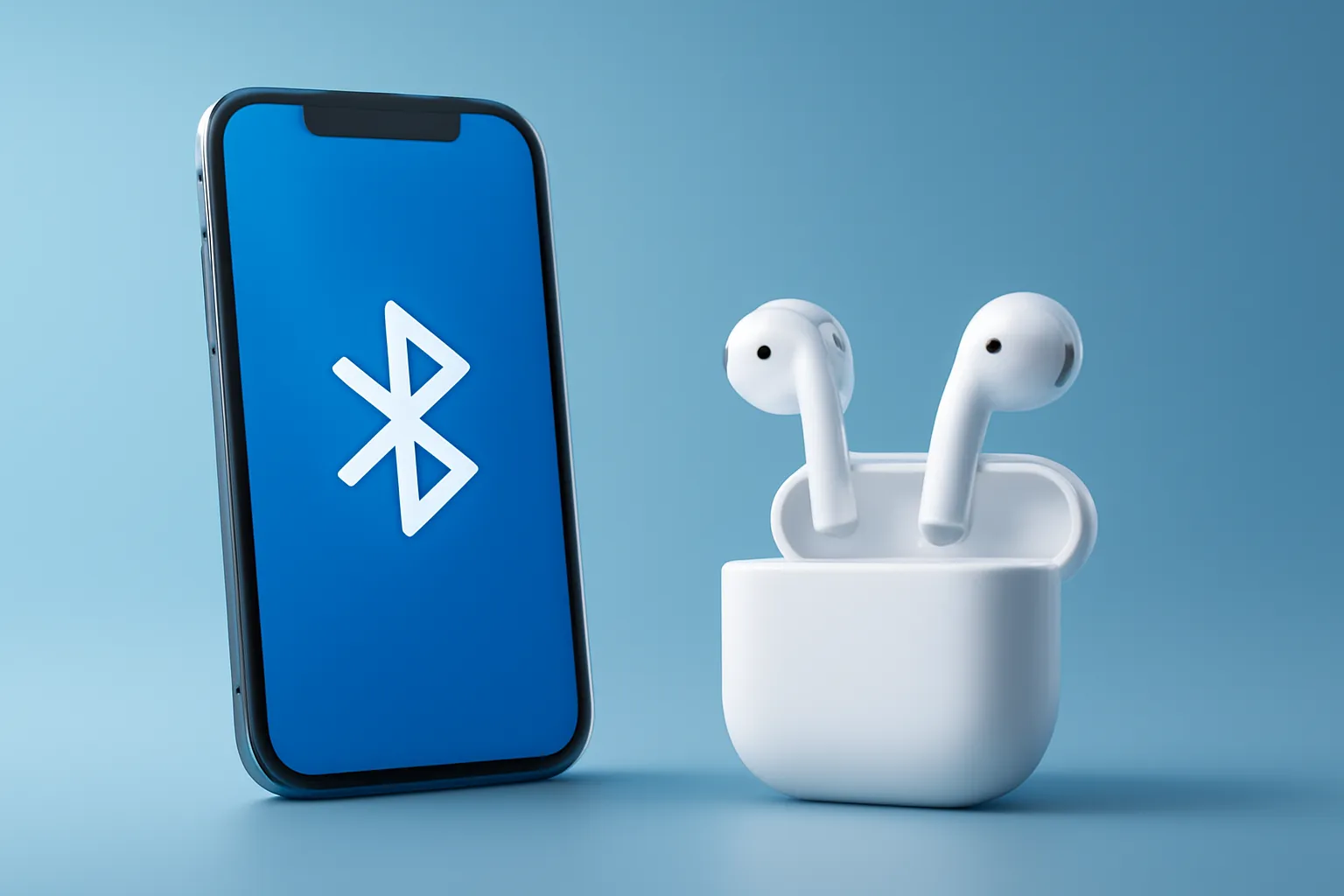
Connecting AirPods to iPhone Android Windows is straightforward: on iPhone, simply open the case near the unlocked phone and tap "Connect"; on Android and Windows, you activate pairing mode and select "AirPods" in Bluetooth settings. What changes isn't so much the connection itself, but the experience: in Apple's ecosystem there's iCloud synchronisation and automatic switching between devices; outside it, AirPods behave like "regular" Bluetooth headphones, with some advanced features limited. This guide explains the steps, differences, and how to troubleshoot common issues.
Overview: why AirPods work outside Apple
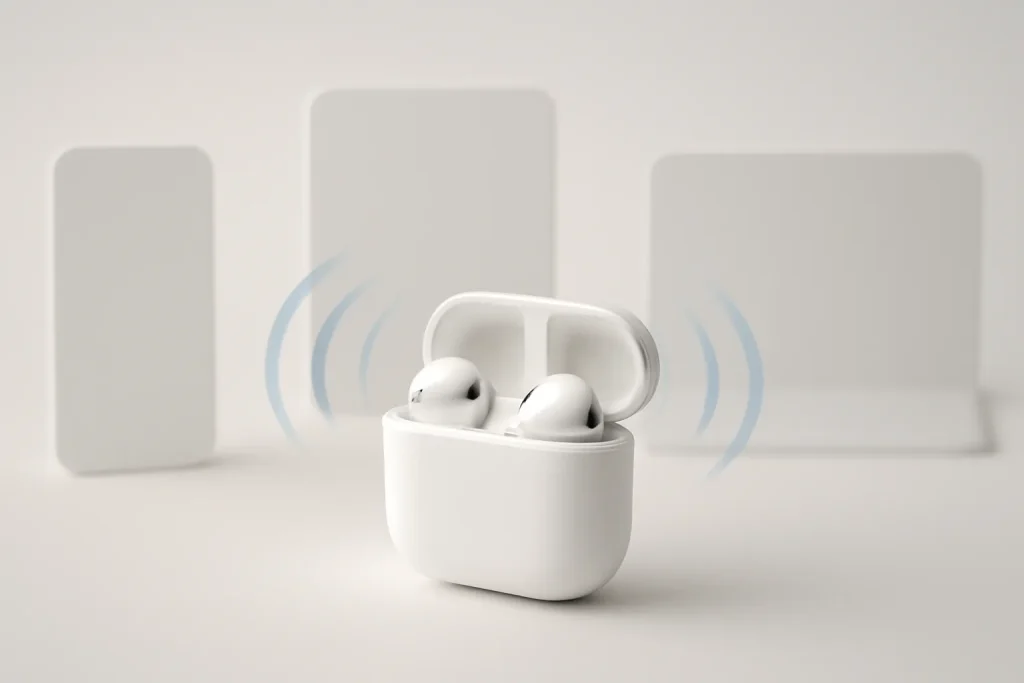
AirPods use Bluetooth, the wireless communication standard for audio and short-range peripherals. That's why, despite being designed to integrate with iPhone, iPad, Mac and Apple Watch, they can also pair with Android and Windows PCs. The difference lies in Apple's extra layers (like iCloud and more "intelligent" detection), which don't exist on other systems.
In practice, connecting AirPods to iPhone Android Windows always depends on two ideas: (1) putting the headphones into pairing mode, making them "discoverable" to new devices; (2) completing the connection in the device's Bluetooth menu. From there, calls and media playback tend to work consistently.
Technical Details: automatic versus manual pairing (and what "pairing mode" is)
Pairing mode is the state in which AirPods broadcast their presence via Bluetooth so another device can detect and save them as a known connection. On Apple devices, the process is almost entirely automatic: opening the case near an unlocked iPhone/iPad brings up a card on screen to confirm the connection. Once paired, the AirPods become associated with the iCloud account and can appear on other Apple devices with the same Apple ID.
When the card doesn't appear, there are two quick checks: confirm that Bluetooth is active and open Bluetooth settings to see if the AirPods appear as available. In many cases, opening the case again with the phone unlocked will "call" the pairing card again.
For connecting AirPods to iPhone Android Windows in scenarios outside Apple (or when automatic connection fails), manual pairing comes in. On models with a button on the case, hold down the setup button until the light flashes white. On newer models without a button, the gesture is done near the LED with the case open (the aim is the same: force the discovery state). Closing the case ends pairing mode, so it may be necessary to repeat if the device doesn't find them in time.
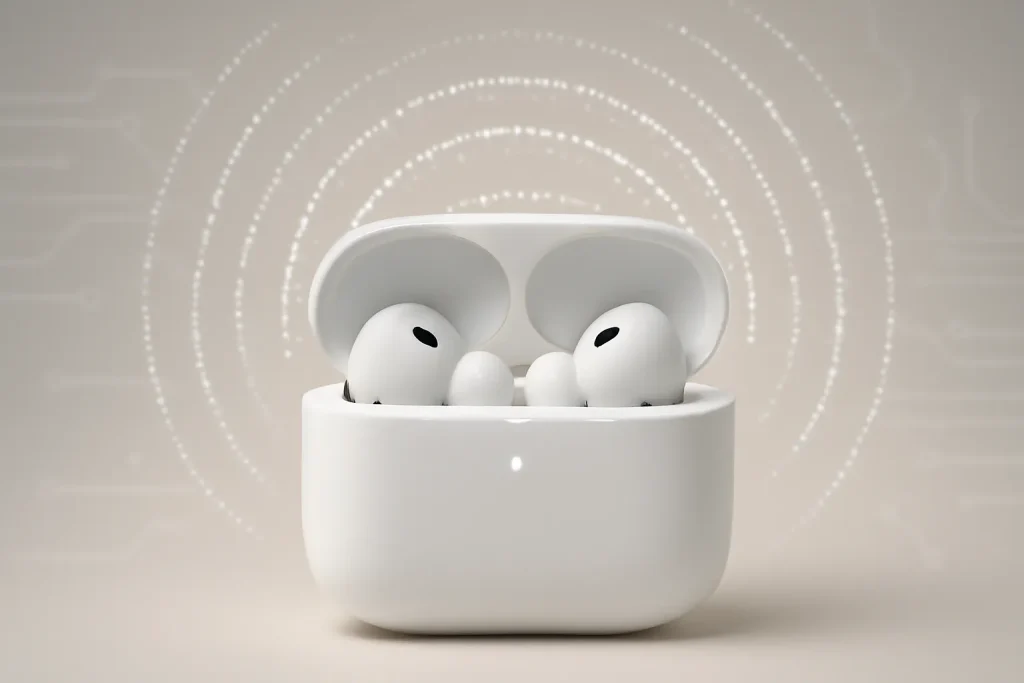
Ecosystem Integration: iPhone and Mac gain in convenience
On an iPhone, the value of AirPods lies in convenience: pair once and, under normal conditions, connection and switching between Apple devices become automatic. For those alternating between iPhone and Mac, this reduces friction in daily use, as long as systems are up to date and you're using the same Apple ID.
On Mac, the connection can be made from the Bluetooth menu, selecting the AirPods when they appear. If they're already paired with an iPhone on the same account, they commonly show up automatically as an audio option. On Apple Watch, behaviour also tends to be "inherited" from the iPhone, though availability may depend on current connection state and proximity.
If your priority is connecting AirPods to iPhone Android Windows and switching between platforms, remember: "automatic switching" is an Apple ecosystem feature, not a general Bluetooth feature. When moving to Android or Windows, it's normal to have to manually select the AirPods in Bluetooth, or disconnect them from the previous device.
Limitations & Challenges: Android and Windows work, but with fewer extras
On Android, AirPods behave like standard Bluetooth headphones: pair, choose as audio output, and go. Calls and music usually work without issue, but some features may not be natively available, such as detailed battery indicators or certain automations. In some cases, third-party apps can help expose additional information, though the experience varies and depends on the model and system version.
On Windows, the logic is similar: put the AirPods in pairing mode and add them in Bluetooth settings. If your PC has multiple audio profiles (for example, call mode versus stereo mode), you may need to choose the correct output in sound settings to avoid reduced quality on music or unexpected latency.
In short, connecting AirPods to iPhone Android Windows is viable and stable for the essentials, but the "magic" (account synchronisation and automatic switching) is where Apple continues to differentiate the experience.
Troubleshooting: when they don't appear, when they connect to the wrong device, and when it's worth doing a reset
The most common problems have a simple cause: the AirPods aren't in pairing mode or are already connected to another device nearby. Before tinkering with advanced settings, it's worth turning off the Bluetooth of the device that may have "captured" them and searching again.
If they don't appear in the list, refresh the Bluetooth search and reactivate pairing mode. If they remain invisible, a reset usually solves stuck states. On models with a button, hold it down until the light changes to amber and then back to white. On models without a button, the procedure involves closing the case for a few seconds and using the touch gesture at the front to force the reset cycle (amber then white). The reset doesn't have to erase all associations in a "dramatic" way, but it can change connection priorities when multiple devices are nearby.
For those needing to connect AirPods to iPhone Android Windows on the same day (for example, work on a PC and personal phone), the practical rule is: confirm first where they're connected, then force pairing mode, and only then do a reset. This saves time and reduces the risk of "chasing" a ghost connection.
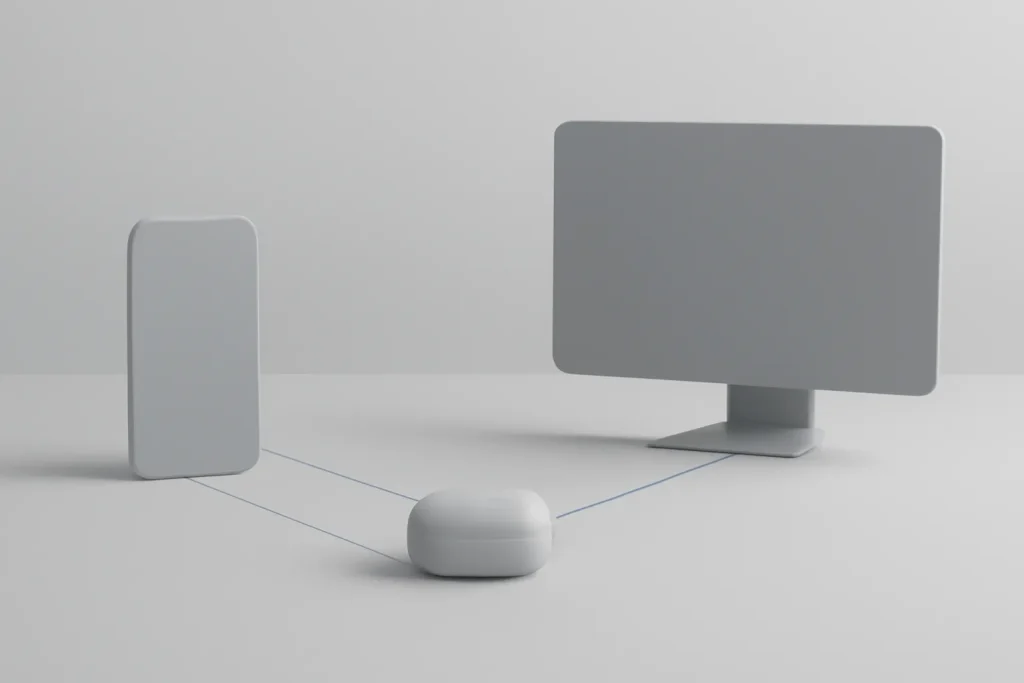
What to do now: quick checklist for each platform
iPhone/iPad: open the case near the unlocked device and confirm on the card; if it fails, go to Settings > Bluetooth and search for "AirPods".
Android: activate pairing mode on the AirPods and select them in the Bluetooth menu. If you need to see battery/status, you may need to use compatible apps.
Windows: put the AirPods in pairing mode and add them in Bluetooth settings; then confirm the audio output in sound settings.
If you'd like to see the original article that inspired this guide, here's the reference for editorial transparency: Hindustan Times article. For official and up-to-date instructions by model, Apple's support base is also helpful: Apple Support.
FAQ
- Why don't the AirPods appear in Bluetooth?
- Usually because they're not in pairing mode or are already connected to another nearby device. Reactivate pairing mode, refresh the Bluetooth list, and temporarily turn off Bluetooth on other devices where they might be connected.
- Can I connect AirPods to iPhone Android Windows and switch between them without re-pairing?
- Generally yes: the pairing stays saved on each device. What may not be automatic is the switch; often you have to manually select the AirPods in the Bluetooth of the device you want to use at that moment.
- Do AirPods lose features on Android?
- They may lose some integrations typical of Apple's ecosystem (like certain automations and detailed native indicators). For calls and music, they tend to work like regular Bluetooth headphones.
- On Windows, why does sound quality sometimes get worse during calls?
- Some systems switch between Bluetooth profiles for "hands-free" (optimised for microphone) and stereo (better for music). Check in sound settings if the selected output is what you intended for your use.
- Does resetting the AirPods erase everything?
- A reset is used to solve problematic connection states and return the AirPods to a clean pairing state. Depending on the model and scenario, it may require reconnecting on some devices, but it's mainly a recovery tool when there are persistent issues.
Get more articles like this one.
Refurbished tech analysis + €5 with BEMVINDO5 on your first order. Valid on your first order of €50 or more.