Safari data import into Chrome iOS is already being tested in the Chrome beta, and it changes the way you switch browsers on the iPhone
In this article
- Overview: what is changing and why now
- Technical Details: how iOS export works and Chrome import
- Privacy Considerations: what to evaluate before moving passwords and cards
- What changes for the user: less friction when switching browsers on the iPhone
- Next Steps: when it arrives and how to prepare a clean migration
- FAQ
\r\n\r\nSafari data import into Chrome iOS is the new feature that Google has begun testing in the Chrome beta for iPhone, allowing users to carry over browsing information from Safari with fewer steps and fewer work‑arounds. The feature, spotted in beta versions (v145), promises to make life easier for anyone who wants to use Chrome as the primary browser on iOS without losing history, bookmarks or other data. For users who switch between ecosystems (Apple and Google) or who use Chrome on the desktop, this can lessen migration friction and make the experience more consistent.\r\n\r\n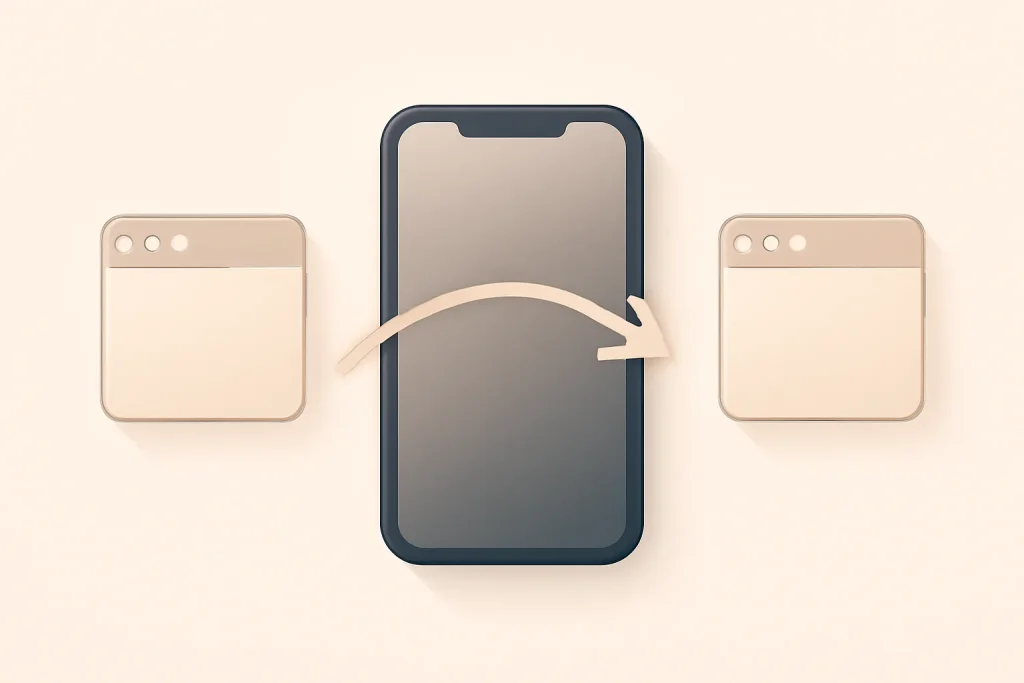
Overview: what is changing and why now
\r\nUntil now, moving from Safari to Chrome on the iPhone was often an incomplete process: some data remained "stuck" to Safari, or required indirect solutions (partial synchronisations, obscure manual exports, or credential reconfiguration). With the option to import Safari data into Chrome iOS, Chrome can recognise an export file created by Safari itself and guide the user through the import within the app.\r\n\r\nThe important detail is the context: the feature appears first in beta. In other words, it is not guaranteed that the final behaviour will be identical when it reaches the stable version, nor that all data types will import with the same reliability in every scenario.\r\n\r\nFor editorial transparency, the information was supplied by a Macworld article that describes the export and import flow and the beta version where the option appears: original Macworld article.\r\n
Technical Details: how iOS export works and Chrome import
\r\nThe described mechanism rests on a simple principle: first iOS/Safari generates an export file; then Chrome reads that file and maps the items to its internal areas (for example, favourites to bookmarks). In the reported scenario, the user exports data on iOS via the system Settings, in the Safari section, and saves the file in the Files app (Downloads). Then, in Chrome, they open Settings and choose the import option from Safari.\r\n\r\nIn practical terms, this brings iOS closer to the more common desktop experience: "export from A" and "import into B" using an intermediate file. It is an approach that tends to be more transparent than "magical" synchronisations, because the user sees what is being transferred and when.\r\n\r\nWhat can be imported, according to the test description, includes categories such as favourites and history, as well as sensitive items like passwords and cards. A note here: when "extensions" are mentioned on iOS, the concept is not equivalent to Chrome desktop extensions; on the iPhone, Safari extensions are a specific Apple ecosystem model, and real compatibility may vary. Therefore, even if the list includes "extensions", the import is likely limited (or may only bring metadata) - it\'s worth validating case by case.\r\n\r\nIf you need official guidance on data management in Safari and on the iPhone, the Apple support base is the safest starting point: Apple Support. For synchronization and data management options in Chrome, Google\'s documentation helps understand what is tied to the Google account and what remains local: Google Support.\r\n\r\n
Privacy Considerations: what to evaluate before moving passwords and cards
\r\nImporting Safari data into Chrome iOS can include highly sensitive information. Even though the process is guided and appears simple, there are practical decisions to make before proceeding, especially if the iPhone is shared, managed by an organisation, or if there is a history of Google accounts used by multiple people.\r\n\r\nPoints to consider:\r\n\r\n
1) Where the data resides after import. Depending on Chrome\'s settings, part of the content may begin synchronising with the Google account (useful for continuity across devices), but this also changes the "perimeter" of exposure: it is no longer confined to the Apple ecosystem.\r\n\r\n
2) Duplication and inconsistencies. When importing history and favourites, you may end up with duplicate entries if you already used Chrome on other devices. A subsequent clean‑up may be required to keep things organised.\r\n\r\n
3) Passwords and cards are not the same as favourites. Favourites and history are relatively easy to review and delete. Credentials and payment methods require immediate verification after migration: confirm that the imported entries are correct, that there are no outdated items, and that synchronisation is configured as intended.\r\n\r\n
4) Export file. Since the process involves a file stored in "Downloads", consider the lifecycle of that file: after importing, it makes sense to delete it to reduce the risk of unauthorised access (for example, via file sharing or backups).\r\n
What changes for the user: less friction when switching browsers on the iPhone
\r\nIn practice, the biggest advantage of importing Safari data into Chrome iOS is lowering the cost of switching. Anyone who wants to try Chrome as the primary browser on the iPhone usually wants three things: keep favourites, retain recent history, and continue accessing sites without reconfiguring everything. If the import lives up to its promises, the transition feels more like a "continuous start" than a fresh restart.\r\n\r\nThere is also a relevant secondary effect: by easing migration, Google makes it more likely that users who already use Chrome on Windows, macOS or Android will align the iPhone with the same browser, reducing habit and data fragmentation across platforms.\r\n\r\nConversely, it is important to keep expectations realistic while the feature remains in beta. Availability may vary by region, by account, by iOS version and by the pace of Chrome\'s release on the App Store. The original article notes that the stable version did not yet have this option at the time described, suggesting a waiting period before it reaches everyone.\r\n\r\n
Next Steps: when it arrives and how to prepare a clean migration
\r\nIf your priority is stability, the recommendation is simple: wait for the stable release of Chrome for iOS. Betas may have interface changes, import failures or inconsistent behaviour. If you still want to experiment, do so with a rollback plan: ensure you have your primary credentials accessible and that you can revert to Safari without losing access to essential services.\r\n\r\nTo prepare a "clean" migration when importing Safari data into Chrome iOS:\r\n\r\n
• Review before exporting. Remove old favourites and history you don\'t want to transfer.\r\n\r\n
• Confirm the correct Google account. If Chrome syncs, make sure you are signed into the right account before importing.\r\n\r\n
• Verify after importing. Open a few critical sites (banking, health, work) and confirm logins and autofill.\r\n\r\n
• Delete the export file. After completing the process, remove the export file from the Downloads folder if you don\'t need it.\r\n\r\nThe final result, if the implementation remains, is an iPhone that is more "portable" between browsers: less dependence on a single ecosystem and greater control over data transfer between apps.\r\n
FAQ
- Is this feature already available to everyone?
- Not necessarily. What was described appears in the Chrome beta for iOS (v145). Arrival in the stable version depends on the beta cycle ending and the release on the App Store.
- What do I need to import Safari data into Chrome iOS?
- In terms of flow, you need to export the data in Safari via the iOS Settings and save a file (for example, in Downloads), then select/import it in Chrome’s app Settings.
- Can I choose only certain data (for example, just favourites)?
- According to the test description, the export screen allows you to select categories. The exact granularity may vary depending on the iOS and Chrome versions.
- Is importing passwords and cards safe?
- It can be, but it requires caution. You are moving sensitive data to another ecosystem and possibly into synchronisation with a Google account. Check synchronisation settings, confirm the correct account and delete the export file after the import.
- What happens to the exported Safari file?
- It is stored in the Files app (for example, in Downloads). After completing the import, it makes sense to delete it if you don\'t need it, to reduce the risk of unauthorised access.
- If I already use Chrome on other devices, will I end up with duplicates?
- It is possible. If you already have favourites and history in Chrome (via synchronisation), the import may create duplicate entries. Plan a review and clean‑up after the migration.
Get more articles like this one.
Refurbished tech analysis + €5 with BEMVINDO5 on your first order. Valid on your first order of €50 or more.