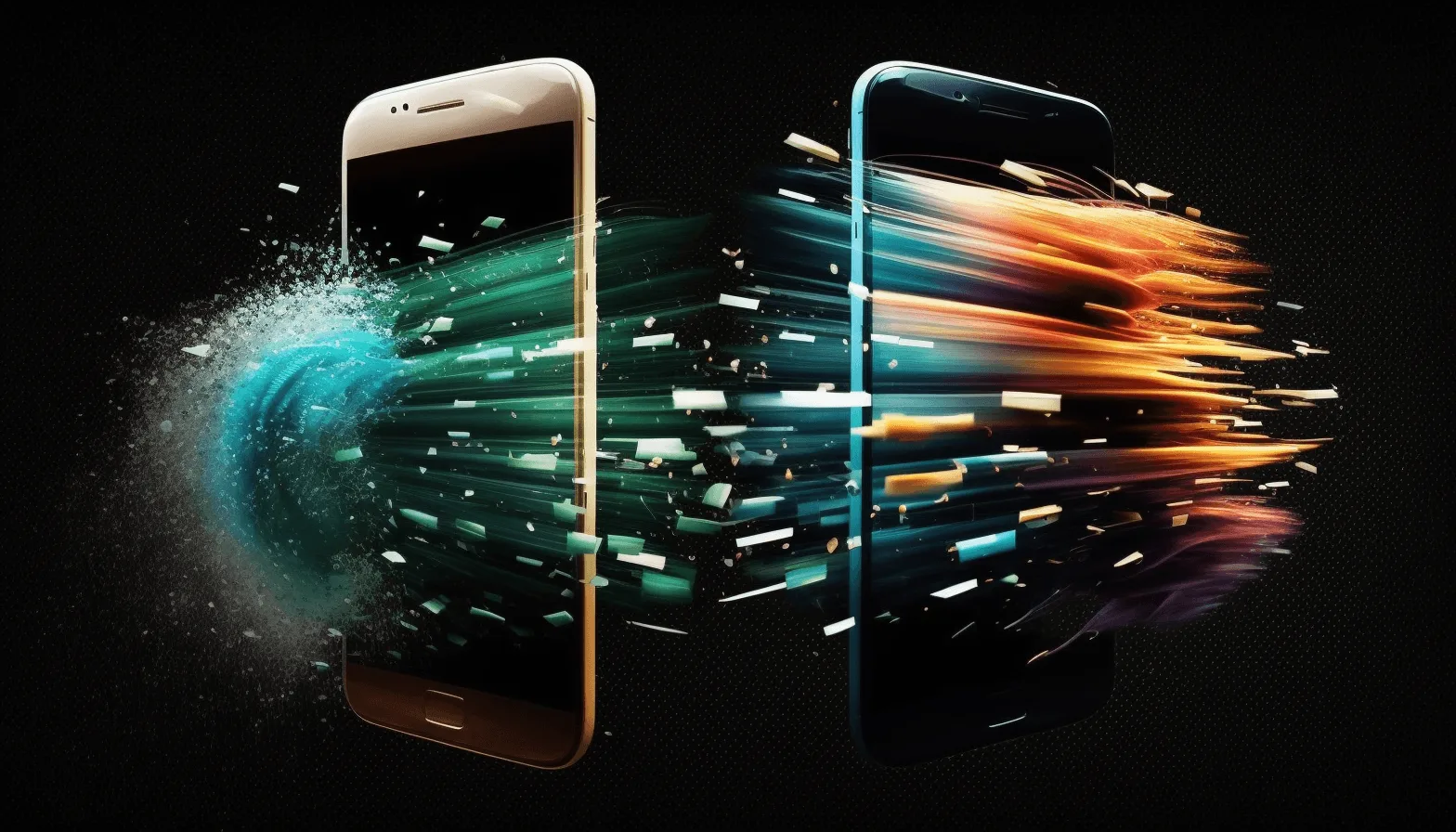

Are you considering switching from an iPhone to a Samsung smartphone? If so, one of the main concerns that may arise is how to transfer your contacts to your new device. We know that keeping an organised and accessible list of contacts is essential to staying connected in an increasingly digital world.
In this article
In this guide, we will explore various strategies and available tools for how to transfer your contacts from iPhone to Samsung.
Method 1: Transfer via Google Contacts
If you already use Google Contacts on your iPhone, transferring your contacts to a Samsung will be very easy. Follow these steps:
Step 1: Access Google Contacts on your iPhone;
Download the Google Contacts app on your iPhone and sign in with your Google account.
Step 2: Sync your contacts
If you haven't already synced your contacts with Google Contacts, follow these steps:
- Open the iPhone Settings app and tap on "Passwords and Accounts".
- Select the Google account you use with Google Contacts.
- Enable contact synchronisation.
Step 3: Access Google Contacts on your Samsung device
Sign in to the same Google Contacts account you used on your iPhone. Your synced contacts will now be displayed on your Samsung.
Method 2: Transfer via Smart Switch
Samsung offers a tool called Smart Switch that allows you to easily transfer your contacts from iPhone to your Samsung device. Follow these steps:
Step 1: Install Smart Switch on your Samsung device;
Smart Switch should already be pre-installed on newer Samsung devices. If it's not, download it from the Google Play Store.
Step 2: Connect your devices;
Connect your iPhone and Samsung to the same Wi-Fi. Open Smart Switch on your Samsung and select "iOS".
Step 3: Start the transfer
Select "Contacts" and tap "Start". Wait for the transfer to complete.
Method 3: Transfer via SIM card
If you don't use Google Contacts and prefer a simpler option, you can transfer your contacts via a SIM card. Follow these steps:
Step 1: Export your contacts from iPhone
- Open the iPhone "Settings" app and tap on "Contacts".
- Select "Export All Contacts" and select "SIM Card" as the export option.
Step 2: Insert the SIM card into your Samsung device
Remove the SIM card from your iPhone and insert it into your Samsung device.
Step 3: Import your contacts to your Samsung device
- Open the "Settings" app on your Samsung device and select "Contacts management".
- Select "Import/Export" and select "Import from SIM card".
Fortunately, with the options available today, transferring your contacts has become easier than ever. From solutions built into the devices themselves to third-party applications, there are a variety of methods at your disposal to ensure a smooth and hassle-free transition.
Remember that when switching to a Samsung Galaxy, you're embarking on a new digital journey. Keeping your contacts organised and accessible is crucial to maintaining your personal and professional connections. With the right steps, you can ensure that all your contacts follow this change, allowing you to continue communicating without interruptions.
Additional Tips
- Back up before making any major changes to your device
- Keep iOS/macOS updated: updates fix bugs and improve security
- Restart your device if anything doesn't work as expected after following the steps
Need Help?
If you're having trouble, you can contact Apple support or visit our tutorials section on the iOutlet blog for more guides.
Diagnostic tools
Get more articles like this one.
Refurbished tech analysis + €5 with BEMVINDO5 on your first order.