Key points
- Screen recording is in the iPhone's Control Centre. You don't need to install any app.
- To include your voice, turn on the microphone before you start recording.
- Recordings are saved in the Photos app, under "Screen Recordings".
- Some apps don't allow audio or video recording, and you can't record the screen while mirroring it to another display.
In this article
- How to add screen recording to Control Centre
- On iOS 18 or later
- In iOS 17
- How to record your iPhone screen
- How to screen record with sound
- How to stop recording
- Where is the screen recording saved
- How to edit the screen recording
- Trim the start and end
- Adjust light, colour and filters
- Common issues when recording the screen
- The record button does not appear in Control Centre
- The recording does not include my voice
- A recording of an app has no sound or no picture
- I cannot record while mirroring the screen
- Frequently asked questions
- Do I need an app to record my iPhone screen?
- Can I record the screen and my voice at the same time?
- Where can I find my screen recordings?
- Why do some apps not get recorded?
- Conclusion
How to add screen recording to Control Centre
Before your first recording, check that the "Screen Recording" control is in Control Centre. Once added, it stays there for future recordings.
On iOS 18 or later
- Open Control Centre. On an iPhone with Face ID, swipe down from the top-right corner of the screen. On an iPhone with a Home button, swipe up from the bottom of the screen.
- Touch and hold the bottom of the screen, then tap "Add a Control".
- In the controls gallery, tap "Screen Recording".
- Tap anywhere on the screen to return to Control Centre.
In iOS 17
- Open Settings > Control Centre.
- Tap the add button next to "Screen Recording".
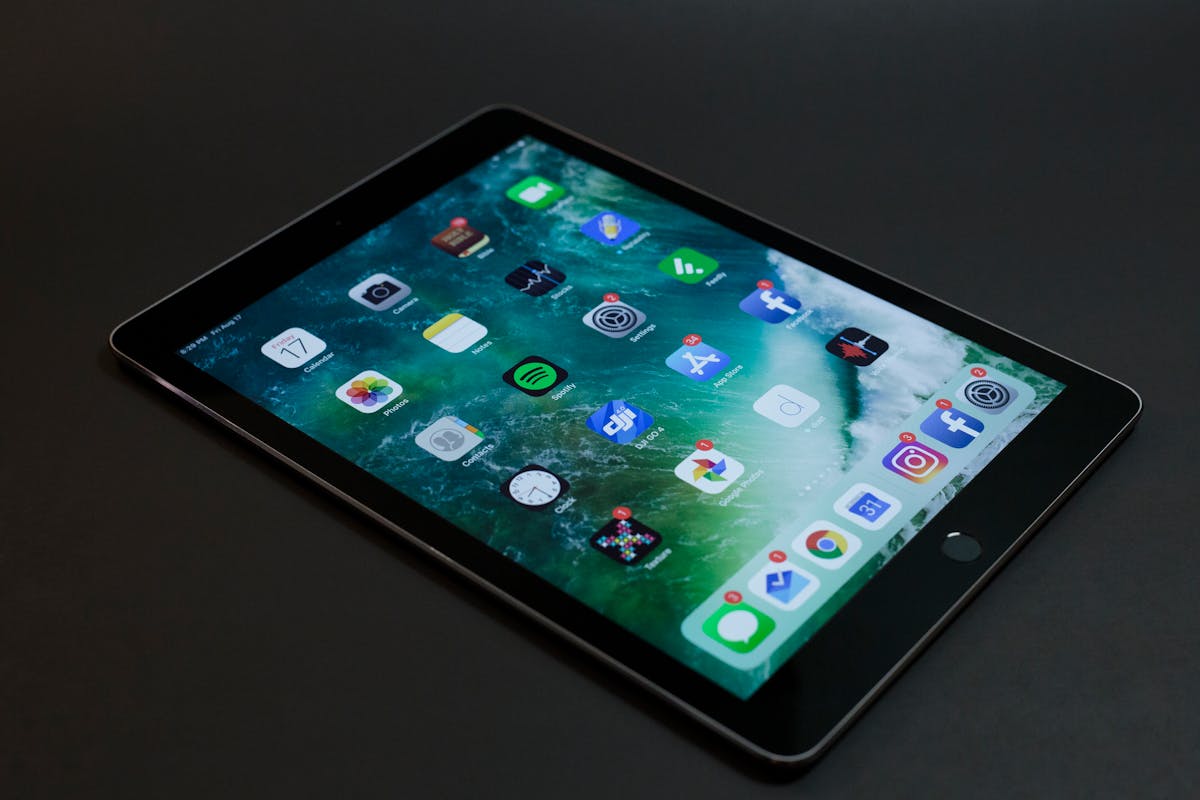
How to record your iPhone screen
- Open Control Centre.
- Tap the Screen Recording button.
- Wait for the 3-second countdown.
- Close Control Centre and do what you want to record.
How to screen record with sound
Screen recordings can include audio and video. To add your voice, for example to explain a step while recording, turn on the microphone before you start:
- Open Control Centre.
- Touch and hold the Screen Recording button.
- Tap "Microphone" to turn it on.
- Tap "Start Recording" and wait for the 3-second countdown.
Note: some apps do not allow audio or video recording. If a recording from an app has no sound or no picture, that may be the reason.
How to stop recording
| iPhone | How to stop |
|---|---|
| With Dynamic Island | Tap the red circle at the top of the screen and then the stop button |
| Other models | Tap the red timer in the top-left corner of the screen and then "Stop" |
| Any model | Open Control Centre and tap the recording button, which is red |
Where is the screen recording saved
iPhone saves the recording to the Photos library automatically. To view all screen recordings together:
- Open the Photos app.
- Tap "Collections" and scroll down to "Content Types".
- Tap "Screen Recordings".
In iOS 18, scroll down to "Content Types" and tap "Screen Recordings". In iOS 17, recordings are in "Albums", under "Content Types".
How to edit the screen recording
The Photos app has the tools to trim the start and end of the recording and to adjust the image.
Trim the start and end
- Open the video in the Photos app and tap the Edit button.
- Drag the ends of the frame viewer, below the video, to choose where it starts and ends. Tap "OK".
- Tap "Save Video" to keep only the trimmed version, or "Save Video as New Clip" to keep both.
If you used "Save Video" and want the original back, open the video, tap the Edit button, then tap "Revert". A video saved as a new clip cannot be reverted to the original.
Adjust light, colour and filters
- In edit mode, tap "Adjust" and choose a setting, such as "Exposure" or "Brightness". Drag the slider to fine-tune.
- To apply a filter, such as "Vivid" or "Dramatic", tap the Filters button and drag the slider to adjust the effect. On iPhone 16 or later, filters only appear if you do not have Photographic Styles turned on.
- Tap "Done" to save your changes.
To add text or transitions, use a video editing app.
Common issues when recording the screen
The record button does not appear in Control Centre
The control has not been added yet. Follow the steps at the start of this guide for your iOS version.
The recording does not include my voice
The microphone must be active before you start. Press and hold the screen recording button, tap "Microphone", and only then tap "Start Recording".
A recording of an app has no sound or no picture
Some apps do not allow audio or video recording. Try recording another app to confirm that screen recording works.
I cannot record while mirroring the screen
Apple states that it is not possible to record the screen and mirror it at the same time. Stop mirroring before recording.
Frequently asked questions
Do I need an app to record my iPhone screen?
No. Screen recording is built into iOS and you start it from Control Centre.
Can I record the screen and my voice at the same time?
Yes. Before you start, touch and hold the screen recording button and turn on the microphone.
Where can I find my screen recordings?
In the Photos app, under "Collections" > "Media Types" > "Screen Recordings".
Why do some apps not get recorded?
Some apps do not allow audio or video recording. In those cases, the recording may end up without sound or without video from that app.
Conclusion
You record the iPhone screen from Control Centre: tap the record button and, three seconds later, the iPhone starts recording. To narrate what you are doing, turn on the microphone before you begin. Afterwards, you trim the recording in the Photos app. If you are thinking of switching iPhone, iOutlet refurbished models come with 24 months warranty.
Diagnostic tools
Get more articles like this one.
Refurbished tech analysis + €5 with BEMVINDO5 on your first order. Valid on your first order of €50 or more.