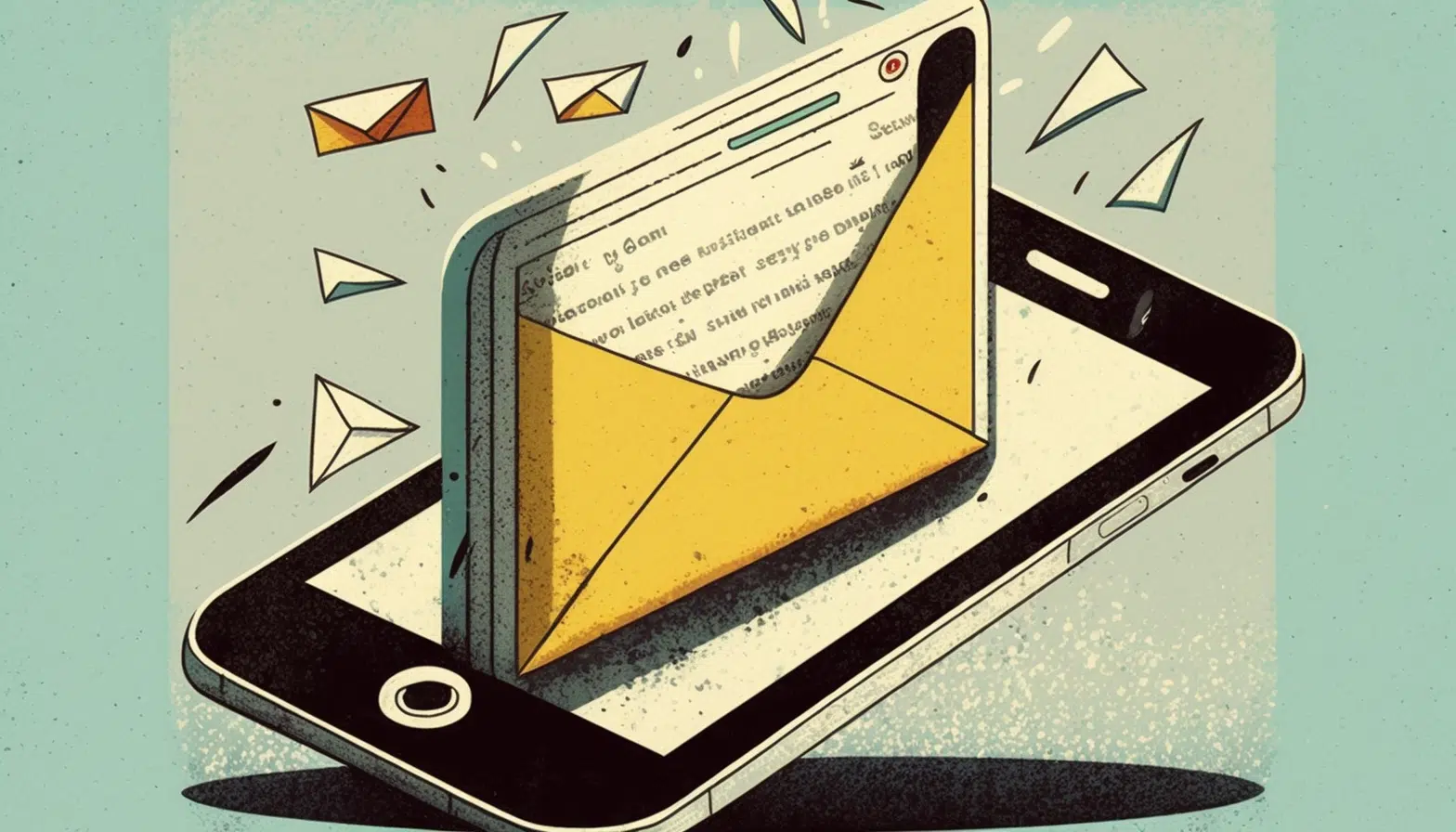
In 2026, sending an email with an attachment from your iPhone remains one of the most common tasks in daily professional and personal life. The native Mail app on iPhone has evolved significantly since the early guides on this topic: and on iOS 18 / iOS 19 you can attach photos, videos, documents and files directly from Apple Files, iCloud Drive, Google Drive, Dropbox and other cloud services. This guide shows you all the current methods with any modern iPhone, including refurbished models available at iOutlet with 24-month direct warranty.
In this article
- Prerequisites: setting up email on your iPhone
- Method 1: Attaching from the Mail app
- Method 2: Sharing from the source app
- Method 3: Attaching from iCloud Drive or Files
- Attachment size limits
- Practical tips
- When to use Gmail or Outlook instead of native Mail
- When is it worth updating your iPhone
- Frequently Asked Questions
- Can I send long videos by email?
- How do I sign PDFs on iPhone before sending?
- Does Mail work offline?
- How does Mail Drop work?
- How do iOutlet's delivery and warranty work?
Prerequisites: setting up email on your iPhone
Before sending emails with attachments, make sure you have an email account configured in the Mail app:
- Go to Settings → Mail → Accounts → Add Account.
- Choose the service (iCloud, Gmail, Outlook, Yahoo) or Other for manual servers.
- Enter your email and password; enable Mail in the sync options.
- Return to the Mail app: your account appears in the inbox list.
Method 1: Attaching from the Mail app
- Open the Mail app.
- Tap the new email icon (pen inside a box, in the bottom right corner).
- Fill in the recipient, subject and message body.
- Double-tap on the email body to open the contextual menu.
- Select Add Attachment or tap ">" and choose the file type:
- Insert Photo or Video: opens the Photos gallery
- Add Document: opens the Files app (with access to iCloud Drive, Google Drive, Dropbox, etc.)
- Scan Document: uses the camera to capture and digitize (PDF)
- Select the file and it is attached to the email body.
- Tap Send (arrow in the top right corner).
Method 2: Sharing from the source app
Often it's quicker to go to the source app (Photos, Files, Pages, Numbers, Keynote) and use the share function:
- Open the app where the file is (e.g. Photos).
- Select the file(s) you want to attach.
- Tap the share icon (square with an upward arrow).
- In the menu, choose Mail.
- Your iPhone automatically opens a new email with the attachment already included.
- Fill in recipient, subject, body and send.
Method 3: Attaching from iCloud Drive or Files
For larger files (PDFs, long videos), your iPhone allows you to attach links instead of the complete file:
- Open the Files app and locate the file.
- Press and hold on it.
- Choose Share or Mail Drop (for files larger than 25MB).
- Your iPhone generates a shareable link instead of attaching the entire file.
Attachment size limits
- iCloud Mail: up to 20MB per attachment (Mail Drop increases to 5GB)
- Gmail: up to 25MB per attachment (Drive links for more)
- Outlook / Office 365: up to 20MB
- Yahoo Mail: up to 25MB
For larger attachments, use Mail Drop (iCloud) or connect to Google Drive / Dropbox and share a link.
Practical tips
- Reduce photo size: the Mail app automatically offers size options when attaching (Small, Medium, Large, Actual Size). To reduce sending time, choose Medium.
- Compress multiple files: press and hold several files in Files → Compress: generates a ZIP file you can attach.
- Email signature: set up in Settings → Mail → Signature.
- PDF Markup: attach a PDF, press and hold and choose Markup to annotate before sending.
- Birthdays and company signature: the Mail app supports rich HTML: use for professional emails.
When to use Gmail or Outlook instead of native Mail
The Mail app is excellent for most users, but if you're already using Google Workspace or Microsoft 365 in a professional environment, the native apps (Gmail, Outlook) offer deeper integration with Drive / OneDrive and features such as scheduling, labels and advanced rules.
When is it worth updating your iPhone
In 2026, the Mail app works on any iPhone with iOS 18+ (iPhone 11 or higher). If you're still using iPhone 7, 8 or X, you'll notice limitations: lack of integrated Mail Drop, slowness when attaching photos, issues with Mail Privacy Protection.
In iOutlet refurbished models, iPhone 11, 12, 13, 14 and 15 offer all modern features with battery tested using specialised technical software and 24-month direct warranty. See all refurbished iPhone options available at iOutlet.
Frequently Asked Questions
Can I send long videos by email?
Long videos exceed the limit (20-25MB) of most services. Use Mail Drop (iCloud) for up to 5GB or share via link through Google Drive / Dropbox.
How do I sign PDFs on iPhone before sending?
Attach the PDF, press and hold to open the menu, choose Markup. Tap the "+" button → Signature. Create your digital signature once and reuse it on any document.
Does Mail work offline?
You can compose emails offline: they stay in the "Outbox" and send when your iPhone has a connection. It doesn't work for receiving new emails without internet.
How does Mail Drop work?
Mail Drop is an Apple feature that allows you to send attachments up to 5GB. The file is stored in iCloud for 30 days and the recipient downloads via a link. It works automatically when you exceed the normal limit.
How do iOutlet's delivery and warranty work?
Free delivery within 8 business days in mainland Portugal. 24-month direct iOutlet warranty on refurbished models, with full coverage (including battery). 14 days to return with no questions asked.
Ready to upgrade to an iPhone with modern Mail? See all refurbished iPhone options available at iOutlet and take advantage of our refurbished MacBook range for a complete email experience across devices.
Diagnostic tools
Get more articles like this one.
Refurbished tech analysis + €5 with BEMVINDO5 on your first order. Valid on your first order of €50 or more.