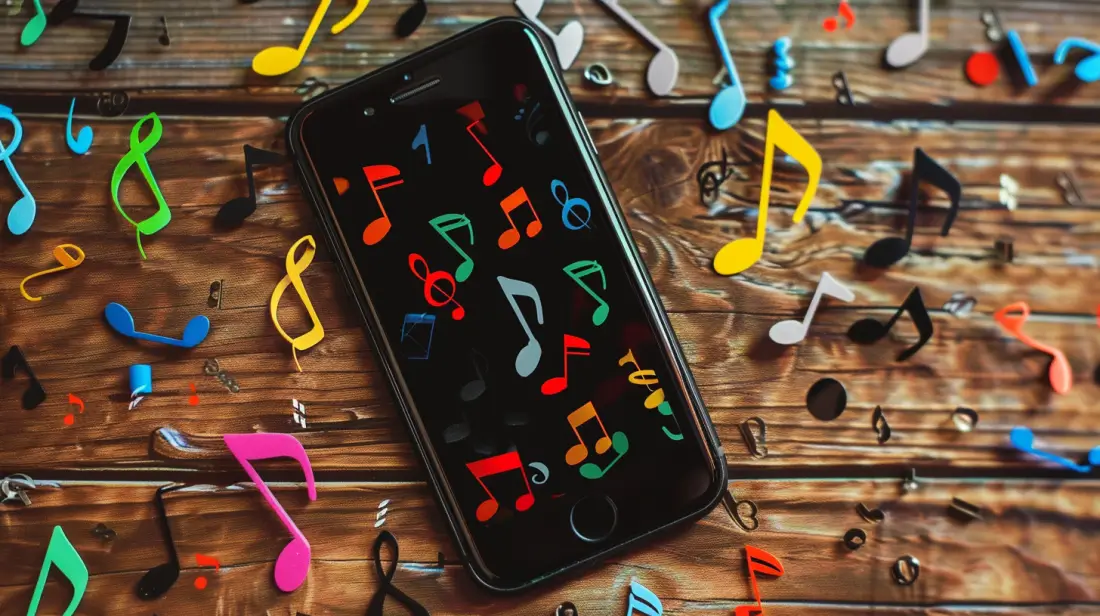
If you want to personalise and set music as your iPhone ringtone, this article is for you. Apple offers some default options for call ringtones, but you can also use your own music as custom ringtones. In this step-by-step guide, we'll show you how to do this in a simple and easy way.
In this article
Step 1: Choose the Music
The first step to setting music as your iPhone ringtone is to choose the music you want to use as a ringtone. Make sure the music is stored in your iTunes music library.
If you need to update your iTunes, here's our guide on how to do it.
Step 2: Select the Music and Set the Section for the Ringtone
Open the iTunes app and select the music you want to use as a ringtone. Right-click on the song and select 'Get Info'. In the 'Options' tab, set the section of music you want to use as your ringtone. Remember that the ringtone must be a maximum of 30 seconds.
Step 3: Convert the Music to a Ringtone
Now that you've set the section you want to use as your iPhone ringtone, it's time to convert it to ringtone format. Right-click on the song again and select 'Create AAC Version'. iTunes will create a new version of the music with the selected section.
Step 4: Rename and Change the File Extension
Locate the new version of the music in your iTunes music library and right-click on the song. Select 'Show in Windows Explorer' (on Windows) or 'Show in Finder' (on Mac) to open the folder containing the music file. Rename the file and change the extension from '.m4a' to '.m4r'.
Step 5: Add the Ringtone to Your iPhone
Now that you have the ringtone file, it's time to set music as your iPhone ringtone. Connect your iPhone to your computer and open iTunes. Select your iPhone and go to the 'Ringtones' tab. Check the 'Sync Ringtones' option and select the ringtone you created earlier. Click 'Apply' to sync the ringtone with your iPhone.
Step 6: Set the Ringtone on Your iPhone
Now that the ringtone is on your iPhone, it's time to set it as your default ringtone or for a specific contact. Open your iPhone's 'Settings', select 'Sounds & Haptics' and tap 'Ringtone'. Select the ringtone you just added and set it as your default ringtone or for a specific contact.
With these simple steps, you can set your favourite music as your iPhone's call ringtone. Remember that the section must be a maximum of 30 seconds and that the file must be converted to .m4r format to be used as a ringtone.
Additional Tips
- Back up before making any important changes to your device
- Keep iOS/macOS updated - updates fix bugs and improve security
- Restart your device if something doesn't work as expected after following the steps
Need Help?
If you're having difficulty, you can contact Apple Support or visit our tutorials section on the iOutlet blog for more guides.
Diagnostic tools
Get more articles like this one.
Refurbished tech analysis + €5 with BEMVINDO5 on your first order. Valid on your first order of €50 or more.