TL;DR:
- Backing up your Xiaomi to a PC saves photos, videos, contacts, messages and apps (with the right software).
- You can do a manual backup (copying DCIM/Contacts folders via USB) or an automatic one with Mi PC Suite/Mi Cloud.
- Always use reliable cables and software (official ones); avoid unknown apps or websites.
- The backup is safe if stored in a protected folder and optionally encrypted; never share it.
- Restoring the backup is simple: copy the files back or use the original program/app.
- Manual backup only saves visible files; Mi PC Suite/Mi Cloud saves more system data.
- It's a good idea to keep copies in different places (PC, cloud, external drive) for extra safety.
- Always check that the backup is complete and up to date.
In this article
Backing up your Xiaomi to a PC sounds complicated, but it's safe and simple. If you like tech and want to keep your Xiaomi photos, contacts and files safe, you can't skip this step. Here, I'll share my favourite methods for making sure nothing gets lost, from simple apps to tips I've picked up testing different options. Want to know how to restore everything when you need to? Keep reading and protect your data without any hiccups.
Will a PC backup protect photos, videos and contacts?
Yes, backing up to a PC saves photos, videos and contacts. The backup transfers everything from your Xiaomi to the computer. You won't lose files if something goes wrong. You can choose what to save: just the photos or your whole contacts list. The backup file lives on your PC, so it's easy to recover later.
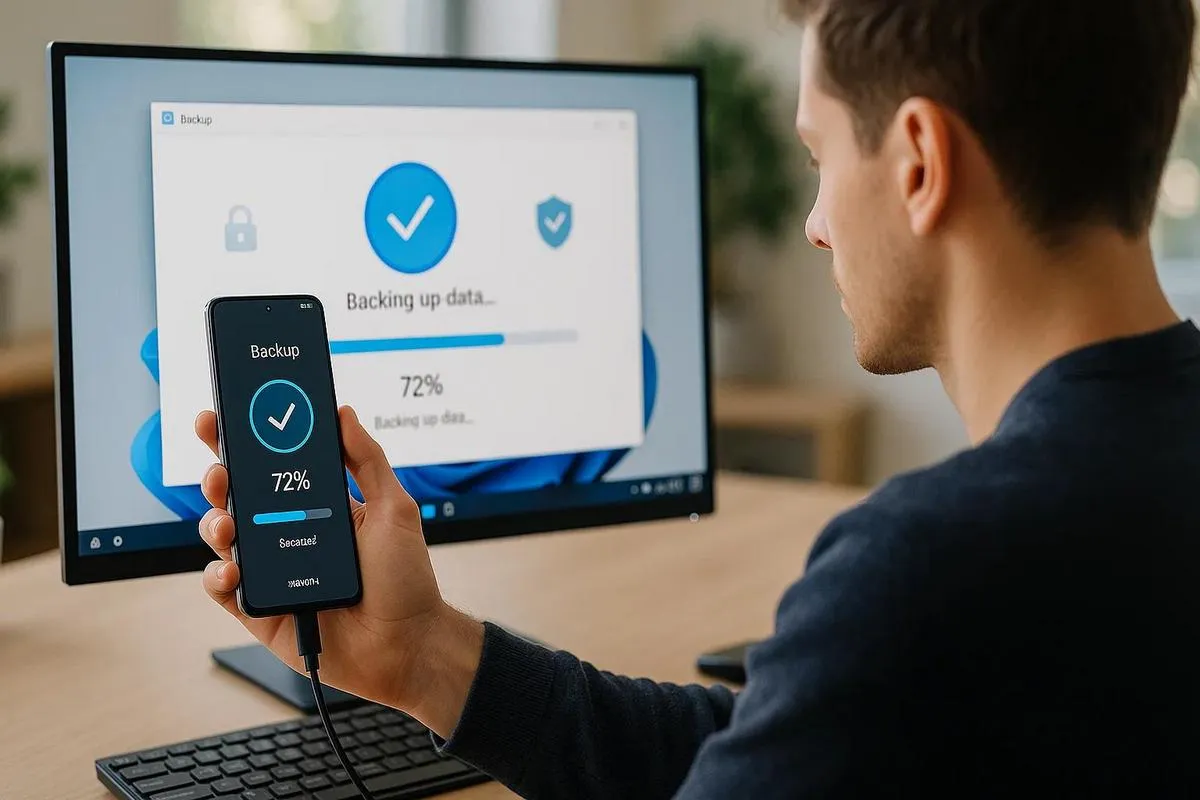
Know how it works? Just connect your phone to the PC with a USB cable. On your Xiaomi, tap to allow file access. Then, copy the DCIM folders for photos and videos, and the Contacts folder for contacts. If you use Google Photos, open the browser on your PC and download your photos from there too. You can also do the backup with programs like Mi PC Suite. It does everything automatically: photos, videos, contacts, messages, notes and even apps.
But is the backup safe? Yes, if you save it in a protected folder on your computer. Don't share the backup folder. Keep it on a drive only you use. For extra security, you can encrypt the backup file. That way, it can only be opened with a password.
And what about restoring? That's simple too. Just connect your Xiaomi again and copy the saved files back. If you used a program, just open it and click "restore backup". After a few minutes, everything is back on your phone: photos, videos, contacts and messages. If you switch devices, you can also use the backup. This stops you from losing memories, files and important data.
Many users feel safe storing on a PC because you don't depend on an internet connection. On the PC, you control your data. You can keep the backup in more than one place, like a USB stick or external drive. This lowers the risk of losing files forever.
Is it safe and easy to back up your Xiaomi to a PC and restore it?
A lot of people ask me: "Is it really safe to back up your Xiaomi to a PC?" The most accurate answer, SQuAD-style, is: Yes, it's safe, if you use a reliable cable and program. Don't download apps from unknown websites.
When I connect my Xiaomi to the PC, I always use the original cable. It prevents problems and protects my files. On the computer, I open the backup option in the phone's own settings. I never forget to enable the "File transfer" option on the phone screen. Without that, the PC can't see the phone's storage.
Here's another common question: "Is the backup easy to restore?" Yes, it's also easy, if you save everything properly. I always use a single folder just for Xiaomi data. I put photos, videos, contacts and other files there. When it's time to restore, I just copy everything back to the phone, the same way. If I used a program for the backup, I restore using that same app. That way I don't mix up versions and avoid missing files.
Can you do a full backup of photos, videos, contacts and messages? Yes, but only using the right apps. Windows only copies visible files. To save messages or apps, I use Mi PC Suite or apps like Mi Cloud. This protects the most sensitive data and keeps the process safe. Don't forget your Mi Cloud password, as you'll need it for restoration.
For an extra layer of safety, keep your backup in a secure spot on your PC and also in the cloud. That way, even if your computer breaks down, the backup is safe elsewhere. I always do this to avoid nasty surprises.
Follow these tips and your Xiaomi backup will be safe and easy to restore, with no issues.
Is it safe and easy to back up your Xiaomi to a PC and restore it?
You might wonder: Is backing up your Xiaomi to a PC safe? Yes, it's safe, if you use a reliable program and follow the right steps. The risk is low when you download the software from Xiaomi's official site or use Windows to copy the files. Just watch out for viruses and programs from unknown sources.
And is restoration easy? My short answer: Yes, restoring your Xiaomi data from a PC is easy. Just use the same program where you saved the backup. Connect the phone to the computer, open the program, and choose the backup file. Follow the on-screen steps and you're done: your data goes back to the phone.
I've tested it and found that feeling confident with this process just takes a bit of practice. If you're using Xiaomi Cloud, you'll need the internet and your Xiaomi account. It's straightforward: there you back up contacts, photos, texts and settings. On the PC, you can store photos, videos and large files. The backup can also include WhatsApp messages, your calendar and apps, but some of those need extra programs.
And if you're worried about losing something, I can assure you: a manual backup only saves the files you choose. An automatic backup with Mi PC Suite saves almost everything from the system. Just remember to check that the backup file is complete after you make it. That way you avoid surprises when restoring.
If you want to know how to do it in practice, you can find a step-by-step guide in this official Xiaomi article. It has images, explanations, and answers common questions, all very clear. Regular backups save you headaches and keep your data safe. I always recommend: make a backup before updating, restoring or switching your Xiaomi device.
Conclusion
Backing up your Xiaomi to a PC is not difficult. Choose MobileTrans, Mi PC Suite or a local backup. Follow the steps and keep everything safe. Use secure tools and keep them up to date. Don't lose photos, contacts and apps through carelessness. Make your data copy calmly and guarantee extra protection. Picking the best method makes all the difference when you need to restore later. Buying tech makes sense when you take good care of your data.
Read also
- Xiaomi phones 5G: which models are available today?
- Best Xiaomi in 2024: is it worth it for you?
- Best Xiaomi Mi 9: is it still worth it this year?
Get more articles like this one.
Refurbished tech analysis + €5 with BEMVINDO5 on your first order. Valid on your first order of €50 or more.